
Mount a conference room monitor too high and people spend the hour craning their necks. Mount it too low and anyone past the second row watches the back of a head. Neither problem shows up on day one, which is why it usually gets fixed only after the complaints start.
Quick answer: For a seated audience, mount the monitor with its center at or slightly above seated eye level. Logitech’s room guide gives 46 to 50 inches (116 to 127 cm), so about 48 to 60 inches (122 to 152 cm) works, with the higher end for deeper rooms. Use 48 to 54 inches in a huddle room and 60 to 66 inches for people standing. Keep touch controls between 15 and 48 inches. Test with a cardboard mock-up before you drill.
Last verified against official sources: October 2026.
Ideal Conference Room Monitor Mounting Height
For a seated room, put the center of the screen about 48 to 60 inches (122 to 152 cm) above the floor. Start near the seated eye line and move toward 60 inches (152 cm) as the room gets deeper or the screen gets larger, so rows at the back can still see over the heads in front. A mixed seated-and-standing meeting room usually lands in the upper part of that range.
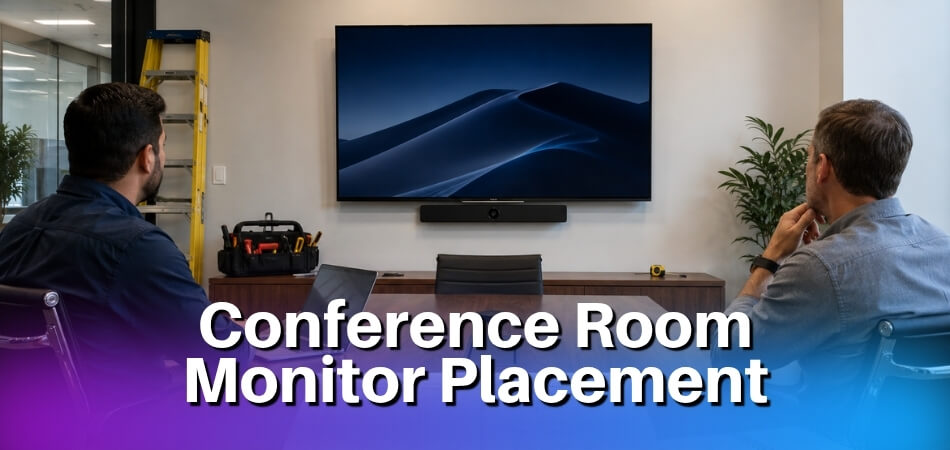
That number is not universal. A huddle room display for four people at a small table sits lower, so nobody tips their head back during a 45-minute call. A boardroom monitor in a long, narrow room may need to go higher to clear the heads of people seated closer to the screen. A display for people standing in a lobby or training space usually lands at 60 to 66 inches.
Every one of these numbers comes from eye level. Seated eye level in a standard chair is roughly 42 to 50 inches off the floor. As a general rule of thumb (not a published standard), keep the center of the screen within about 15 degrees of that horizontal line. Go much higher and neck strain shows up in long meetings.
What Published Guides Say
Few sources give a fixed height, and the ones that do come from equipment makers, not an independent standard. This is what each says, read in October 2026.
| Source | What it says about height |
| Logitech, video meeting space installation best practices | Seated eye level for standard seating is 46 to 50 in (116 to 127 cm) on average. The display and camera should ideally be close to eye level or slightly above. It also ties the bottom edge to the camera: a camera above a single display means the screen sits low, near table height. |
| Avocor, conference room TV guide (page footer 2025) | The center of the screen should be about eye level when people are seated, which it puts at roughly 40 to 50 in from the floor. It also says every attendee should see the screen without obstruction, and to avoid window glare. |
| Yealink, monitor best practices (page dated 4 September 2026) | No fixed height. Too high makes seated people tilt their heads up for long stretches, and too low can clash with furniture. For touch displays, consider viewing height and touch height together. |
| 2010 ADA Standards, section 308 | Operable parts such as touch controls sit between 15 and 48 in (unobstructed reach). This applies to what people touch, not to a screen they only watch. |
Avocor’s 40 to 50 inches sits lower than the 48 to 60 inch range used here, which allows for deeper rooms where people sit behind each other. Treat every figure as a starting point and let the mock-up decide.
The Numbers by Room Type
These are starting points, not fixed rules. Room depth, ceiling height, display size and where people sit all change the final placement.
| Room type | Center height | Why |
| Huddle room (about 2 to 6 people) | 48-54 in | Viewers are close and seated, so a center near eye level means no upward tilt. |
| Standard conference room (8 to 20 people) | 54-60 in | Covers most seated viewing and still works when someone stands briefly to present. |
| Boardroom (large table, formal layout) | 58-66 in | Depends on table height and how far back the farthest viewer sits. Panels over 75 inches need more clearance underneath, which pushes the center up, to about 72 inches with ceilings of 10 feet or more. |
| Classroom-style rows | 66-72 in, often higher | The back row needs a clear view over the heads in front. See the classroom section below. |
| Standing or reception | 60-66 in | Comfortable standing eye level without sharp upward looking. |
| Large standing crowd, no fixed seats | 66-72 in | The first row of standing viewers must not block the screen for everyone behind. |
Check the Bottom Edge Too
The center is the main number, but the bottom edge decides whether people at the back can read footers and captions. In small rooms the bottom edge can sit at or above table height (a standard table top is about 30 inches), and closer to 36 inches or more where people sit behind each other. Logitech’s guide, for a camera mounted above a single display, says the bottom edge should be as close to the table surface height as possible. The display size section below shows how to work out the bottom and top edges from the center.
Mounting Height by Room Type
Room geometry drives the height: close, seated rooms go low, and deep or tiered rooms go higher. A height that works in a 6-person huddle room leaves half the audience craning in a 30-seat boardroom, so the right number follows from the room, not from one universal rule.
Huddle Rooms and Small Meeting Spaces
Huddle rooms seat four to six people at a small table that is rarely more than eight feet from the display. Because viewers sit close, the screen does not need to be high for sightlines. A center of 48 to 54 inches keeps it at or just above seated eye level for average adults, and anything over 60 inches starts to force an upward angle for someone sitting three feet away.
Huddle displays are often 55 to 75 inches diagonal. An articulating mount lets you tilt the panel down a few degrees toward seated viewers when the center sits above eye level. A fixed mount is also common here because the seating rarely changes.
Some huddle spaces are used standing: think 8 by 10 feet with a whiteboard and no table. People stand within arm’s reach of the screen, so a center around 56 to 60 inches feels more natural there.
Standard Conference Rooms
A standard room seats eight to sixteen people at a rectangular or oval table, with viewing distances from about 6 to 18 feet. The target is a center of 54 to 60 inches, at or slightly above seated eye level, so the far end of the table still sees over the people in front.
If the table runs close to the display wall, the higher end (56 to 60 inches) makes sense because the far end needs clearance over nearer heads. With an open aisle between table and display, you can stay closer to 54 inches. Rooms with windows on the side walls add a glare question, which the lighting section covers.
Boardrooms and Large Rooms
Boardrooms have longer tables, higher ceilings and viewing distances of 20 to 40 feet. One display often cannot serve every seat equally, which is why some boardrooms use two displays or a large format panel of 85 inches and above.
A bigger panel changes the math because it is taller. Even with the center at 60 inches, the top of a 90-inch screen sits above 80 inches. That is fine as long as the bottom edge does not drop so low that the lower part of shared content disappears behind the heads in front. Mounting a large panel too low is an easy boardroom error.
For panels over 75 inches, a center of 60 to 72 inches is typical, and ceilings of 10 feet or more carry the upper end without making the screen feel overpowering. If the panel is an interactive one, the touch controls have their own height limit, covered in the ADA section.
Classroom-Style or Auditorium Conference Rooms
Seats in rows facing a front wall change the problem. People in the front row are close, while the back row may be 30 or 40 feet away, so sightline clearance becomes the main concern.
In a tiered auditorium each row sits a little higher than the one in front, which helps. In a flat classroom layout the display has to be high enough for the back row to see over the heads in front. Some designers put the bottom edge of the screen at 72 inches or more in flat-floor rooms, which pushes the center to 84 inches and above depending on screen size. Treat that as the upper-end case and check it with a mock-up.
That height means the front rows look steeply upward. It is an unavoidable trade-off in these rooms, and it is a big reason a ceiling-mounted projector with a high-gain screen is worth comparing (see the projector or monitor discussion below).
If a large format or interactive panel is the chosen solution, a ceiling mount bracket is usually needed, because a wall mount at that height normally requires heavy structural backing up the wall. A ceiling mount keeps the panel stable and lets cables run through the ceiling void instead of down an exposed wall.
When an interactive panel is also used by an instructor writing on it, the height is a real compromise: the correct sightline height puts the writing surface too high for a standing presenter. Some installations mount slightly lower than pure sightline math suggests, so front-row viewers look nearly straight ahead and back-row viewers look slightly up.
Standing vs. Seated Audience: How It Changes the Math
A seated audience wants the center near seated eye level, about 48 to 60 inches. A standing audience wants it near standing eye level, about 60 to 66 inches. A height that suits eight people at a table can be uncomfortable for a group standing at a product demo, and the other way round.
Seated Audiences
Seated eye level usually falls between 42 and 50 inches, depending on chair height and the person. The center of the display should sit at or a little above that level, tilted down toward the audience.
Closer to 48 inches works in smaller rooms where the front row is near the screen. In larger rooms where the back row is 15 feet or more away, moving the center to 54 to 60 inches helps those viewers without forcing the front row to look sharply up.
Keep the tilt in mind. A downward tilt of 5 to 10 degrees offsets a slightly higher mount. With a fixed mount you get no second chance, so settle the height before installing. An articulating mount lets you correct afterward.
Watch sightlines across the table. In a room with a long table, people seated toward the sides often have another head between them and the display. A center of 54 inches or higher usually solves that. You can test it before drilling with the cardboard mock-up described in the tilt section.
Standing Audiences
Standing eye level for adults falls roughly between 60 and 67 inches, depending on height, and 63 inches is a reasonable middle to design around. For a standing group, the center usually sits between 60 and 66 inches, so the average viewer looks straight ahead or only slightly up.
Larger standing rooms need a different approach. At a town-hall setup or a training room with no fixed seating, mount the display higher than your instinct says. A center of 66 to 72 inches stops the first row from blocking the screen for everyone behind, so overhead clearance becomes the main concern rather than personal viewing angle.
When You Have Both
Many rooms host a seated training session in the morning and a standing all-hands in the afternoon. A fixed mount makes you pick one audience and accept a compromise for the other. A huddle display set for standing use, for example, is the wrong height for a visitor who pulls up a chair.
An articulating mount is the practical answer. A ceiling mount bracket on a drop arm can also work, especially for heavy panels that are too much for wall arms. If you can afford it, a motorized mount is the only option that changes the center height itself, since a standard monitor otherwise commits you to one fixed center height.
How Display Size Affects Mounting Height
A larger screen has to be placed with its center in the same comfort zone, but its bottom and top edges end up much farther from that center. A 55-inch display and a 98-inch display do not mount the same way, even in the same room. Which size to buy depends on the distance to the farthest seat, which a conference room TV size chart turns into a screen size, so this section only covers how size changes the mounting math.
The Core Relationship: Screen Height and Center Point
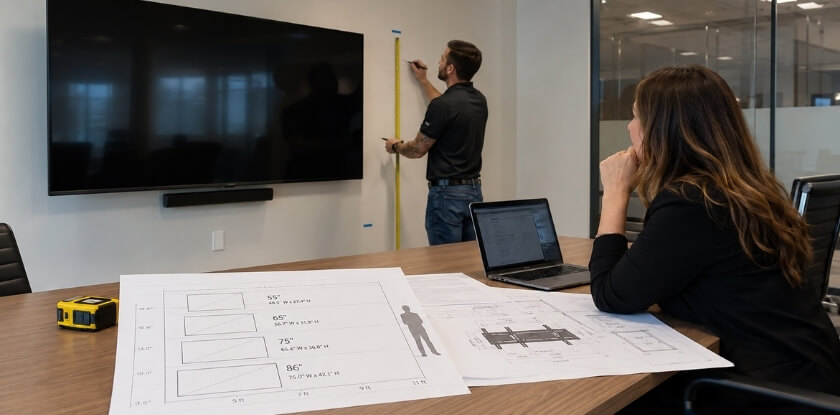
The display center height, measured from the floor to the middle of the screen, is your main reference number. Once you know where the center needs to be, you work out the top and bottom edges from the screen’s physical height. For a 16:9 panel, the screen height is about 49% of the diagonal.
| Diagonal (16:9) | Screen height | Bottom edge, center at 54 in | Top edge, center at 54 in |
| 55 in | about 27 in | about 40 in | about 68 in |
| 65 in | about 32 in | about 38 in | about 70 in |
| 75 in | about 37 in | about 35 in | about 72 in |
| 86 in | about 42 in | about 33 in | about 75 in |
| 98 in | about 48 in | about 30 in | about 78 in |
The same center gives different results. A 55-inch display centered at 48 inches has a bottom edge near 34.5 inches, which is fine in most rooms. An 86-inch display at that same 48-inch center drops the bottom edge to about 27 inches, which is too low once you allow for a credenza, table sightlines and cable clearance underneath.
Bigger screens often need to go higher, but raising the center pushes the top edge up too, and viewers in the front rows end up looking up. That tension is what you are managing. For very large screens, a 98-inch panel with its center at 72 inches puts the top edge at 96 inches (8 feet), a steep angle for the front rows and a likely source of overhead glare. A ceiling mount or a lower, tilted wall mount may serve seated viewers better than simply going higher on the wall.
Small Displays (40 to 65 inches)
These are typical in huddle rooms and small meeting spaces seating four to eight. At this size the 48-inch center works well for seated audiences, and even if the center sits a few inches above eye level, the angle stays comfortable.
Bottom edge clearance is the main concern. Above a credenza or AV cabinet, leave at least two to three inches between the furniture and the panel. That gap also lets the HDMI and power cables exit behind the display without bending sharply at the bottom bracket. A fixed mount or a low-profile articulating mount is usually enough.
Mid-Size Displays (70 to 86 inches)
This is the common choice for standard rooms seating eight to sixteen. With an 86-inch panel at a center of 54 to 60 inches, the bottom edge sits around 33 to 39 inches and the top edge around 75 to 81 inches. That clears most conference furniture and keeps the top edge low enough for people at the far ends of a long table.
At this size a tilt adjustment becomes useful. A downward tilt of three to five degrees compensates if the center ends up higher than ideal and also helps with overhead reflections.
Large Format Displays (90 inches and above)
Large format displays, including the interactive panels common in training rooms, are the hardest to place. At 98 inches the screen is about 48 inches tall. A center of 60 inches puts the bottom edge at 36 inches and the top edge at 84 inches. That works, but it is already near the upper limit for comfortable viewing by seated front-row viewers.
If the audience sits close (within 10 to 12 feet), accept a lower center and prioritize the front rows, then check that the back rows still see over the heads in front. In dense seating layouts the back-row sightline is the limiting factor.
Ceiling mount brackets are often the right answer here. They let the display hang at a height set by the room’s geometry rather than by where the studs happen to fall, and they can carry panels heavier than a standard wall mount. Weight limits are covered in the VESA section.
Ultra-Wide and Curved Displays
Ultra-wide and curved conference monitors do not follow the 16:9 height rule. A 49-inch ultra-wide at a 32:9 ratio is only about 13 inches tall despite its large diagonal, so its center can sit close to seated eye level, roughly 42 to 48 inches, without the bottom edge dropping too low.
Their width makes sightlines from the sides matter as much as height. Confirm that corner seats have an acceptable horizontal viewing angle before you fix the position. The wider footprint can also collide with a whiteboard or window, which sometimes moves the mount up or down. For curved panels, lateral position matters more than height: center the screen on the main audience and check that viewers at the widest angles can read it without color shift. If an ultra-wide is mounted too high, the top corners become uncomfortable to look at from close seats, and tilt still applies.
The curve also reflects different parts of the ceiling and walls at once, so one tilt or height change will not remove glare evenly. In bright rooms, flat panels with a matte anti-glare coating usually read better than curved ones, even if the curved display looks better in a showroom. If a curved panel is already specified, point its horizontal center away from the main window wall and plan heavier window treatments than you would for a flat one.
Projector or Monitor
Past about 110 inches, compare a projector and a monitor before committing to a mounting plan. Very large direct-view panels are heavy and expensive and need serious wall or ceiling structure. A laser projector with a short-throw mount can give a larger image with fewer structural limits, though ambient light control then becomes critical. In a room with lots of natural light and no blackout option, a flat panel usually wins on visibility despite the mounting effort. If the display wall is floor-to-ceiling glass, no mounting height fixes the contrast problem, so decide on blinds or move the screen to another wall.
For a room used both seated and standing, a ceiling-mounted projector with a low screen (center around 54 to 60 inches) is often the better compromise, because the image size scales even though the screen position stays put. A monitor gives better image quality and easier cabling, but locks you into one center height unless you add a motorized mount. In a flat classroom, a projector with a high-gain screen avoids the high-mount problem entirely.
The mounting math differs for each. A projector’s throw distance, lens height and keystone correction have nothing to do with the floor-to-center measurements for flat panels. If a room was set up around a projector and you are switching to a monitor, start the positioning from scratch.
ADA Compliance and Accessibility Standards for Conference Displays
The ADA reach limits apply to parts people operate, not to a wall display they only watch. For a touchscreen or interactive panel, the touch controls must sit between 15 and 48 inches above the floor. A standard boardroom monitor mounted high for passive viewing has no ADA reach requirement.
The ADA is a US law. The 2010 ADA Standards for Accessible Design set unobstructed forward and side reach at a minimum of 15 inches and a maximum of 48 inches (section 308). Over an obstruction the limit can drop (for example 44 inches for a forward reach deeper than 20 inches). Some older material still lists a 54-inch side reach, which came from the 1991 standards. For a venue in Canada, ask which local accessibility rules apply (Ontario venues, for example, work under the AODA and the building code), and treat the US numbers as a useful benchmark rather than the local requirement.
What the Rules Cover in Practice
The rules engage when the display is interactive, meaning people are expected to touch the screen, press on-screen controls or otherwise make contact with it. Panels used for annotation, video call controls and whiteboarding are typical cases. Plan for a clear floor space of at least 30 by 48 inches in front of the panel so a wheelchair user can approach it (section 305 of the 2010 ADA Standards).
On a large panel, the touchable area often extends above 48 inches. The practical fix is to mount lower, or to keep the on-screen controls in the lower part of the screen. If that conflicts with visibility for standing users, a height-adjustable or tilting mount is the only real answer.
Eye-Level Viewing for Wheelchair Users
Even for passive displays, accessibility good practice says to keep the center low enough that someone seated in a wheelchair is not looking sharply upward. Eye level for a seated wheelchair user is noticeably lower than a standing person’s, so a high center means a steeper look upward.
For a mixed audience watching a passive display, a center of 54 to 58 inches can work as a compromise for both. It is lower than the top of the 48 to 60 inch range, but it avoids the steep upward angle over a long meeting.
Tilt as a Workaround
When the layout rules out a lower mount, for instance when a large format display must stay high for the back rows, an articulating mount with 10 to 15 degrees of downward tilt brings the effective angle for front-row and wheelchair-position viewers into a better range without lowering the mount point. This does not replace meeting reach requirements on an interactive display. It only helps the viewing angle on passive ones.
Tilt, Viewing Angle, and Neck Strain Prevention
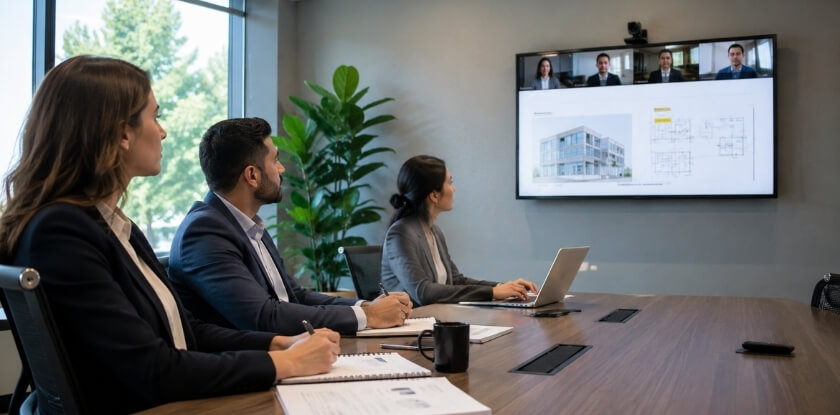
Tilt matters almost as much as height: a downward tilt of 5 to 10 degrees fixes most problems caused by a mount that sits slightly high. A display at the right floor-to-center height can still be uncomfortable if the angle does not match how people sit or stand in that room.
Why Tilt Matters as Much as Height
It is easy to set a height and call it done. A flat, zero-tilt mount works well only when the display sits almost exactly at eye level. Raise the screen a few inches above that and viewers look up for the whole meeting. After an hour that becomes the kind of neck ache that makes people leave feeling worse than when they arrived.
If the center is at 60 inches, reasonable for a mixed seated-and-standing room, a slight downward tilt brings the angle back into a comfortable range for seated viewers without visibly distorting the image for anyone near the front.
The Comfortable Viewing Angle Range
These angles are installer rules of thumb, not published standards. They are meant to keep the head from tipping back, which is the main cause of neck complaints in conference rooms.
- Below eye level is almost always better than above it. Looking slightly down is the natural resting position for the neck. That is why a desk monitor feels fine while a ceiling-mounted display in a lobby tires you out quickly.
- Use about 30 degrees as the upper limit. If a viewer has to look up more than about 30 degrees from horizontal to see the top of the screen, it is mounted too high, whatever the sightline math suggested. Sightline clearance gives you the minimum height, and ergonomics sets the maximum.
- Do the check from the front. The viewer closest to a high screen has the steepest angle to the top edge, so test from the front corner seat, not only from the back.
Matching Tilt to Mount Type
The right tilt capability has to be decided before the hardware goes on the wall.
Fixed wall mounts offer little or no tilt (some have a fixed 5 to 10 degrees built in). They suit rooms where the display can sit at or near seated eye level, roughly a 48 inch center in a seated-only room. If the layout forces the monitor higher, a fixed mount leaves you with a poor result however careful the measurement was. They sit close to the wall, which helps cabling and keeps the screen out of walkways.
Articulating wall mounts give both tilt (often around plus or minus 15 degrees) and swivel, which helps when seating wraps around two or three sides. The trade-off is that the display sits farther from the wall, which complicates in-wall cabling and puts more stress on the mounting point when the arm is extended. In multi-use rooms the small price difference over a fixed mount is negligible compared with a re-installation.
Ceiling mount brackets suit rooms where a wall is impractical, such as long narrow rooms, glass walls, or layouts where the display must hang over a table. In classroom-style rooms they often need a steeper tilt, sometimes 20 to 25 degrees, because the display is mounted well above head height. A bracket that tops out at 15 degrees will leave the front third of the room with a bad angle. Confirm the ceiling structure can carry the load, and allow for the drop length so the center ends up at your target floor height.
Panel Type and Steep Angles
IPS panels hold up well off-axis. VA panels can show color shift at steeper angles, so if your boardroom monitor uses a VA panel and you apply a lot of downward tilt for the front row, check the image from those seats before finalizing the position.
Test Before You Drill
Run this sequence before locking any mount in place.
- Tape a cardboard rectangle the size of the screen to the wall at your planned height.
- Seat someone in the worst-case position, usually the front corner seat closest to the display, and ask them to look at the center. Note whether their neck is neutral, tilted back or angled down.
- Adjust the planned height and tilt in small steps until the neck position feels neutral from that seat.
- Check a side seat and the farthest seat in the room to confirm the cardboard is not hidden behind heads and that the image would not be washed out by glare.
Getting the tilt right at installation takes maybe 20 extra minutes. Fixing a badly angled display after the cables and drywall are finished takes much longer.
Video Conferencing Camera Height
Put the camera lens near seated eye level, roughly 46 to 50 inches for standard seating according to Logitech’s setup guidance, and centered horizontally close to the screen showing the remote participants. A camera mounted too high or too low shows remote viewers an odd angle on faces, and Logitech warns that performance can suffer.
The camera and the monitor height affect each other. When the camera sits above a single display, Logitech says the bottom edge of the display should be as close to table height as possible. That is a lower mount than a height chosen only for sightlines over the heads in front. For example, a 55-inch screen with its bottom edge at 30 inches has its center at about 43.5 inches and its top edge near 57 inches, so a camera above it ends up close to eye level. With two displays, the guidance is to place the camera at eye level between the two screens.
| Camera position | When it fits | Watch out for |
| Above the display | Small and mid-size screens mounted low, bottom edge near table height. | A high-mounted screen pushes the camera well above eye level and gives a looking-down angle. |
| Below the display | Large screens mounted high, where the camera cannot sit above them. | A camera at table level looks up at faces, so keep it as close to eye level as the layout allows. |
| Between two displays | Dual-screen rooms. | Align the center of the table with the gap between the screens. |
Large, high screens force a compromise, and every video bar has its own installation guide, sometimes with its own height range. Follow the guide for your device, then make a test call and check both what the room sees and what the remote side sees from several seats. If you record a video conference from the room, the file keeps the same camera angle, so fix it before you press record.
VESA Mount Compatibility and Weight Capacity
Before you order, confirm two things: that the mount’s hole pattern matches your display, and that its rated weight capacity covers what you are hanging. Skip either check and you face a return shipment, a delayed installation, or in the worst case a display that comes off the wall.
Understanding VESA Patterns
VESA compatibility refers to the standard hole pattern on the back of a display, measured in millimeters as width by height. Common patterns for conference displays include 200×200, 400×400, 600×400 and 800×400. Large format and interactive panels often use 600×400 or 800×400, while a typical 40 to 55 inch huddle room display often has 400×400, though you should check each model.
Look at the manufacturer’s official spec sheet, not a retailer listing. It lists the pattern and the screw type (M4, M6 or M8 are common). A mismatch of even 50 mm means the bracket will not line up. An adapter plate can bridge the gap, but it shifts the display’s position and can change the floor-to-center measurement you worked out.
Some ultra-wide and curved monitors use non-standard or asymmetrical patterns. If yours does, you need the manufacturer’s mounting solution or a third-party adapter rated for that exact model.
Weight Capacity
Every fixed, articulating and ceiling mount has a maximum weight rating. Weights vary by panel technology and model, so read the spec sheet: a 65-inch boardroom monitor can run from the 50s into the 70s of pounds, and large commercial panels of 90 inches and up often exceed 100 pounds. Interactive panels run heavier than a standard monitor of the same size, and some consumer-grade mounts are rated for less than a large commercial panel weighs, so confirm the rating before purchase. Add a camera bar or soundbar to the mount and you can pass a mid-range mount’s limit without noticing.
A sensible margin is to choose a mount rated at least 20% above the display’s total hanging weight. If the display weighs 60 pounds, look for a mount rated for at least 72.
Check the structure too. A mount rated for 150 pounds anchored into drywall without hitting studs or using proper anchors will fail whatever its rating says. For heavy panels, structural blocking behind the drywall, installed before the wall is closed, is the cleanest solution. A ceiling bracket needs structural backing as well, so check the ceiling’s rated load and consult a structural engineer if there is any doubt.
Lighting, Glare, and Position Interaction
Map the light before you pick the spot: windows and ceiling fixtures decide whether the image is readable or just a bright rectangle of glare. A display at the perfect ergonomic height can still be nearly unwatchable if it catches a west-facing window at 3 PM.
How Glare Sources Map to Monitor Position
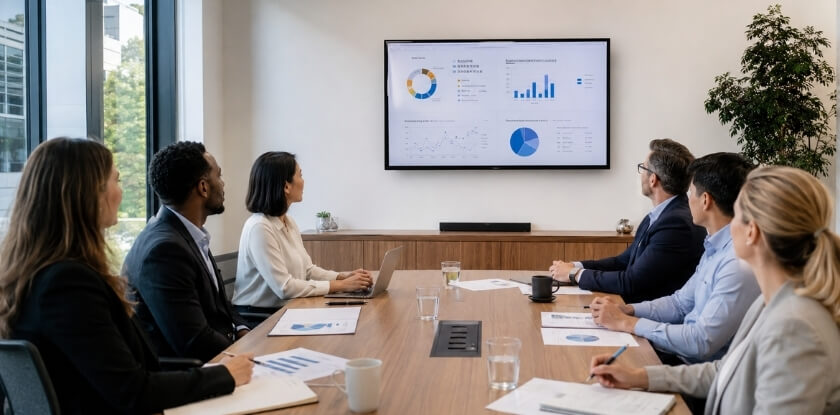
Natural light is the first thing to check. Windows behind the audience throw light onto the screen, while windows behind or beside the display create silhouetting that kills contrast. The worst case is a display on the wall opposite a bank of windows, where every bright cloud or patch of afternoon sun hits the panel face-on.
Overhead recessed lighting causes a different problem. When a display is mounted high, ceiling fixtures slightly in front of it cast a hot spot across the upper third of the panel. Lowering the display by four to six inches often takes it out of that reflection cone.
- Map your light sources before you commit to a location. Walk the room at the time of day it is used most, and note where reflections appear on the wall. Use the cardboard mock-up from the tilt section. It takes five minutes and saves a remount.
- Account for the color temperature of the lighting. Warm LED fixtures (2700 to 3000K) can shift perceived color accuracy, which matters when presentations include brand imagery or video. Cooler fixtures (4000 to 5000K) tend to create harsher glare but less color cast. Neither is automatically better. Just know what you are working with before the display goes up.
- Use tilt during commissioning. A small downward tilt can push a ceiling reflection below eye level for most of the audience. With a mount that has fine tilt control, put someone in the back row while another person adjusts the tilt until the hot spot disappears from their view. Tilt in the 5 to 10 degree range often removes the hot spot a flat-mounted screen would throw back at the audience, without any change to the lighting plan.
Window Placement and Display Orientation
Windows on the side walls, parallel to the display, are the easiest to manage. The light hits the audience from the side instead of bouncing off the screen, and simple window treatments handle the rest.
Windows directly behind the presenter or display are harder. Lowering the display reduces the window area visible above and around it, which reduces the contrast that makes screens look washed out. A display centered at seated eye level leaves less bright window exposed above it than one mounted at standing-height convention.
Cable Management When Mounting at Height
Plan cables together with the height: run them in the wall where you can, use a surface raceway where you cannot, and decide power and signal routes before you choose the final center height. A monitor mounted five or six feet up a wall with loose cables looks unprofessional and creates a snagging hazard. How you route depends on whether you are building new or retrofitting.
Choose the Height With the Outlets in Mind
The mounting height you choose changes how the HDMI and power cables run through the wall, and that decides whether in-wall routing is feasible at all. Some older construction has fire blocking at mid-wall heights that makes running cables from a low outlet up to a high display hard without core drilling.
Before finalizing the center height, confirm where power and data outlets are or can be added, and trace the cable path with your installer. Dropping the display eight inches from the ideal position to line up with an existing outlet can give a cleaner installation with less exposed conduit.
In-Wall Cable Management
Running cables inside the wall is the cleanest approach, and works best before the drywall goes up or when you have access to the wall cavity.
- Plan your conduit path before mounting. Decide where HDMI, power and any USB or USB-C runs will exit the wall. Use a low-voltage mounting bracket at the top behind the display and another at the bottom or credenza level where the source equipment sits, leaving a clean wall plate with no visible wiring between.
- Use cables rated for in-wall use. Standard HDMI cables are generally not rated for in-wall installation. Look for cables marked CL2 or CL3, and check your local electrical code for the exact requirement.
- Account for distance and signal quality. HDMI has practical length limits. Around 25 feet is a commonly cited point where passive cables become unreliable, so use an active cable or an HDBaseT extender for longer runs, and check the cable’s own specification. Decide this before the wall is closed.
Surface Cable Management
When in-wall routing is not possible, a surface raceway is the practical alternative. PVC or aluminum raceways mounted flush to the wall can hold HDMI, power and data cables in one channel, and painted to match the wall they look tidy enough for a boardroom.
- Match raceway capacity to your cable count. A raceway that is too narrow forces you to cram cables, which can cause kinking and signal trouble. Measure the bundle and buy one with room to spare. A panel with several inputs often needs a wider two-channel raceway.
- Keep power and signal cables separate. Power running beside HDMI or DisplayPort can cause interference on longer runs, which is why many two-channel raceways have a divider.
Ceiling Mounts and Drop Ceilings
Cables for a ceiling-mounted display have to travel up the arm and into the ceiling plenum before dropping to the source equipment. Cables run through a plenum space generally need to be plenum-rated, and standard CL2 cables are not plenum-rated. Most commercial building codes require this, so confirm with your electrician.
Slack for Tilting and Articulating Mounts
Plan cable length from the mount’s maximum extension, not its folded position. A cable that is just long enough with the arm folded pulls tight the first time someone extends the display, and a taut cable at an HDMI port will eventually damage the port. A tilt change can stress the connector at the back of the panel as well. A few extra inches of looped cable behind the display, and a flexible conduit or raceway along the arm, prevent this. Rigid in-wall routing cannot follow an arm that moves.
Power at Height
Powering a high-mounted display usually means either a hard-wired outlet behind the mount or a power cable run down a raceway to a floor or credenza outlet. The in-wall outlet is cleaner and avoids a visible power cable next to the signal cables. If you take the raceway route, use a raceway-rated power strip rather than a consumer surge protector lying on the floor, and check local electrical codes, because some places restrict power distribution in surface raceways.
Floor Paths and Labeling
Keep cables off baseboards and away from floor paths. A cable across a wheelchair route is both a trip hazard and an accessibility problem, so route it in-wall or in a raceway clear of walkways.
Label both ends of every cable before you close the wall or finish the raceway, so that whoever swaps a cable two years from now does not have to trace everything. A label with the run description takes two minutes. If you run several cables for a large format or dual-monitor setup, photograph the installation before anything is covered. The photos help future troubleshooting and facility managers.
Common Mounting Mistakes to Avoid
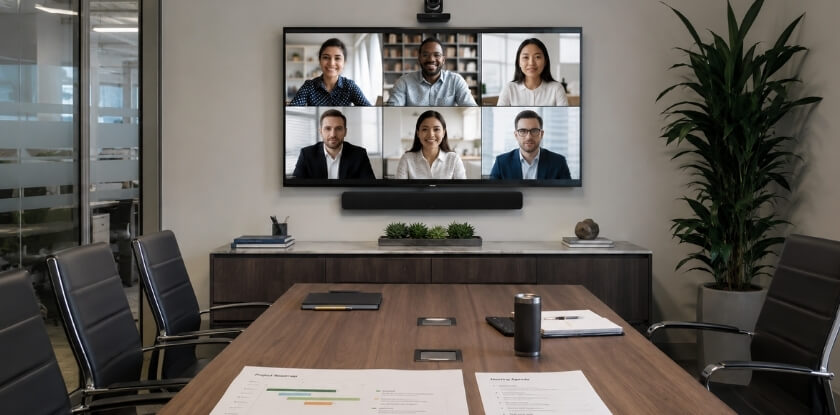
Most of these mistakes are caught late, sometimes only when a client sits through an uncomfortable meeting. The table lists the ones that cost the most, with the fix.
| Mistake | What goes wrong | Fix |
| Choosing the height in an empty room | A height that looks impressive standing becomes a liability once people sit down for a long meeting. | Aim for eye level, not “visible from anywhere”, and test from seated positions. |
| Going higher to fix a column or deep layout | The top of the screen is now out of a comfortable viewing angle. | Use an articulating mount to angle the display outward and down instead of raising it. |
| Fixed mount in a room that changes | A multi-use room locks into one configuration. | Choose an articulating mount that can swing out or sit flat when not in use. |
| Skipping the structure check | A heavy panel on drywall without studs, or on an unchecked ceiling, can fail. | Confirm studs or blocking and the ceiling’s rated load, and see the weight section above. |
| Judging glare at one time of day | A good position at 10 AM may reflect a window at 3 PM. | Test the position at different times of day before committing. |
From our experience at MS International: Our conferences are held in person in the Greater Toronto Area, and the room and screen setup depend on the venue. We ask speakers to bring their slides in the requested format with a USB backup and to test slides, fonts and videos before their session. If you plan a room for talks, do the same check from a back seat: if slide text is hard to read from there, tuning the mount by a few inches will not fix it.
Mounting Height in Brief
Pick the center height for the room and audience (48 to 60 inches for a seated room), check the bottom and top edges for the screen size you chose, and allow 5 to 10 degrees of tilt if the mount sits above eye level. Then tape up a cardboard mock-up and check it from the front corner and the back row before any hole is drilled. If the panel is interactive or the venue is subject to accessibility rules, confirm the touch zone and floor clearance first.
FAQ: Conference Room Monitor Mounting Height
Mounting a display on a meeting room wall means settling the standard height, ADA requirements, ceiling versus fixed mounts and where the camera goes.
What is the standard mounting height for a conference room monitor?
There is no single standard. For a seated audience, put the center at or slightly above seated eye level, which Logitech gives as 46 to 50 inches, so about 48 to 60 inches in practice. Adjust for room depth, audience position and display size.
How high should a monitor be in a huddle room?
Aim for 48 to 54 inches to the center. Huddle rooms seat a few people close to the screen, so a low mount avoids neck strain.
Does display size change the mounting height?
Yes, because a bigger screen has a lower bottom edge and a higher top edge for the same center. For a 75-inch or larger display the center often lands at 60 to 66 inches, with the bottom edge kept clear of furniture and sightlines.
What does ADA compliance require for mounted displays?
Touch controls on interactive displays must be within a 15 to 48 inch reach range under the 2010 ADA Standards. A display that people only watch has no hard reach requirement, though a center at or below 60 inches is good practice.
Can I use a fixed wall mount for a conference room monitor?
Yes, if the height is right and the room does not change. An articulating mount gives you tilt and swivel after installation, which helps if the layout may change or glare is an issue.
Is a ceiling mount bracket a good option?
It is a good option when a wall will not work, such as with glass walls or a screen that must hang over a table. Check the bracket’s rated weight and the ceiling structure first.
How do I handle cable management when the monitor is mounted high?
In-wall cabling is the cleanest, and it must be planned before the mount goes up. A surface raceway works as a retrofit but is more visible and harder to secure neatly at height.
Should I use a monitor or a projector in a conference room?
In a well-lit room a monitor almost always looks better, because ambient light washes out a projected image. A projector makes more sense in darker, larger spaces where a 100-inch-plus image is not practical on a flat panel.
What’s the difference between an interactive flat panel and a standard conference monitor for mounting purposes?
It is heavier and often larger, so VESA pattern and weight rating matter more. Its touch controls must also fall within the 15 to 48 inch reach range, which usually means a lower mount.
How do I know if a mount is VESA compatible?
Match the hole pattern on the back of the display, such as 400×400 or 600×400 mm, to the pattern listed on the mount. Then check the mount’s stated weight limit too, because the pattern says nothing about load.
What causes neck strain from a mounted conference room display?
Mounting too high is the main cause. If viewers must tilt their heads back, the strain builds quickly in long meetings. Keep the center within about 15 degrees of eye level and the top edge within about 30 degrees.
Does tilt adjustment help with glare?
Yes. A few degrees of downward tilt can redirect reflections from windows and ceiling lights away from the audience, and an articulating mount lets you adjust it without remounting the bracket.
How high should the video conferencing camera be?
Near seated eye level, roughly 46 to 50 inches for standard seating according to Logitech’s guidance. Mounting it much higher gives remote viewers a looking-down angle, so check your device’s installation guide and test from several seats.