
Your paper is finished, the deadline is near, and now you have to work out OpenReview. The site does not always explain itself, and a small slip in the process can cost you a submission you worked hard on. This guide takes it one step at a time.
Quick answer: To submit a paper on OpenReview, create and activate a profile (an institutional email is fastest), open your venue’s page, click its submission button, and complete the form: title, abstract, keywords, co-authors, PDF and conflicts of interest. Every co-author needs an active profile. You get a confirmation email, and you track the paper from the Author Console. Button labels vary by venue.
Last verified against official sources: October 2026.
A desk rejection can have little to do with research quality. A half-empty author profile, a co-author with no OpenReview account, a missing conflict of interest entry or a PDF that breaks the venue’s rules can stop a paper before any reviewer reads it. This guide covers the whole process: the account, the form, anonymous submission for double-blind venues, what happens afterwards, the camera-ready version and the errors people hit on deadline day. It is based on OpenReview’s own documentation (docs.openreview.net). Where a rule is set by the venue instead of the platform, we say so.
What Is OpenReview and Which Venues Use It
OpenReview is a web-based platform at openreview.net that runs peer review for academic venues, from submission intake to reviewer assignment to decisions. It provides the infrastructure; each conference or workshop sets its own rules.
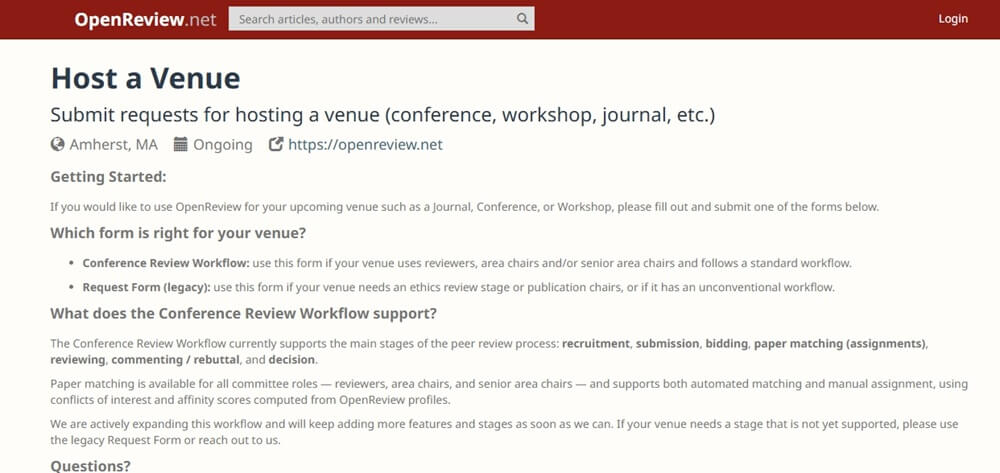
The core idea is transparency. Many venues make submitted papers, reviews and author responses visible to anyone, while others keep them private. The platform supports both, and the venue chooses.
OpenReview is used by several competitive machine learning and AI venues, including ICLR and NeurIPS, and by many workshops attached to them. You will also find it hosting venues in computational linguistics, computer vision, data science and other technical fields.
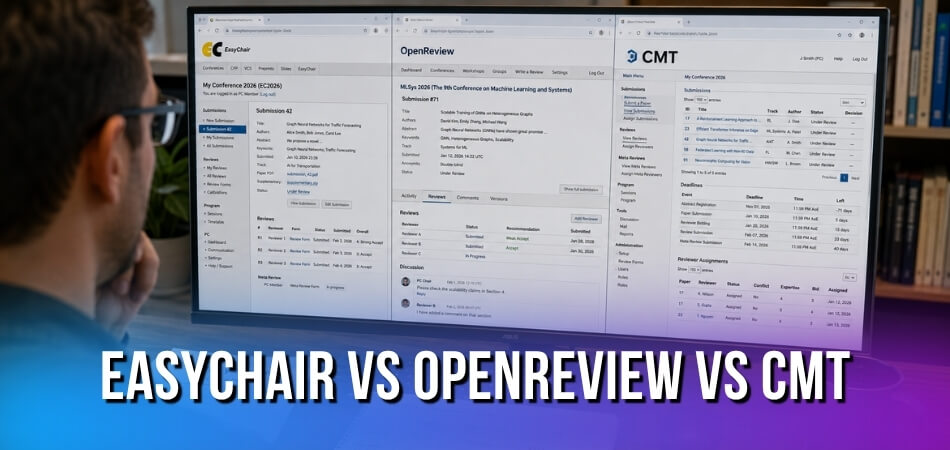
The practical point is that the interface is the same everywhere, but deadlines, page limits, formatting, double-blind policy and conflict of interest handling are set by the program chairs of each venue. The venue’s call for papers and submission page govern your paper. Do not assume that what worked for one conference transfers to another, even if both run on OpenReview. Venues on other platforms differ even more, as the EasyChair, OpenReview and CMT systems vary in cost, open review and multi-track support; submitting a paper on EasyChair, for example, means filling in its own form from top to bottom.
| Decided by OpenReview | Decided by the venue’s program chairs |
|---|---|
| Account, profile and moderation process | Deadlines and the submission window |
| Maximum upload size of 100 MB per file, according to its documentation | Lower file limits, page limits, template and supplementary rules |
| Basic conflict detection from profile data | Which conflict periods count and what you must declare |
| Version history of an edited submission | Whether, when and how you can edit, withdraw or revise |
| The page where you track your papers (Author Console) | Whether reviews, discussion and withdrawn papers are public |
Venues can enforce profile rules before the deadline. The NeurIPS 2026 Main Track Handbook says all authors need an active OpenReview profile by the abstract submission deadline, that profiles must be up to date with current affiliations, and that all author names must be entered in the submission form by that deadline. CVPR 2024’s author instructions said papers with authors lacking a valid profile after the submission deadline could be desk-rejected. Read your venue’s current instructions for the same kind of rule.
What to Prepare Before You Submit
Do the preparation first and the submission itself is quick. Profile problems, PDF problems and co-author problems are the usual causes of last-minute trouble.
Creating an OpenReview Account and Completing Your Profile
Go to openreview.net, enter your email and click Sign Up. OpenReview recommends registering with an institutional (university, company or organization) email. After you confirm the email and fill in the registration page, your profile is either activated immediately or sent to moderation.
The documentation says a profile registered with a public email domain such as Gmail may take up to 2 weeks in moderation, while an institutional email speeds activation. So create the account well before the venue opens, not the night of the deadline.
| Your situation | What OpenReview’s documentation says |
|---|---|
| University, lab or company email | Fastest route to activation. If you get a warning that your domain is unknown, continue; new verified domains are added routinely. |
| Gmail or other public email | Goes to moderation, which may take up to 2 weeks. Add and confirm an institutional email to your pending profile to speed it up. |
| Not affiliated with an institution | Use a company domain if you have one. Otherwise set your current position to Independent Researcher. Do not use an old affiliation as your current one. |
| Already registered with the wrong email | Do not register a second time. Add the institutional email to the pending profile and confirm it with the verification code, in the same browser tab. |
Moderation also looks at your homepage. A valid one shows your name, affiliation and the email you registered with, for example a Google Scholar page, a personal site or an institutional profile page. A company-wide landing page or a social media account with a screen name does not count.
Then complete the profile: your name as it appears on your papers, your current institution and your publication links, such as DBLP. Venues use this data for automatic conflict detection, so a half-empty profile can miss real conflicts or create false ones.
Keeping Institution, Email, and Publication Details Up to Date on Your Author Profile
A profile is not a one-time setup. If you moved institutions, changed your main email or published new papers, update it before you submit. OpenReview uses email addresses from current and former affiliations for profile deduplication, conflict detection and paper matching, and prefers that you keep all your institutional addresses on the profile.
Do not delete old institutional emails or positions to tidy the profile. OpenReview’s documentation says it keeps current and former institutional emails for deduplication, conflict detection and paper matching, and CVPR 2024’s author instructions give the same advice for conflict determination.
An outdated profile means the conflict check runs on old data, which can cause problems if the program chairs notice a mismatch after submission. Under double-blind review you stay hidden from reviewers, but the system still needs accurate data in the background to assign reviewers properly.
Check which email is marked as preferred, because OpenReview’s documentation says it sends messages only to the preferred address. Confirm a new address first, then choose Make Preferred in Edit Profile. The documentation also suggests keeping one permanent, non-institutional email on the profile, so you do not lose access if you lose an institutional address.
Privacy is a common worry here. OpenReview’s documentation says it displays only obfuscated email addresses, which show the domain but hide the name and never releases full addresses to the public. You can also switch off public profile visibility in your profile settings, so that only logged-in users can see it.
Preparing Your PDF and Supplementary Material
Read the venue’s call for papers, not just the general OpenReview documentation. Page limits, fonts, margins and anonymization rules differ. Many venues review double-blind, which means no author names, no acknowledgments and no links to repositories that reveal who you are.
- PDF metadata: Author fields in document properties are easy to forget. A command-line tool such as
pdfinfoor the Document Properties dialog in a PDF reader shows what is embedded. - File size: OpenReview’s documentation gives 100 MB as the maximum upload size, but a venue can set a lower limit. Its own documentation example for a supplementary field uses 50 MB. Check your venue’s page.
- Supplementary material: Confirm the venue accepts it and in what format. Venues commonly ask for one self-contained, anonymized ZIP file. Keep the main paper complete without it.
- Test early: Upload a draft version the day before the deadline so you know the system accepts your file.
A simple timeline helps:
| When | What to do |
|---|---|
| Weeks before the deadline | Create and activate your profile. Ask every co-author to do the same. Read the call for papers. |
| A few days before | Anonymize the PDF, strip metadata, prepare the supplementary ZIP and write your title and abstract in a text file. |
| The day before | Test an upload, check the conflict of interest list and confirm the author order. |
| After submitting | Save the confirmation email and paper ID, then check the Author Console. |
Step-by-Step: How to Submit a Paper on OpenReview
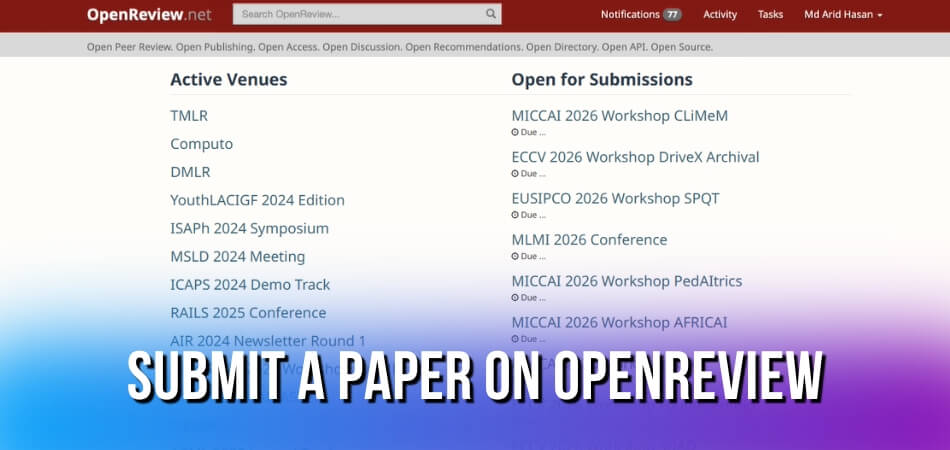
The steps below follow the usual order. Labels and fields may change by venue and over time, so treat the names as a guide.
Step 1: Finding Your Venue and Opening the Submission Page
Log in at openreview.net and use the search bar to find the venue by name, for example NeurIPS or ICLR, then check you are on the right year. You can also use the direct link in the call for papers, which is often faster. Either way, you end up on the venue submission page, which is where the whole process starts. On the venue page, look for the submission button. The venue’s information page and the submission form are different pages, and the form is only active during the submission window. Outside it you will see a message that submissions are closed.
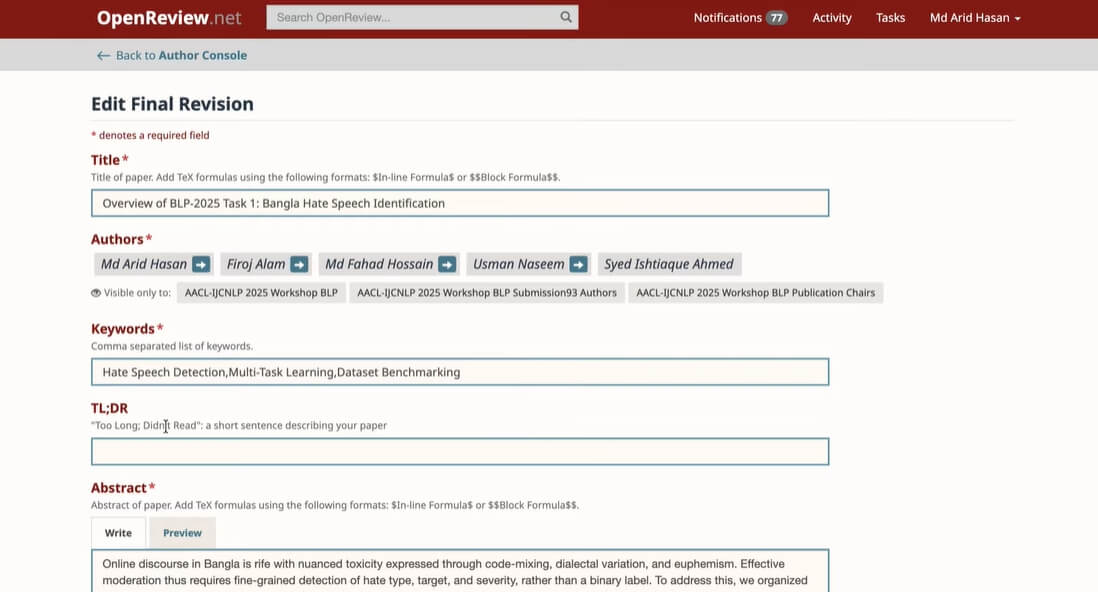
Step 2: Filling Out the Submission Form (Title, Abstract, Keywords)
You will see fields for the title, abstract and keywords. They are not throwaway fields.
- The title should match your PDF exactly.
- Paste the abstract from your paper and check the preview. Special characters and LaTeX math sometimes do not carry over cleanly.
- Choose keywords that describe your work accurately. Vague terms make your paper harder to place.
- Read every additional field, such as a track choice, subject areas, ethics checkboxes or a limitations statement. A missing required field blocks submission.
Keep your title and abstract in a plain text file and paste them in. Do not rely on the form to hold your text if the page times out.
Step 3: Adding Co-Authors and Setting the Correct Author Order
Add each co-author in the author section by searching their name or email. Each one needs an OpenReview account, so ask co-authors who have not registered to do it before submission day. A profile still in moderation can cause trouble, which is another reason to start early.
You can drag authors to reorder them, so get the order right before you submit. Changing the author list afterwards depends on the venue and may need a message to the program chairs. Ask co-authors to check that their institution, email and homepage are complete, because incomplete profiles can cause problems at stricter venues.
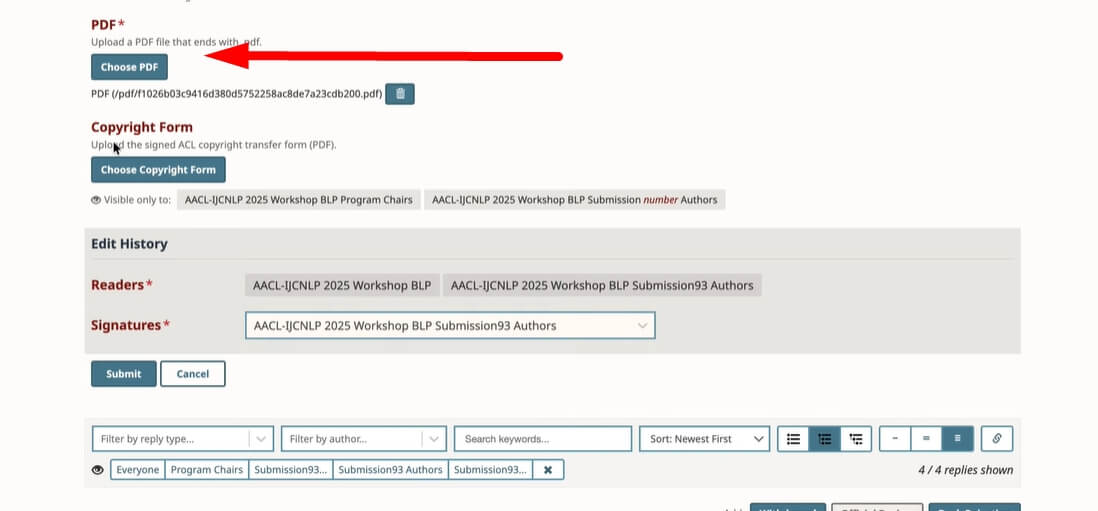
Step 4: Uploading the PDF and Supplementary Material
Click the upload area and select your PDF. It should already be anonymized, in the venue’s template and free of identifying document properties. If a venue allows supplementary files, you will see a separate upload field. Put multiple items into one ZIP file. Do not embed supplementary material in the main PDF unless the venue says so.
Step 5: Anonymous Submission and Complying with Double-Blind Policy
In double-blind review, reviewers do not know who wrote the paper and authors do not know who reviews it. OpenReview hides author identities from reviewers on the platform according to the venue settings. Anonymizing the PDF content is your job.
- Remove names, affiliations and acknowledgments.
- Do not link to a GitHub repository with your name in the URL. Use an anonymized repository link if the venue allows links.
- Cite your own earlier work in the third person.
Not anonymous: “In our previous work [Smith et al., 2023], we showed that…”
Anonymous: “Smith et al. [2023] showed that…”
Step 6: Declaring Conflicts of Interest
Every submission form has a conflict of interest section. It tells the venue which reviewers and area chairs should not be assigned to your paper. OpenReview generates some conflicts from the institutional history on author profiles, and you can add manual ones. Follow the form’s wording on the time period that counts. Typical examples are close collaborators, your advisor or your students. Be honest. Hiding a real conflict, or declaring fake conflicts to block certain reviewers, can lead to desk rejection.
Step 7: Final Submission and the Confirmation Email
Most venues show a review page with everything you entered. Check the title, author list, abstract and files once more, then submit. You should receive a confirmation email with your paper ID. The NeurIPS 2026 handbook says OpenReview emails come from [email protected], so make sure your spam filter is not blocking that address. Save the email, since the ID is how you find the paper later.
Then open the Author Console and look under Active Submissions to confirm the paper is listed. If the venue’s revision window is open, you can edit from there. After it closes, the version on record is final.
After Submission: Tracking Status, Revising, and Withdrawing
After you submit, use the Author Console to track the paper, and edit or withdraw it only while the venue allows. Withdrawal and revision timing are set by each venue’s program chairs.
Tracking Your Submission Status from the Author Console
Log in, open your profile and choose Author Console. Your paper is listed under Active Submissions with its current status. Status labels vary by venue. You may see things like “Under Review”, “Withdrawn”, “Desk Rejected” or a decision.
A quiet period after submission is normal, since reviewers are assigned behind the scenes and, under double-blind review, you will not see their names. Do not read anything into the silence. Check the console every few days rather than constantly. It is more current than your inbox.
| Status you may see | What it usually means | What to do |
|---|---|---|
| Under Review | The paper passed the venue’s checks and reviewers are working on it. | Wait for the decision and watch the console. |
| Desk Rejected | The chairs rejected it before review. | Read the note, then ask the chairs only if the venue invites questions. |
| Withdrawn | You or the chairs withdrew the paper. | Write to the chairs if it was a mistake. |
| Decision posted | An accept, reject or conditional decision is available. | Read the comments and check the camera-ready deadline. |
A desk rejection means the chairs stopped the paper before review, usually for formatting, length, scope or a conflict of interest problem. Read the note. Some venues allow resubmission after fixes, but many do not within the same cycle.
Uploading a Revision or Update Before the Deadline
If the venue has a revision window open, you will see an Edit button on your submission in the Author Console. Use it to update the PDF, abstract, author list or supplementary material.
- PDF upload: Upload the revised file the same way as the original. Check that the new file appears correctly and download your own PDF to make sure it is not corrupted.
- Supplementary material: Upload it as a separate file, ZIP or PDF depending on the venue.
- Co-author changes: Some venues lock the author list after the deadline. If you need a change, contact the program chairs. Do not edit and hope nobody notices.
- Anonymity: After a quick revision it is easy to reintroduce author names in a metadata field or acknowledgments section. Recheck.
Revision deadlines are set by the venue and are firm. Put the date in your calendar when you first see it.
How to Withdraw a Submission
Open the submission in the Author Console and look for a Withdraw button, often near the bottom of the submission form. OpenReview will ask you to confirm.
OpenReview’s documentation states that the timeline for withdrawals is set by each venue’s program chairs, so there is no single platform-wide policy. The same goes for whether a withdrawn paper stays visible: the conference decides. Check the venue page first if visibility matters to you.
If you withdraw by accident, OpenReview’s documentation says to contact the program chairs using the email on the venue homepage. Its guide for organizers says only program organizers can revert a withdrawal, so you cannot undo it yourself. There is no guarantee.
Timing also affects what happens to the review work. If you withdraw before the review period starts, reviewers are usually unassigned and the paper simply leaves their queue. If you withdraw mid-review, reviews already written may still be visible to you, and at some venues to the public. This is venue-specific, so check before you click. If you withdraw because you are submitting elsewhere, check dual-submission policies yourself. That is your responsibility, not the platform’s.
Decisions, Notifications, and Camera-Ready Revision
Decisions arrive by email and in the Author Console. If the paper is accepted, you then submit a camera-ready version by the venue’s deadline.
Understanding Review Scores and Decision Notifications
Reviewers post their reviews on OpenReview. Whether you, and the public, can read them while the process is running depends on the venue: some run open, public reviews and discussion, while others keep them private. Check your venue’s policy rather than assuming. OpenReview’s venue workflow includes a release step that controls which submissions become public and under what license, and the program chairs configure it. At a venue with public discussion, anyone can read the thread, so write author responses as if the whole field will see them: stay factual, answer each point and thank reviewers briefly.
A notification email goes to your preferred address, so make sure that is one you actually check. The decision also appears in your Author Console. Check the portal around the announcement date, since emails can lag.
Typical outcomes are accept, reject, conditional accept and desk rejection. Conditional accepts often come with mandatory changes, which are requirements for passing final checks, not suggestions. For rejected papers, reviewer comments are still useful feedback for your next submission.
Rules for Submitting the Camera-Ready Version
A camera-ready submission is not just a re-upload of your original PDF with typos fixed.
| Item | What to do |
|---|---|
| Deadline | The venue posts it on its submission page. Miss it and the paper may not appear in the proceedings. Set a reminder the day decisions go out. |
| Where to submit | OpenReview’s documentation says organizers set up a camera-ready revision step with an activation date, a due date and an expiration date. Authors of accepted papers then see a revision form for their own submission, and the form is created only for papers already marked accepted. Labels may change. |
| Use the official template and page limit. Author names and affiliations normally go back in because blind review is over. Some venues allow an extra page, so check. | |
| Supplementary files | Updates are allowed at some venues only. |
| Author list | Changes usually need a message to the program chairs, so ask early. |
| Profile | Update your affiliation on your profile if it changed, since profiles link to the final record. |
After you submit, you get another confirmation email. Save it. The paper then moves into the venue’s publication process. Do not leave the camera-ready version until the last day, since a file upload error late at night is hard to fix.
Fixing Common Technical Errors and Submission Problems
Most submission-day problems have a quick fix. Start with the cause that matches your symptom.
| Problem | First things to check |
|---|---|
| PDF upload fails | File size against the venue limit, password protection or other security settings, fonts not embedded, a corrupted export. Try another browser. |
| Submit button is grayed out | An empty required field, a PDF still processing, a closed submission window, or the wrong console. |
| Co-author will not link | No account yet, or the email does not match their profile. |
| No confirmation email | Spam folder, then the Author Console. |
| Wrong file uploaded | Replace it in the Author Console before the deadline. After the deadline, email the program chairs. |
| Cannot edit | The revision window is closed. Contact the program chairs. |
The PDF Upload Fails or Gets Rejected
Check the file size first, then whether the PDF has a password or other security settings. In Adobe Reader you can look under File, Properties, Security. Fonts can also cause quiet failures. Compiling locally, you can run pdffonts yourpaper.pdf and look for fonts marked “no” in the “emb” column. If the file looks fine but will not upload, try another browser.
Your Submission Form Won’t Save or Keeps Timing Out
Long forms can time out when the session expires. Write the abstract in a text editor first and paste it in shortly before you submit. Do not leave the form open for a long time. If you have to log in again, re-enter what is missing and check your profile is intact.
Co-Author Emails Not Resolving
OpenReview looks up co-authors by their profile, so an email that does not match an existing profile may show an error or fail to link. Ask co-authors to create accounts and confirm their emails before submission day. In double-blind venues, all co-authors still go on the submission form even though the PDF is anonymized. A missing co-author can create conflict of interest problems later.
The Submit Button Is Grayed Out
Four common causes:
- A required field is empty (check for asterisks; keywords and subject areas are easy to miss)
- Your PDF upload is still processing, so wait a moment and try again
- The venue page has a hard open and close window and you are outside it
- You are in the wrong console, such as a reviewer or area chair view instead of the Author Console
If every field is complete and the button stays inactive, try a different browser.
Submission Confirmation Email Never Arrived
Check spam first. Then open the Author Console and look under Active Submissions. If your paper is there with a submission ID, the submission went through and the email was just delayed or filtered. Screenshot the status page as proof. If the paper is not listed, the submission did not complete, so go back to the venue page and submit again.
You Uploaded the Wrong File
While the venue is open, go to your submission in the Author Console and replace the PDF. There is no penalty for updating a file before the deadline. If the deadline has passed, email the program chairs promptly, explain the issue briefly and do not assume silence means acceptance. Some venues allow a corrected upload before desk rejection decisions, but there is no guarantee.
Supplementary Material Issues
Supplementary files are uploaded in a separate field, and limits vary by venue. If your ZIP is over the limit, remove large datasets and link to an anonymized external repository instead, making sure no URL reveals your name or institution.
Can’t Edit After Submission
After submission the form is locked, though not always permanently. Many venues have a revision window before the final deadline. Open the paper in the Author Console and look for an Edit or Revise button. If you do not see one, editing is closed. Then your options are to contact the program chairs or, if the deadline allows, consider withdrawing and resubmitting. Camera-ready editing is a separate window with its own deadline, so do not confuse the two.
Frequently Asked Questions (FAQ)
OpenReview submissions can stall at a few points: a profile stuck in moderation, a failing PDF upload, a forgotten co-author, a desk rejection notice and the timing of the camera-ready version.
Do I need an OpenReview account to submit a paper?
Yes. Every author needs an active profile, and the submitting author needs one to use the form. Register at openreview.net with an institutional email if possible, then complete your institution, name and publication links. Profiles with public email domains can wait up to 2 weeks in moderation.
Can I register on OpenReview with a Gmail address?
Yes, but your profile goes to moderation, which OpenReview says can take up to 2 weeks. An institutional or company email usually activates faster. If you already registered with Gmail, add and confirm an institutional email on the pending profile instead of registering again.
Why is my OpenReview profile stuck in moderation?
Usually because you used a public email domain, a thin profile or an invalid homepage. Moderation can take up to 2 weeks for public domains. Add a confirmed institutional email, a homepage showing your name and affiliation, and honest position details. Use the activation link to complete anything missing.
Are my name and affiliation hidden from reviewers in double-blind review?
Yes, at a double-blind venue the platform hides author identities from reviewers. But the PDF is your responsibility. Remove names, acknowledgments, metadata and identifying links, because reviewers can see the file itself.
Can I submit to ICLR or NeurIPS directly through OpenReview?
Yes. Both venues have used OpenReview for submission and review, and the NeurIPS 2026 handbook requires an active OpenReview profile for authors. You submit through the venue submission page on openreview.net, not a separate portal. Make sure you are on the right venue and the right year’s page before you submit.
What happens if I forget to add a co-author before submitting?
It depends on the venue. OpenReview’s FAQ says each venue sets its own policy for author-list changes after the deadline, and to ask the venue organizers. Before the deadline, edit the author list in the Author Console if the venue allows it. Do not wait, because late changes are harder to approve.
My PDF upload keeps failing. What should I do?
Check file size, password protection and embedded fonts first. OpenReview’s documentation gives 100 MB as its maximum upload, though venues can set lower limits. Open the PDF in another reader to confirm it is not corrupted, then try a different browser.
How do I know my submission went through?
Your paper should appear under Active Submissions in the Author Console with a submission ID, and you should receive a confirmation email. If neither appears after a reasonable wait, the submission may not have completed. Check spam, then submit again if the venue is still open.
Does OpenReview notify me if there is a desk rejection?
Yes, usually through OpenReview, but timing depends on the venue. Desk rejections are issued by the venue’s organizers, not by the platform. Common reasons are formatting violations, out-of-scope topics and missing declarations. The status also shows in your Author Console.
Can I update my paper after submission?
Yes, if the venue’s revision window is open. Use the Edit button in the Author Console. After the window closes, changes usually go through structured rebuttal or discussion periods, not free edits. Rules differ by venue.
What counts as supplementary material?
Supplementary material is extra content that does not fit in the main paper, such as appendices, code, datasets or additional experiments. It is uploaded separately, often as one anonymized ZIP file. Not every venue accepts it, so check the venue page before preparing it.
When do I submit the camera-ready version?
After acceptance, by the deadline the venue gives you in the decision instructions. You then upload the final PDF in the camera-ready form or revision stage on the venue page. Use the official template and put author names back in unless the instructions say otherwise.
Can I withdraw a submission after it has been reviewed?
Only if the venue allows withdrawal at that stage. OpenReview’s documentation says withdrawal timelines are set by each venue’s program chairs. Withdrawing after reviews are posted is generally discouraged without a good reason. Whether the paper and its reviews stay visible is also the venue’s decision.
Conclusion: From Your First Submission to Acceptance
Your first OpenReview submission is the slowest, mostly because you are learning where everything is. What trips people up is procedure, not technology: an unactivated profile, a co-author without an account, a missed conflict declaration or a PDF that breaks the rules.
From our experience at MS International: Our conferences do not run on OpenReview. Authors submit through the author paper submission form for the selected conference. Papers follow APA format and the conference template, are reviewed double-blind, and must not be published or under review elsewhere. Most of the same habits apply: prepare the file early, anonymize it properly and keep your contact details correct. Accepted papers presented in person may be considered for the conference proceedings where applicable, but publication is not guaranteed.
A few habits are worth keeping:
- Check your Author Console the day after submitting and confirm the paper shows as submitted, not pending or incomplete.
- Save your paper number. You will need it to find the submission quickly under Active Submissions.
- Keep the confirmation email. If it does not arrive, check spam and the console before assuming something failed.
- Scrubbing author names from the PDF is not enough for double-blind review. Metadata, acknowledgments and links to personal repositories can all break anonymity.
Start the camera-ready version early, because a file upload error at 11:50 PM is not a situation you want. Once you are comfortable with the platform, it mostly gets out of the way and lets you focus on the research. Before you press Submit, check your author profile one more time.