
You open EasyChair for the first time, click around for ten minutes, and still aren’t sure you’re in the right place. The submission link your conference sent leads to a login page, but your account isn’t working. Or you are logged in and can’t find where to add co-authors, why the file upload keeps failing, or which track to pick. Once you know the order of the steps, the form itself is short.
Quick answer: To submit a paper on EasyChair, open the submission link from the conference website, log in or create an account, click “New submission”, choose the track, add all authors, enter the title, abstract and at least three keywords, upload your file in the format the conference asks for (often PDF), and submit. Then check “My submissions” for your entry and note your submission number. Whether you can edit afterwards is up to the conference chairs.
Last verified against official sources: October 2026.
Below you will find the account steps, the submission form field by field, what to check after you submit, how to edit or withdraw, and fixes for the problems that catch people out.
What Is EasyChair and Why Is It Used?
EasyChair is a web-based platform for managing academic conference submissions. Researchers submit papers on it, reviewers evaluate them, and program chairs run the process: setting up tracks, deadlines and reviewer assignments, and sending decisions. EasyChair describes itself as the platform only: it does not run the conferences hosted on it, and its support cannot open a submission page or submit a paper for you.
It handles both small workshops and large multi-track events, and it supports co-authors, affiliations, abstracts and keywords, which is what a standard proceedings workflow needs.
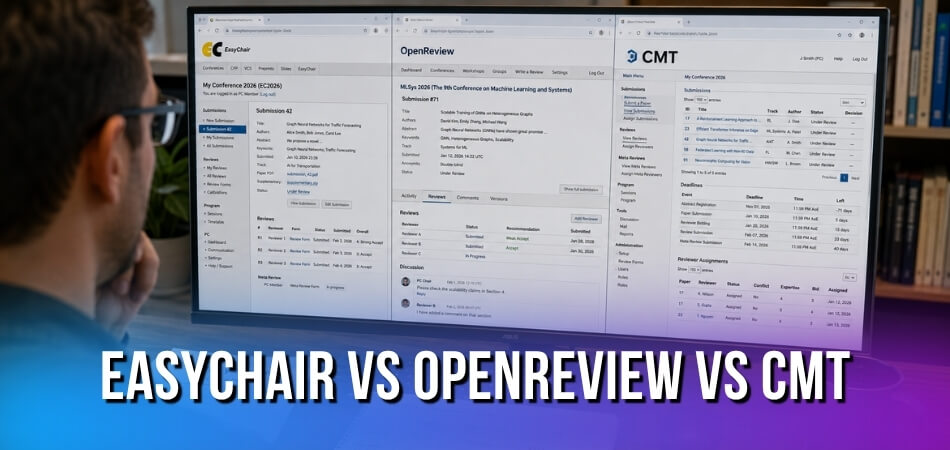
The confusion for first-time users is rarely the platform itself. It is finding the right submission link, getting through account sign-up, and knowing what file format the conference wants. Every rule about the file, the deadline and what you may change after submitting comes from the conference chairs, not from EasyChair. If your call for papers names another system, compare EasyChair with OpenReview and CMT, or follow the steps to submit a paper on Microsoft CMT.
What You Need to Know Before You Start
The short answer: have your final file, co-author details, abstract, keywords and the official link ready before you open the form. Missing one detail halfway through wastes time, especially near a deadline.
| Prepare | What to have ready |
|---|---|
| Final file | Finished, not “almost done”, and in the format and page limit the call for papers sets |
| Co-authors | Full name, email, affiliation and country for each person, and the email address each one uses on EasyChair |
| Abstract | Plain text that fits the conference’s word or character limit |
| Keywords | At least three that describe the paper’s content, one per line |
| Submission link | The exact link from the conference website or call for papers |
| Track | The track that matches your main contribution |
| Account | An existing login or time to create one |
Have Your Paper Ready in the Right Format
Many conferences ask for a PDF, but the format, page limit and file size are set by each conference, not by EasyChair, so read the call for papers. Some conferences ask for a Word copy as well. If the conference uses double-blind review, remove author names from the document itself. At MS International, for example, review is double-blind and papers follow APA format and the official paper format or template provided by the conference team.
Know Your Co-Authors’ Details
You will enter each co-author’s full name, email address, institution and country. Write these down instead of relying on memory, especially affiliation spellings. A co-author listed as “MIT” on one submission and “Massachusetts Institute of Technology” on another can cause minor headaches during review. Also ask each co-author which email address their EasyChair account uses, because EasyChair matches people by email address (see the account section below).
Prepare Your Abstract and Keywords
Keep the abstract as plain text: no formatting or bullet points, and write maths in plain notation. Check the conference’s word or character limit before you paste. Enter at least three keywords that reflect the paper’s content, not just broad field names. EasyChair’s help says to put each keyword on its own line. A list such as “artificial intelligence, machine learning” typed on one line is counted as a single keyword.
Use One Email Address Consistently
Some conferences prefer an institutional email, and it keeps your author details consistent with your affiliation. Whichever address you use, use it the same way everywhere, because EasyChair identifies you by email address. If you also use another address, add it to your account as an alternative email (explained below).
Creating an EasyChair Account and Logging In
You need an account before you can submit, and one account works for every conference on EasyChair. Create it well before the deadline, because the verification email can be delayed or filtered.
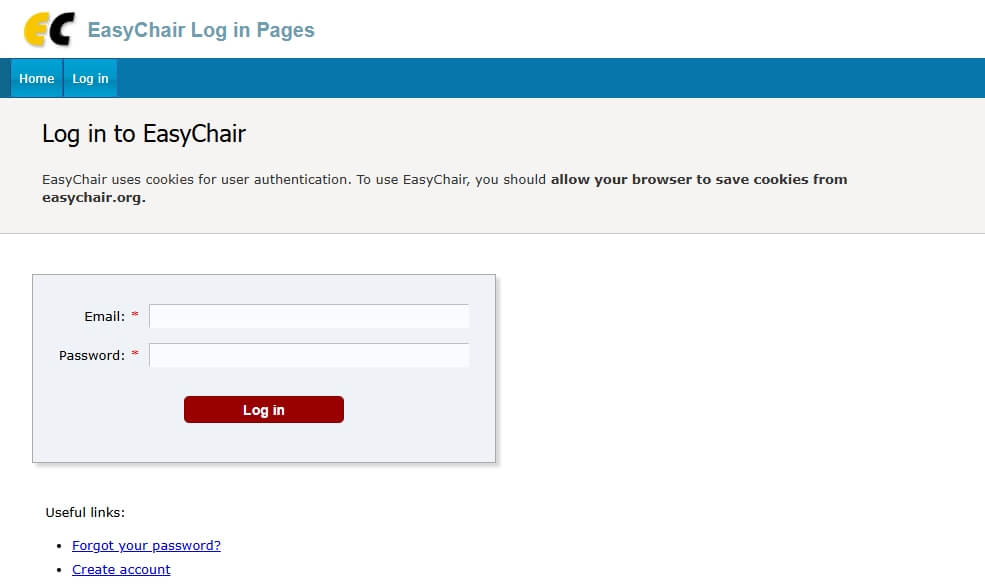
Step-by-Step Guide to Creating a New Account
- Go to the EasyChair homepage and open the account creation page from any login point.
- Fill in the short form with your name and a valid email address that can receive mail from easychair.org. This becomes your main email address. If a robot check appears, complete it.
- Open the verification email EasyChair sends and use the link in it. Copy and paste the link if your mail program does not show it as clickable, and do not retype it, because a small typing error breaks it.
- Complete the account form that opens from the link and note your username.
If the email does not arrive, check spam, check that you spelled the address correctly, and check that the mailbox is not full. A forwarding address can also lose the message. If nothing works, use another email address that you own. If the email says you already have an account, use the password reset instead of creating a second one.
Use One Account and Add Alternative Emails
An EasyChair account has one main email address and can have any number of alternative addresses. This matters for submissions, because when you enter a co-author, EasyChair checks whether the address matches an existing account’s main or alternative address. If it does, the person is linked to that account. If it does not, EasyChair creates a separate user without an account, so a co-author who enters through an address they never registered can end up as a duplicate. The same applies to you: if a co-author or chair enters you with an address that is not on your account, your submission may not appear under your login. Add every address you use as an alternative email. If you already ended up with two accounts, EasyChair has a merge accounts option.
How to Log In If You Already Have an Account
Click Log In and enter your username and password. If you have forgotten them, use the “Forgot your password?” link. You can enter either your username or the email on your account. EasyChair sends a confirmation email, and the page you reach shows your username, so write it down because it is not emailed. A second email then brings a new random password, so copy and paste it instead of retyping it. If the emails do not arrive, check spam and allow mail from [email protected] (EasyChair notes that this sender address may change).
After logging in, you see a dashboard of the conferences you are already associated with. To start a new paper, use the submission link from the official conference website. Do not search for the conference inside EasyChair and assume you found the right portal.
If your login is rejected despite correct details, enable cookies, because EasyChair uses them to identify users, and try a different browser. EasyChair ends sessions after two hours of inactivity, so being asked to log in again after a break is normal.
Finding the Right Conference and Getting Your Submission Link
The short answer: the link comes from the conference itself. EasyChair says only the organizers know the correct submission link, so there is no point guessing it.
Where the Link Comes From
Every conference on EasyChair has its own submission address, currently in the form easychair.org/conferences/?conf= followed by a sequence of letters and digits. It is usually posted on the conference website or social media, and a call for papers published on EasyChair’s Smart CFP also carries a submission link. Check these places first:
- The official conference website, on a “Submit” or “Paper Submission” page.
- The call for papers (CFP), whether it was emailed, posted on a mailing list or listed on a site like WikiCFP.
- Your advisor or colleague, if someone invited you to submit. Ask for the exact URL.
What Happens When You Click the Link
The link either opens the conference page or asks you to log in first. If the login page does not mention any conference, or EasyChair says the page does not exist, the link is wrong, so tell the organizers. If a conference is named, check that the acronym and name are the ones you need.
Once you are in, look at the upper-left corner. It shows the conference acronym and your role, which should be “author”. If the role is different, use the “Change role” option under the conference acronym. If “author” is not in the list, the conference is not accepting submissions.
If you cannot see a “New submission” tab, new submissions have been disabled by the conference chairs. Check the conference website before assuming something is broken.
If the Link Doesn’t Work
Do not rely on a bookmark from months ago. If the link shows an error or says the conference does not exist, try these in order:
- Copy the URL fresh from the source.
- Read the call for papers again. Some calls ask you to complete another step, such as registration, before submitting.
- Contact the program chairs. Their email is usually on the conference website. Asking for the correct URL is normal, and EasyChair support cannot submit or open submissions for you.
How to Submit a Paper on EasyChair: A Complete Step-by-Step Process
The short answer: click “New submission”, fill in the form from top to bottom, add the file where required, and submit. The steps below follow the form in the order you will see it.
Starting a New Submission
Open your conference-specific link, log in, and click “New submission” in the main menu. Some conferences use one long form, others split it into several pages. Do not refresh or skip ahead mid-process, because you can lose your progress. If EasyChair shows errors, read them and fix them before you click Submit again.
Selecting a Topic or Track
If the conference is multi-track and more than one track is open, EasyChair asks you to select a track first. Read the track descriptions on the conference website, since the dropdown labels are often abbreviated. A wrong track does not automatically disqualify you, but it can send your paper to reviewers outside your area and, in some cases, lead to desk rejection by the organizers.
If your paper sits between two tracks, pick the one that covers your main contribution, unless the form explicitly allows several. In a hierarchical topic list, choose at least one primary topic and use the optional secondary ones, since they help route the paper. A near match is better than not submitting, and the chairs can answer questions about fit.
Adding Author Information (Including Multiple Authors)
The form separates the submitting author (you, already logged in) from co-authors. Your own details are usually pre-filled, but double-check them, because the author information on the submission is what appears in the proceedings if the conference publishes them. For each co-author enter:
- First and last name
- Email address
- Institution or affiliation (department and university or organization)
- Country
Click “Add Author” for more rows. Most forms do not announce a hard limit, but some conferences cap the number of authors, so check the call. Three rules from EasyChair’s help catch people out:
- You must be one of the authors. EasyChair does not accept submissions on behalf of others. If you enter yourself with an email address that is not on your account, EasyChair cannot recognise you as an author.
- At least one corresponding author is required, and that person needs an EasyChair account. EasyChair recommends ticking yourself.
- Corresponding authors receive the correspondence. Reviews, decision letters and questions go to every corresponding author, and most automatic emails go only to them, so tick the person who actually reads the mailbox.
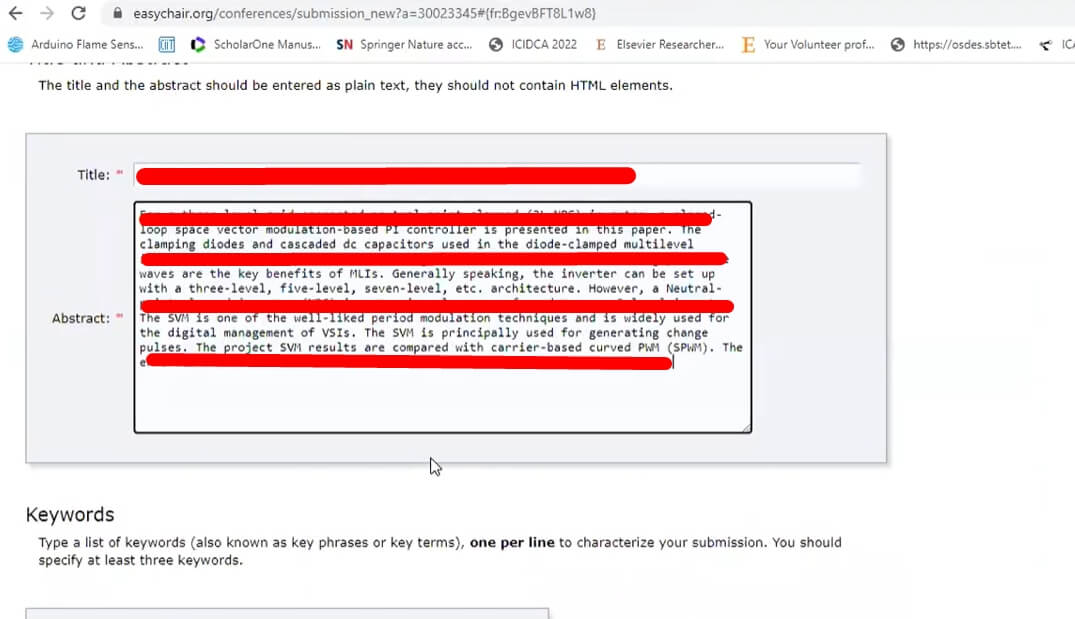
Filling In the Title, Abstract, and Keywords
Type the title exactly as it appears in your document, including case and punctuation. A mismatch between the form and the file looks sloppy and can confuse reviewers. Paste the abstract as plain text and stay within the conference’s limit. If it contains maths, write it in plain notation such as x^2. Enter the keywords you prepared earlier. Reviewers and chairs may use them to assign the paper.
Uploading Your File and Completing the Final Submission
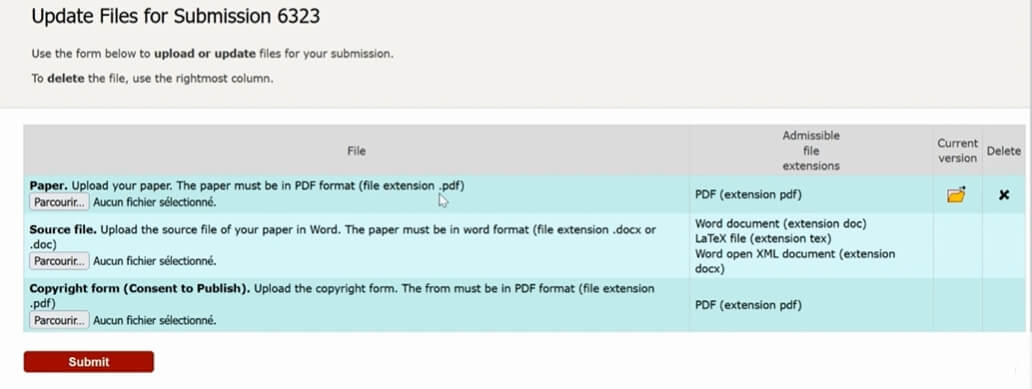
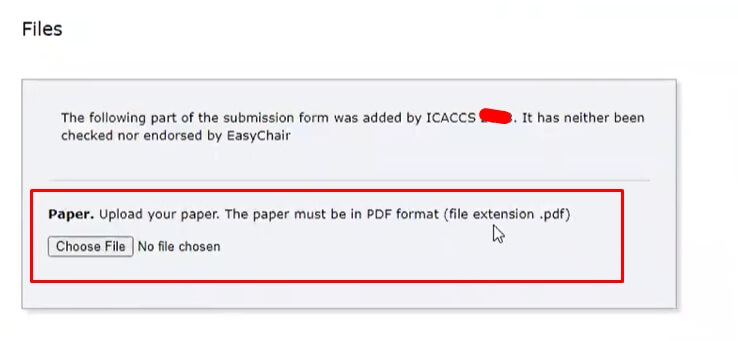
Some conferences ask for the abstract first and the full paper later, and a few run several stages such as abstract, draft, revised and final paper, so do not upload a file if the call says not to. Where a file is required, add it from your submission, select the file, and click Submit. The wording of the upload link depends on how the chairs set up the conference. EasyChair’s help does not set a file size, so use the limit in the call for papers, and compress the file with a standard PDF tool if it is too large.
Before you upload, confirm:
- Fonts are embedded (check document properties in your PDF reader)
- The paper is anonymized if the conference uses double-blind review
- Page numbering and formatting match the conference template
Do not close the tab until you see the confirmation screen, and do not click Submit twice. If the Submit button seems to hang, EasyChair’s FAQ says the cause is most likely a slow or broken connection, so check your connection and try again after confirming nothing was recorded.
Understanding Your Submission Confirmation and Paper ID
The short answer: after you submit, your submission appears in the menu as “Submission” followed by a number, or under “My submissions” if you have several. Write the number down, because chairs use it for all communication about your paper.
The number identifies your paper within that conference. It looks like “Submission #47” and is not a review score or ranking.
The Confirmation Email
Conferences can configure the automatic emails EasyChair sends, and they usually go to the corresponding authors. Check spam if nothing arrives, and allow mail from [email protected]. Do not treat the email as your only proof: the entry under “My submissions” is. If a co-author did not receive anything, that is normal when they are not a corresponding author, and institutional spam filters can also block the message.
Logging Back In to Verify
Open “My submissions” and confirm the paper appears with its number, title and status. Click into it and check that the file opens correctly. A corrupted file occasionally gets through without an upload error, and it is better to catch that before the deadline.
What “Submitted” Actually Means
“Submitted” means the system accepted your files, not that anyone has reviewed them. The paper moves to review only after the chairs assign reviewers, and EasyChair does not send a notification for every status change. To find out whether your paper was accepted, ask the conference chairs, because EasyChair itself cannot tell you.
If You Don’t See a Confirmation
No confirmation page, no email and nothing under “My submissions” means something went wrong, often a slow connection or session timeout at the submit step. Check first, because a duplicate submission when one already exists creates confusion for the chairs. If you are unsure, contact the organizers, who can see the backend and confirm whether your paper arrived.
How to Edit or Update Your Submission After Submitting
The short answer: you can normally update a submission right after submitting, and the submission number stays the same, but the chairs can disable updates, so do not assume it is always possible.
Accessing Your Submission
Log in, open the conference’s author view, and click your submission under “My submissions” to open its summary page. The links for updating information, authors and files sit there. If you cannot see them, updates are probably switched off, and only the organizers can say whether an exception is possible.
What You Can Typically Edit
- The file: replace it from the submission page, then check that the new file name and timestamp appear.
- Title and abstract: use the option to update the submission information.
- Keywords: usually from the same edit form.
- Author information: add co-authors, fix a name, or correct an affiliation.
If you change the title, check the author information too, so any proceedings entry is correct.
Adding or Removing Co-Authors
Open the author update option and enter the co-author’s name, email and affiliation. You add co-authors by email address, so use the address registered on their EasyChair account, or add it as an alternative email on their account first. Otherwise EasyChair creates a separate user without an account. Removing an author is also possible while updates are open, but confirm with everyone listed first.
Withdrawing a Submission
Where the conference allows it, a withdraw option appears on the submission page, and it usually asks you to confirm because withdrawal is hard to undo. If you cannot find the option, email the program chairs, because only they can change a submission’s status. Tell your co-authors before you withdraw, and withdraw rather than leave the paper in review if you have sent it elsewhere.
When Editing Is Locked
When the chairs disable updates, the edit options disappear or turn gray. Your only route is to ask the organizers whether they can make an exception. Some conferences reopen a window later for camera-ready versions, which is a separate process. If you need a change, make it while updates are open.
Common Problems and Solutions (Troubleshooting)
Most problems come from the file, the browser, the link or the email address, not from EasyChair itself. The table gives the fastest fix for each.
| Problem | Most likely cause | Fix |
|---|---|---|
| File won’t upload | Size, unembedded fonts, or a renamed file | Check the conference limit, re-export with fonts embedded, open the file locally |
| Upload stuck | Browser, extension or connection | Switch browser, clear cache, disable ad blockers |
| Login rejected | Wrong username, cookies off, or session ended after two hours | Use “Forgot your password?”, enable cookies |
| Verification or reset email missing | Spam filter, misspelled address or full mailbox | Check spam, allow [email protected], try another address you own |
| No “New submission” tab | Submissions disabled by the chairs | Check your role in the upper-left corner, then ask the organizers |
| “Submission for this conference is closed” | The conference is not accepting new submissions | Email the program chairs if you think this is a mistake |
| Submission missing from your login or co-author duplicated | A different email address was entered | Add the address as an alternative email or merge the accounts |
PDF Won’t Upload
Start with the file, not EasyChair. First check the size against the limit in the call for papers, and compress the file if needed. Acrobat’s “Reduce File Size” option or an online compressor usually works without hurting readability.
Font embedding is another cause. In Acrobat, go to File, Properties, Fonts and check that every font shows “Embedded Subset”. If not, re-export with embedding enabled. LaTeX usually does this automatically, and in Word it is better to use “Save As PDF” than print-to-PDF. The file must also be a real PDF, not a .docx renamed to .pdf, so open it on your own machine before uploading.
If the upload stays stuck, try another browser, clear the cache and disable extensions, especially ad blockers. Also make sure you are on the right conference, because uploading to the wrong one gives no obvious error.
Login or Password Issues
If you cannot log in, do not create a new account. Use the password reset and enter your username or the email you registered with. Search your inbox for “EasyChair” if you are unsure which address that was, and check spam. If the reset email does not arrive, EasyChair says either no account is linked to that address, in which case you will get an email saying so, or the message is being filtered. If you can no longer reach the email on the account, ask the conference chairs for help with the submission, and use the contact page on EasyChair’s site for account questions.
What to Do If You Miss the Submission Deadline
EasyChair has no mechanism for late submissions, because the conference organizers control the deadline and the submission page. After the deadline you may see “Submission for this conference is closed”, or the “New submission” tab may be gone. Email the program chairs right away with a short, professional message asking whether a late submission is possible, and include the time you tried to submit if a technical issue was the cause. Some chairs extend a deadline, but that is their decision.
Always go by the deadline on the official conference page, since EasyChair’s deadline display may not update immediately when organizers extend it. If you truly miss it, check whether the conference has a workshop track, poster session or second round with a later cutoff.
Frequently Asked Questions (FAQ)
For EasyChair authors, the snags here range from the submission link versus the main site to a co-author listed twice, a confirmation that did not arrive and a track that fits the paper poorly.
Do I need an EasyChair account to submit a paper?
Yes. EasyChair’s help says you need an account to submit, and one account works for every conference on the platform. Create it before you look for the submission link, because the verification email can be delayed.
What’s the difference between the submission link and the main EasyChair site?
The submission link is a conference-specific URL from the organizers, while the main site is easychair.org. Only the link takes you to the right conference and track. Get it from the conference website or call for papers instead of searching inside EasyChair.
Can I submit without a PDF?
It depends on the conference. Many ask for a PDF, but some accept or also want a Word file, and some collect only an abstract first. Follow the call for papers, because some conferences reject papers that ignore their template.
My upload keeps failing. What should I do?
Check three things: the file size against the conference limit, that it is a valid PDF and not a renamed Word file, and that fonts are embedded. Then try another browser and disable extensions. If a button hangs, EasyChair’s FAQ points to a slow or broken connection.
Can I add co-authors after submitting?
Usually yes, while the chairs keep updates open. Open your submission, use the author update option, and enter each co-author’s email as it appears on their EasyChair account. After updates are locked, only the organizers can help.
What if a co-author is not recognised or appears twice?
EasyChair matches people by email address. If the address you entered is not on the co-author’s account, it creates a separate user without an account. Ask them to add that address as an alternative email, or re-enter the address from their account.
Do I need to fill in every keyword field?
Enter at least three keywords, one per line. EasyChair’s help says commas or semicolons on a single line count as one keyword. Chairs and reviewers may use keywords to assign papers, so use terms that describe the topic.
I submitted but didn’t get a confirmation email. Did it go through?
Open “My submissions” first. If the paper is listed with a number, it went through and the email was delayed, filtered, or not sent to you because you are not a corresponding author. If there is no record at all, resubmit before the deadline or ask the chairs.
Can I update my abstract or title after submitting?
Usually yes, unless the chairs have disabled updates. Log in, open the submission and edit it. Because the chairs control this setting, do not leave changes to the last hour.
What happens if I miss the submission deadline?
You cannot submit through the system once the conference closes it. Your only option is to email the program chairs, who decide whether to accept a late paper. Mention a technical problem if that was the cause.
Can I withdraw a submission on EasyChair?
Where the conference allows it, use the withdraw option on your submission page. If it is missing, ask the program chairs to withdraw it. EasyChair support cannot change a conference’s submissions.
Is the submission number the same as the review number?
No. The number is your submission’s identifier within that conference. Chairs and reviewers use it to refer to your paper, and you quote it when contacting the organizers.
Can I submit the same paper to multiple conferences on EasyChair?
EasyChair is only the platform, and the rules come from each conference. Many conferences require work that is original and not under review elsewhere, and MS International has the same rule. Check each call for papers before you submit.
What should I do if the track doesn’t match my paper?
Pick the closest match, or check whether there is a general track or a note field for the chairs. If nothing fits, email the program chair before the deadline.
Conclusion: Submission Complete, What Comes Next?
After you submit, keep your submission number and any confirmation email as your receipt. Then wait. EasyChair does not send progress updates by itself, and you only hear from the chairs when there is a decision or they need something.
From our experience at MS International: our process differs from the EasyChair flow above, so check each event’s own instructions. We take papers through the Author Paper Submission Form on our website, where you select the conference. Review is double-blind, papers follow APA format, full papers should normally be between four and twelve pages, and the work must not have been published or be under review elsewhere. Most review decisions are returned within about 10 working days, and the peer review page advises submitting well before the deadline. Accepted papers may be considered for conference proceedings where applicable.
Keep an Eye on Your Inbox
Review decisions, revision requests and acceptance notices arrive by email. If you used a university address you rarely check, forward it somewhere you read, and check spam, because institutional filters sometimes catch EasyChair emails.
If You Need to Make Changes
Many conferences lock submissions after the deadline. If you get a chance to revise, open your existing submission and use the update options. Do not click “New submission” by mistake and create a duplicate.
After Acceptance
If your paper is accepted, you typically need to send a final camera-ready version and complete author registration. These are separate steps with their own deadlines, and missing either one can keep your paper out of the proceedings. Start preparing your presentation early, because the gap between acceptance and the conference date goes quickly.