
You have the final PDF, the deadline is close, and the conference says “submit through Microsoft CMT”. You sign in, and the page looks nothing like the submission forms you have seen before. Is your co-author listed? Did the upload really go through? Will a confirmation email arrive? One missed field or one wrong click can cost you the deadline, and a first CMT submission is easy to get wrong.
Quick answer: To submit a paper on Microsoft CMT, log in at cmt3.research.microsoft.com with your free CMT account, open your conference, switch to the Author role, click Create New Submission, enter the title, abstract, subject area and track, add co-authors, declare conflicts of interest, upload a PDF, and click Submit before the deadline. Save the confirmation email and submission ID.
Last verified against official sources: October 2026.
Below you will find the account steps, the form field by field, co-author and conflict-of-interest handling, what to check after submitting, withdrawal, fixes for common errors, the camera-ready stage, and a short guide for reviewers. Button names and menu labels can change between CMT versions and differ between conferences, so treat the labels here as a guide and follow the instructions on your conference page.
What Is Microsoft CMT and Why Is It Used?
Microsoft CMT, short for Conference Management Toolkit, is a free web-based platform built by Microsoft Research to handle paper submission and peer review for academic conferences. Many conferences in computer science, machine learning and engineering use it, and the organizers run the whole pipeline in it: receiving papers, assigning reviewers, collecting reviews and sending decisions.
Organizers like it because it is free, copes with large numbers of submissions, and gives program chairs control over tracks, subject areas, reviewer assignments and conflict-of-interest data. As an author, you use it to fill in paper details, upload your PDF, add co-authors, and later receive the decision and, if accepted, upload the camera-ready version.
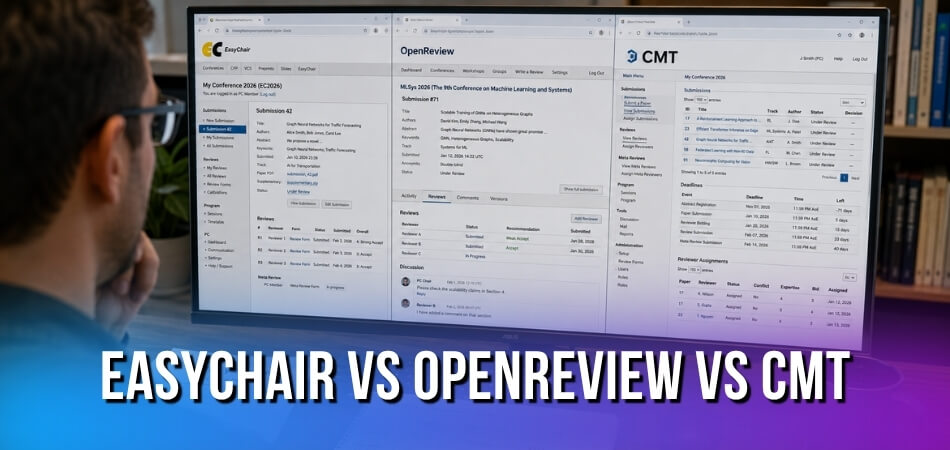
Two things to know up front. CMT is functional rather than fancy, and the interface changes slowly. And it has its own user accounts, so you register once with your email and a password before you can get in. Other platforms keep separate sign-ups too, such as an OpenReview author profile or an EasyChair account.
How to Create an Account and Log In to Microsoft CMT
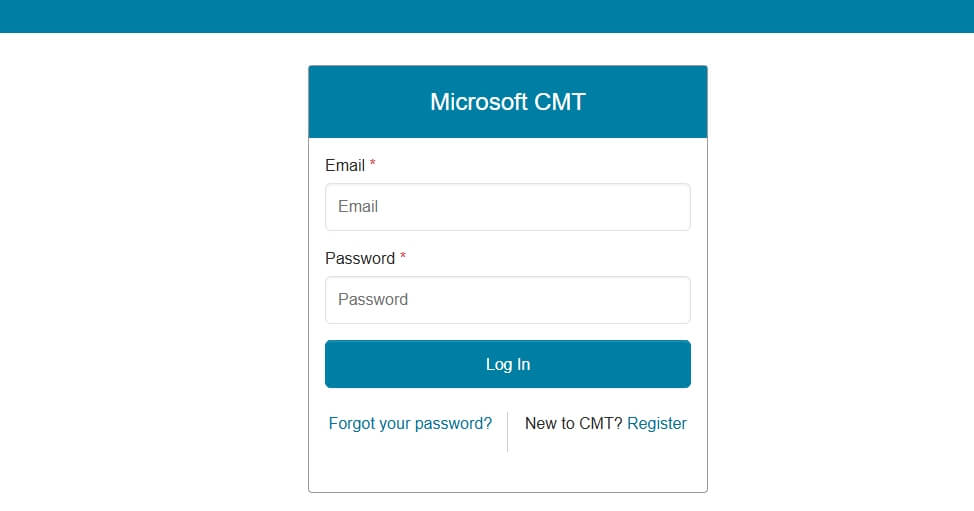
CMT has its own user account, and you do not need a Microsoft account to use it. You register once with your email address, verify it, and then log in with that email and your password.
Creating a New Account
Go to cmt3.research.microsoft.com/User/Login and click Register. On the Create New Account page, fill in the required fields marked with an asterisk, including your country or region. Choose a password of at least 12 characters with lowercase and uppercase letters, numbers and symbols. External profile IDs such as Google Scholar, Semantic Scholar or DBLP are optional, though some chairs ask for them. Enter the captcha, accept the Terms of Use and click Register. Check that your name and organization are correct, because chairs and co-authors will see them.
CMT then shows a Welcome to CMT page saying a verification email has been sent. Open that email and click the link. It works only once, so do not click it a second time after it succeeds. If it does not arrive, check your spam folder, confirm you typed the address correctly, and ask your IT team whether your institution blocks mail from @msr-cmt.org.
Two points before you register:
- Use the email your co-authors and the chairs know. Co-authors add you by email address, so register with the address they will type.
- Do not create a second CMT account. CMT’s help says not to register again if you already have an account. If you see “User with specified email already exists”, reset the password for that account instead. An account is not tied to one conference, so the same one works for every conference you join.
Logging In with an Existing Account
If you have used CMT before, as an author or a reviewer, the same CMT account still works. Go to cmt3.research.microsoft.com, enter your email and password, and click Log In. CMT recommends typing this address instead of using bookmarks or links from old emails. The usual problem is a redirect loop or a blank screen, and it is most often a browser issue. Try these in order:
- Clear the browser cache and cookies, then reload.
- Turn off extensions that block third-party cookies, because the login page needs them.
- Open a private window or switch to another desktop browser.
Once you are in, open the menu under your name at the top right and check your profile. Change your name there if it is wrong. Some conferences also ask you to list your domain conflicts, such as your institution’s email domain, in the Domain Conflicts option of that same menu, so save them before you start the form.
If login keeps failing, check that you are using the exact email you registered with, and use Forgot password on the CMT login page if you are unsure of the password.
Finding Your Conference and Accessing the Author Console
After signing in, search for your conference or open it from the dashboard. The most reliable route is the submission link from the call for papers or the chairs’ email. If you do not have one, click All Conferences and search for the conference name or its short code. The list can show zero conferences before you search, and the search still works.
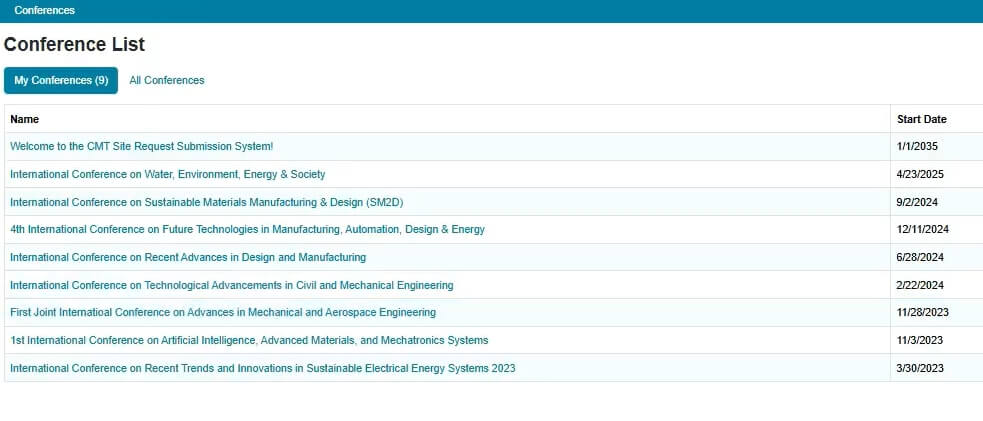
Searching for Your Conference
Type the full or partial name slowly, because the page refreshes as you type. If you paste a name, click a blank area instead of pressing Enter, and remove any space at the start or end, which can cause “no results”. Acronyms work well. CMT’s author FAQ also says it does not keep a conference more than a couple of years after it has ended. Open the conference and read the instructions, deadlines and notes from the organizers. Rules vary a lot: some conferences require double-blind formatting, some set strict page limits, and some disallow certain file types.
If the conference does not appear at all, the organizers may not have added your email yet, or you may be signed in with the wrong address. Contact the conference chairs, not CMT support: CMT’s help tells authors not to file a support ticket for questions about a conference, such as a missing upload link.
Getting Into the Author Console
Look for the role selector, labeled “Select Your Role”, near the top of the page. CMT lets one account hold several roles, such as Author, Reviewer and Area Chair. Choose Author, then open the Author Console. It is your workspace for creating submissions, editing them, uploading files, managing co-authors and checking your papers. If a submission seems to have vanished, the wrong role is the first thing to check. You also need to be inside the conference itself, not only on the conference list, before the Create New Submission button appears.
If the conference has several Track options, choose the track before you create the submission. Read the call for papers first, because the chairs may need to be contacted if you pick the wrong one.
Three Things to Confirm Before You Start
| Check | Why it matters |
|---|---|
| Submission deadline and its time zone | CMT’s author FAQ says all deadlines are in Pacific Time, while calls for papers often quote UTC, AoE (Anywhere on Earth) or the organizers’ own zone. Use the zone the conference states, convert it to yours and add a buffer. |
| Conference rules | The linked guidelines say whether supplementary files are allowed, which file format is required, and any page or abstract limits. |
| Email on file | The email on your CMT account should match the one the organizers hold. If the chairs invited you at another address, you may not see the conference. |
Reading the conference instructions takes minutes and saves you from re-uploading files or rewriting an abstract on deadline night.
How to Submit a Paper on Microsoft CMT, Step by Step
The short answer: click Create New Submission in the Author Console, complete each part of the form, upload the PDF, add co-authors, declare conflicts, then press Submit. Labels may change slightly (for example “New Submission”), but the order is the same. CMT creates submissions one at a time, so there is no bulk option.
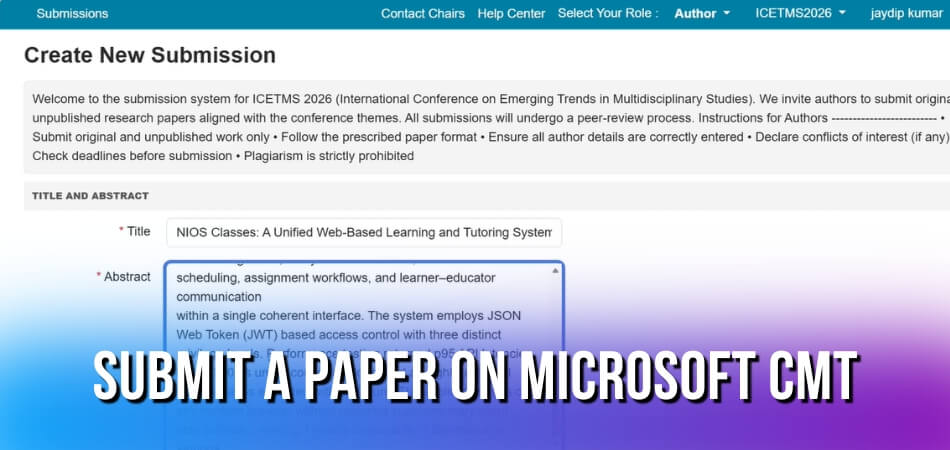
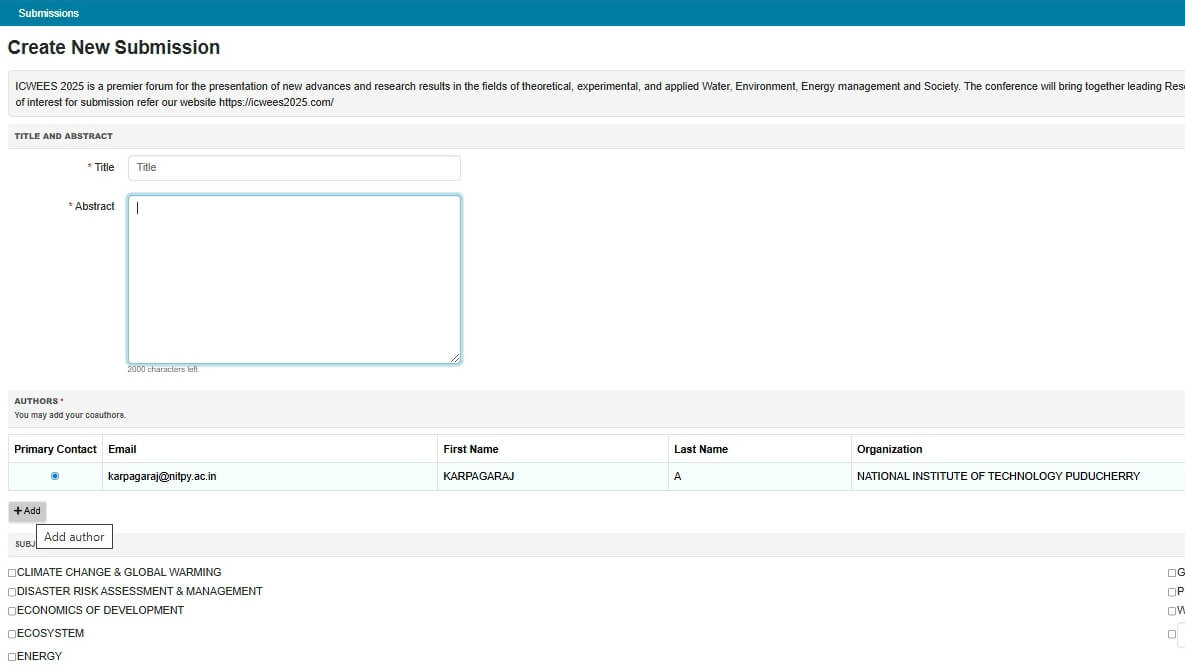
Step 1: Start the Submission
Inside the Author Console for your conference, click + Create new submission, usually near the top of the page. In a multi-track conference, select the track first. If the button is missing, or your track is not listed, the chairs have not enabled submissions for that phase, so contact them. The form is one page with several sections, and the next table shows the parts that may appear. You can save a title and abstract without any file and add the files later, before the deadline. An uploaded file is not saved until you click Submit at the bottom of the form.
| Form section | What to know |
|---|---|
| Welcome and Instructions | Messages from the chairs appear at the top. Read them first. |
| Authors | Your profile is filled in and you are the Primary Contact. |
| Domain Conflicts | Required. List all known conflicts, but not public webmail providers. |
| iThenticate and TPMS agreements | Appear only if the chairs enable them. Tick the required box. |
| Additional Questions | May be required: agreement items, multiple choice or short text. |
Step 2: Enter Title, Abstract and Keywords
- Title. Type it exactly as it appears in your PDF. Some forms do not render LaTeX in the title, so if you use math notation, check the preview, because that is what the Reviewer sees.
- Abstract. Use plain text, because formatting may not carry over. Pasting from Word can bring hidden formatting characters, so paste into a plain text editor first and copy again. Watch any word or character limit the conference sets.
- Keywords. Often comma-separated. Some conferences set a minimum or maximum number, and a mismatch can trigger a validation error that stops you moving on.
Step 3: Select Subject Area and Track
Subject areas appear only if the chairs have set them up. Choose one Primary Subject Area that matches your work, and optional Secondary ones. If the conference has Track options (for example short papers or industry papers), pick the track first, because in some setups the subject area list changes with the track. When unsure, match against the subject areas in the Call for Papers rather than your own reading of the labels. If nothing fits perfectly, take the closest option.
Step 4: Upload Your PDF
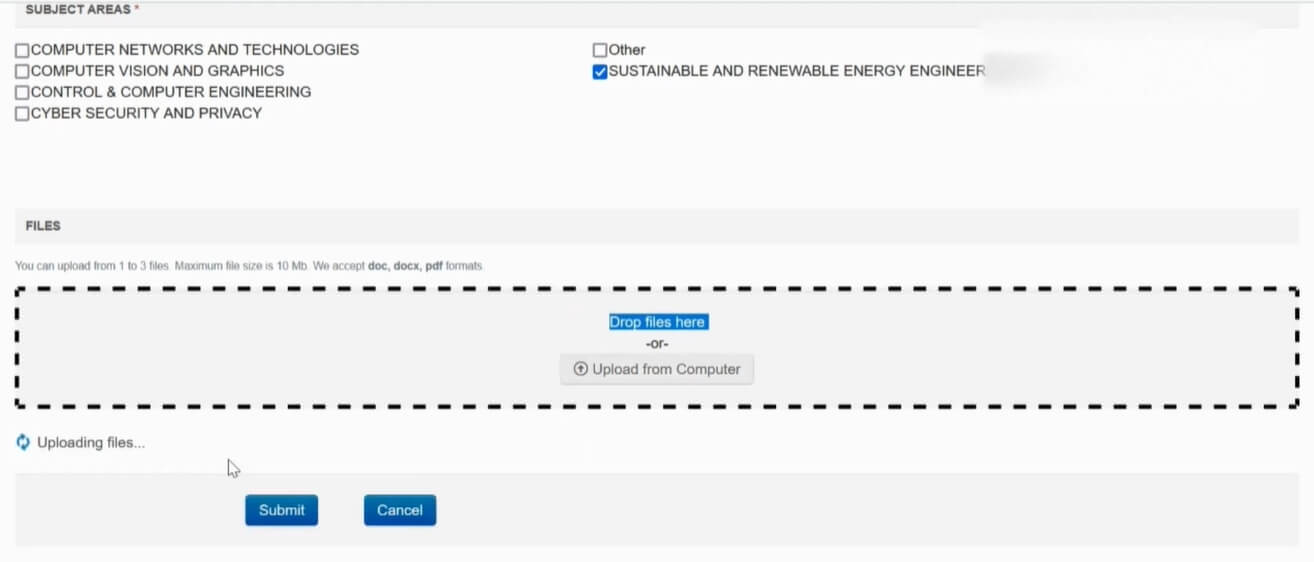
Most conferences ask for the main paper as a PDF. The form shows the number of files, the size limit and the allowed formats, and the chairs may require more than one file. Before uploading, check these:
- Size. The limit is set by the conference, not by this guide. Your conference page or the form states yours. To shrink a file, use the reduce-size option in your PDF software or export again with lower image quality.
- Page count and format. CMT provides no standard template, so ask the chairs about formatting. Check whether references count toward the page limit, because the conference enforces it, not CMT.
- Anonymity. If the conference uses blind review, remove author names, affiliations and self-identifying acknowledgements.
- Fonts and security. Many conferences ask for embedded fonts and no password protection or security restrictions (in Acrobat, check File, Properties, Security). Match the page size the conference names, usually US Letter or A4.
After the upload CMT generates a preview. Open it and confirm the fonts, figures and orientation. A silent failure looks like a file marked “uploaded” with a blank or broken preview. If so, delete it and retry in a different desktop browser. If a red “Submission File Not Uploaded” error shows in the Author Console, the chairs may require two or more files, so check the form for the list.
Step 5: Upload Supplementary Material (If Allowed)
The supplementary upload link appears only if the chairs have enabled it, and only after the main paper is submitted. If you cannot see it, one of those two things is the reason. Formats, the number of files and size limits are set by the chairs, so read the conference rules, not just the interface.
Some conferences tell reviewers they need not open supplementary files, so your paper must stand on its own. Do not put essential methodology only in a supplement. For double-blind review, strip identifying details from code: file paths, comments, readme files and version-control metadata can all reveal who you are.
Step 6: Review and Submit
Before pressing Submit, go through the summary page with this checklist:
| Item | What to check |
|---|---|
| Title and abstract | The title matches the PDF exactly (a missing “A” or a different colon placement creates confusion). The abstract is clean plain text. |
| Subject area and track | Correct track selected. A wrong one can send the paper to the wrong reviewers, and changing it later may need the chairs. |
| Authors | Every co-author is listed with a correct email, in the order of the paper. |
| Conflicts of interest | Filled in honestly for every author. |
| Download the uploaded file and open it. Confirm the page count, figures and version, and re-upload if you edited the paper after the first upload. | |
| Supplementary files | Present, opening correctly, and anonymized if the main paper must be. |
Then click Submit at the bottom of the form. Files are not saved until you do. If the chairs enabled a conflicts page, it opens next; otherwise you see the Submission Summary. Your paper then appears in the Author Console with a Paper ID. Click once and wait for the page to respond, even if the system feels slow near the deadline.
How to Add Co-Authors and Declare Conflicts of Interest
Add every co-author and complete the conflict-of-interest data before you submit, because the program chairs use this information when they assign reviewers. An incomplete author list means conflicts that should have excluded a reviewer are never flagged.
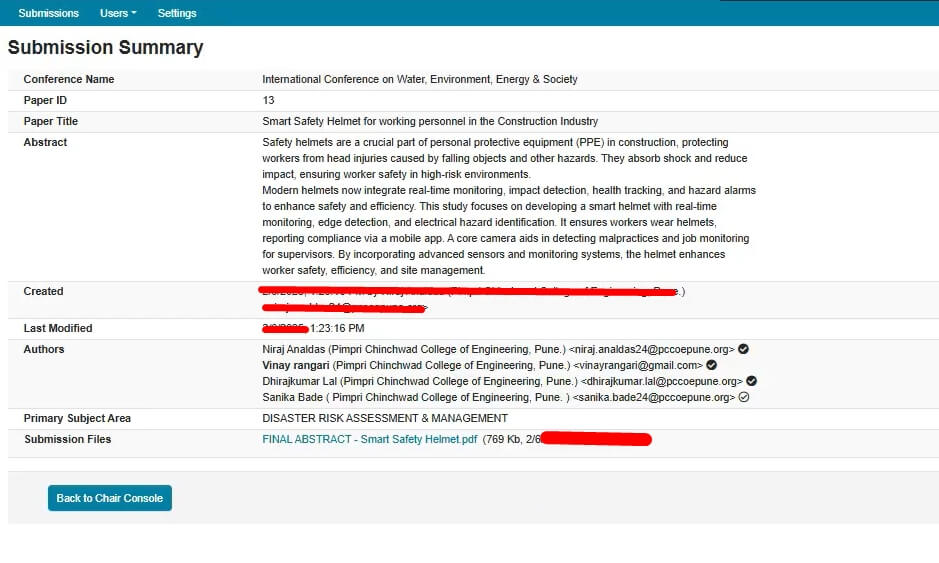
Adding a Co-Author by Email
Confirm first that your co-author has a CMT account. CMT does not check a co-author’s email automatically, so verify every detail yourself. In the submission form, scroll to the authors section (your own name is filled in already). To add someone to an existing submission, open the Author Console, choose Edit Submissions in the Actions column, click +Add, enter the email, first and last name, organization and country or region, click add, then Save.
An author without a CMT account is only a placeholder. That person must register the same email in CMT, and until then will not receive emails from the chairs or program committee. A white circle with a checkmark beside a name means that person has no CMT account. If you see “Author Information Invalid”, that co-author must create an account.
List authors in the order of the paper. Authors cannot edit a co-author’s details after entry, so a typo means the person may not receive notifications. If the Author section says the list cannot be modified, the chairs have locked it, so ask them to make the change.
Conflicts of Interest
Domain conflicts are a required field on the CMT submission form. List all the conflicts you know of, using the email domains of your institution or employer, and do not enter public webmail providers as institution domains. If co-authors share a domain, it is listed only once. You can also edit your own domain conflicts from the menu under your name.
If the chairs enabled the Edit Conflicts of Interest page, it opens after you click Submit: use the Edit dropdown, tick the boxes and click Done. Individual conflicts, where you name specific people, appear only after you submit and only when the chairs enable them. Follow the conference’s own definition of a conflict, such as recent collaborators, former advisors or colleagues at your institution.
A few rules of thumb:
- Co-authors’ conflicts count. If your advisor is a co-author, the conflicts of that author are part of the paper’s picture, so make sure the author list is complete.
- Declare only real conflicts. Do not use the form to steer your paper away from a reviewer you would simply prefer to avoid.
- When unsure, declare it. A declared conflict is a smaller headache than a dispute after review.
- Lock dates. Some conferences lock the author list. After that, changes need the program chair, who may refuse.
What to Do After You Submit: Confirmation, Status and Changes
The short answer: wait for the Submission Summary, save the Paper ID, then log back in and check the Author Console. Receipt is not acceptance.
The Submission Summary shows your Paper ID. CMT then sends a confirmation email to all authors and co-authors, including those without a CMT account. That email is your proof of submission, and the ID is your reference if you contact the organizers. It confirms the system received the paper. It does not mean the paper was checked for formatting or reviewed. To keep a copy of the summary, click Print on the Submission Summary and save it as a PDF.
If No Confirmation Email Arrives
CMT sends the confirmation when the submission is created, so first check your spam folder, because institutional filters can block automated mail, and the email address on your CMT account. A paper listed in your Author Console was submitted properly, whatever the email did. If it is not listed, it did not go through: log out, clear the cache, log in again and check once more, and resubmit before the deadline if needed. To resend the confirmation yourself, click the Email button at the upper right of the Submission Summary and choose yourself or all authors. If you are still unsure, use Contact Chairs in the menu under your name, with your Paper ID. Replies sent from your own mailbox do not reach authors through CMT, so answer from the Author Console.
If you added co-authors, each should get the email too. A co-author who has not registered their email in CMT will not receive messages from the chairs, so ask them to check their inbox and register.
Checking the Submission
Do not rely on email alone. Log back in, open the Author Console and open the PDF from there to confirm it is the right version and displays correctly. Catching the wrong file now is far better than finding it at the camera-ready stage. If a paper is missing from your console, check that you are in the Author role and signed in with the right email.
Editing Before the Deadline
You can edit only when the chairs have enabled the Edit Submission phase and the edit link is visible. If there is no link, contact the chairs. When a file is replaced, CMT notifies all authors that the submission was edited. Which parts you can change (title, abstract, co-authors, conflicts or the PDF) depends on the chairs’ settings, so ask them what is open. Save after every change. After the deadline the submission typically locks, and any change then goes through the conference organizers, unless they open an edit window.
What Happens Next
After the deadline, the organizers usually send a separate message that review has begun, and you will hear little during review, which is normal. In blind review you will not see reviewer identities. If the status is not shown, the paper is still under review, so ask the chairs. CMT emails you when decisions are released. If the paper is accepted, watch for camera-ready instructions, which carry their own deadline.
Submission Deadlines and Conference Rules
The short answer: treat the deadline as a hard cut-off. The conference chairs set it and CMT enforces it, so ask the chairs, not CMT support, about any change.
Reading the Deadline Correctly
CMT closes the submission link at the exact time set. CMT’s author FAQ says all deadlines are in Pacific Time, while a call for papers may quote AoE or UTC, so check which zone your conference means. A deadline of 11:59 PM AoE means you have until 11:59 PM in the last time zone on Earth. If the Author Console no longer shows the Create New Submission button, the window may have closed or the chairs have not opened it, so contact them.
Test Your Upload Early
Upload errors are the classic last-minute problem, and checks such as page limits, embedded fonts or template requirements may happen at upload, not at submission. Create the submission with its title and abstract early, and upload a test version a couple of days before the deadline so you can fix formatting while you still have time. Register, verify your email and log in days ahead as well, since a blocked verification email can take time to sort out.
Initial Submission Is Not Camera-Ready
After acceptance you submit a separate final version, with its own deadline and requirements (covered in the camera-ready section below). Check the conference rules for what happens if you miss it.
How to Withdraw a Paper on CMT
The short answer: before the deadline, use the Delete Submission link in the Author Console if the chairs enabled it; after the deadline, use Withdraw Submission if the chairs enabled that. If you see neither, contact the chairs. Treat the action as permanent.
Not every conference allows withdrawal at every stage. Some lock submissions once review starts. Past the deadline, withdrawal may mean contacting the Program Chair rather than using CMT. A last-minute withdrawal, especially once reviewers are assigned, creates extra work for the organizers, so do it early and tell the chairs. If you picked the wrong track or made a major error, contact the organizers before touching the delete or withdraw option.
Steps
- Log in and open the Author Console.
- Find the submission, listed with its paper ID and title.
- Look for the Delete Submission link (before the deadline) or the Withdraw Submission link (after it, where enabled). Delete needs the Edit Submission phase to be on.
- Confirm.
CMT sends no confirmation email when an author deletes or withdraws a paper, so check the Author Console to see that the paper is gone.
If Something Goes Wrong
If the link is missing, the chairs have not enabled it for the current phase, so email them. A blank screen or Page error usually means the session timed out, so refresh, sign in again and retry on a desktop browser.
After Withdrawing
The paper leaves the active queue, reviewers no longer see it, and you will get no decision email. Only the chairs can restore a deleted or withdrawn paper, so if you did it by mistake, contact them immediately and ask whether to restore it or create a new submission. Withdrawing here also does not withdraw the same paper from any other conference you sent it to, since those are separate systems.
Common Errors and Troubleshooting, Including Mobile and Browser Issues
The short answer: most CMT problems come from the browser, an expired session, a missing required field, a role mix-up or a file that does not meet the conference’s limits. Use a current desktop browser first.
| Problem | Likely cause | Fix |
|---|---|---|
| Login error, redirect loop, blank page | Wrong or mismatched email, wrong password, cookie blockers | Use the exact registered email, use Forgot password if needed, clear cache and cookies, or try a private window |
| Submission missing from the console | Wrong role selected, or wrong account | Choose Author in “Select Your Role”, then check you used the right email |
| No Create New Submission button | You are not inside the conference, or the chairs have not enabled submissions | Open the conference from the list, then contact the chairs if it is still missing |
| “Trying to access resource not allowed” | The submission page was opened from an external link or email | Go to cmt3.research.microsoft.com, open the Conference List and search for the conference |
| PDF rejected or upload stalls | File over the limit, corrupted, password-protected, fonts not embedded, wrong page size | Re-export with all fonts embedded, remove security settings, compress, retry |
| Red “Submission File Not Uploaded” | The chairs require two or more files | Check the form for the required number of files and upload the rest |
| Submit button does nothing or is greyed out | A required field is blank, or the upload has not finished | Check every section, wait for the progress bar to finish |
| Page error mid-form | Expired session, slow connection, hidden formatting in pasted text | Reload, sign in again, and check what was saved before retyping |
Login and Account Problems
If CMT says your account does not exist, confirm you are using the exact email you registered with. A mismatch between an institutional email and a personal one will block you each time, and exact spelling matters. If you registered but never got a verification email, check spam, and make sure you clicked the one-time link in it. If the password is the problem, use Forgot password on the CMT login page.
File Upload Errors
Check the size first. Beyond that, CMT may reject PDFs that are password-protected, have security restrictions, or lack embedded fonts. In LaTeX, standard builds usually embed fonts, but check the document properties in your PDF viewer. If the upload spins forever or fails partway, switch browser and turn off extensions that interfere with uploads, such as ad blockers, privacy shields, script blockers or download managers. Try these in order: disable extensions, use a private window, clear cache and cookies for cmt3.research.microsoft.com, then change browser. If the progress bar stalls after you have selected the file, check the size and re-export the PDF.
Submit Button Not Working
CMT will not process a submission with a mandatory item missing, and it does not always show a clear error. Go back through title, abstract, domain conflicts, subject area, track, authors, any additional questions and the PDF. Wait for the upload progress bar to finish before clicking. If the form has been open a long time, reload and log in again before you submit. If you use a VPN, try again without it.
Questions about the conference go to the chairs: use Contact Chairs in the menu under your name, and do not wait for the deadline. For a fault in CMT itself, a Help Center ticket is CMT’s only support channel, because there is no live chat. Reporting the moment you hit the problem gives you a timestamp showing the fault was not on your side.
Mobile and Browser Compatibility
CMT has no app for smartphones or tablets, so do the whole submission on a desktop or laptop. A phone is fine for checking your status afterwards, but not for uploading and submitting.
On desktop, keep your browser up to date and use a current version of Chrome, Firefox or Edge. If an upload area or a dropdown looks broken, switch to another desktop browser before blaming the server. Internet Explorer has been retired and is not a usable choice.
Before you finalize anything, reload the Author Console and confirm the title, co-author list and that the paper is listed. Do not trust the on-screen success message alone.
How to Submit a Camera-Ready Paper on CMT
The short answer: after the chairs email you, open the Author Console, click Create Camera Ready Submission, upload the final PDF and any required forms before the camera-ready deadline, and press Submit. This final version goes into the proceedings, if the conference publishes them.
What Triggers It
After review you receive a notification email telling you whether the paper was accepted or rejected. If accepted, the chair’s email asks you to upload the final file and gives the deadline. Rejected papers get no upload link. Check your Author Console as soon as decisions come out instead of waiting for a reminder.
Accessing the Upload
Open the Author Console and click Create Camera Ready Submission (the exact label can differ by conference). It opens a form that looks almost like the original one. You may be able to edit the title, abstract and author details, but some conferences disable this, and some lock the author list at this stage, so a co-author who was not on the original submission cannot be added by you. Recheck that your conflict-of-interest entries are unchanged. Before the deadline, the Edit Camera-Ready Submission link lets you replace the file (click the X beside its name, upload the new one and save changes) and change other fields the chairs allow.
What You Will Need
| Item | Details |
|---|---|
| Revised PDF | Your final paper with reviewer feedback addressed, formatted exactly to the conference template. Reviewer-requested changes are yours to make. If the conference gives a file naming scheme, follow it. |
| Copyright or licence form | Some chairs require the IEEE copyright form. If so, click Submit IEEE copyright form in the Author Console, complete the form on the IEEE eCF site, download the PDF copy, return to CMT and upload it. The conference must be registered with IEEE for this to work. Other publishers have their own forms, and some conferences collect the form outside CMT. |
| Format validation | If the conference instructs it, check the PDF with IEEE PDF eXpress or the IEEE PDF Checker. IEEE’s Xplore requirements include embedded fonts and no password or security settings. Upload the same file that passed the check. |
| Source files | Some venues ask for LaTeX or Word sources as supplementary material. |
CMT provides no standard template, so the conference’s own rules decide the format. Check the page limit yourself, because the system may accept a file the organizers later send back.
Uploading and Confirming
Click the PDF field and select the file. If the upload fails, the usual causes are a file over the limit (common with high-resolution figures) or a corrupted PDF, so re-export and retry on a desktop. Once processing finishes, open the preview and confirm it is the correct version. Press Submit. CMT sends no confirmation email for camera-ready submissions, only for the first submission, so being able to view your camera-ready entry in the Author Console is your confirmation. Click View Camera-Ready, then Print, to save a PDF copy of the summary.
After You Submit
Some venues have a proceedings editor who reviews files and contacts authors with formatting corrections, so watch both your inbox and CMT notifications until the conference. You cannot freely replace the paper after the camera-ready deadline. If you realize you uploaded the wrong version, contact the organizers immediately; they may or may not be able to fix it.
A Quick Guide to Reviewing Papers on CMT
The short answer: switch to the Reviewer role, open each assigned paper, check conflicts first, write the review in the form, and press Submit before the review deadline.
Getting to Your Assignments
Log in to CMT and use the role switcher in the top navigation to move from Author to Reviewer. The Reviewer Console lists your assigned papers with title, submission ID and review status. If you cannot see your assignments, check which role is active; one click on the switcher fixes it.
Reading the Paper
Click the title to open the submission page. Download the PDF and any supplementary files, because some authors put proofs or datasets there. Note the subject area and track, which tell you the scope to judge the paper against.
Check Conflicts Before You Write
CMT flags known conflicts, but you are responsible for the ones it missed: a former advisor, a close collaborator, someone at your institution. COPE’s ethical guidelines for peer reviewers ask reviewers to disclose potential conflicts, keep manuscripts confidential, not use what they learn for personal advantage and not involve anyone else in the review without permission. If you find a conflict, report it through the conflict option and contact the Program Chair right away.
Writing and Submitting the Review
Click “Add Review” or “Edit Review”. The form is set up by the organizers, usually with a summary, detailed comments, strengths, weaknesses and a score or recommendation. Be specific, because short, vague reviews help neither authors nor the Program Committee. Save drafts as you go. When you click Submit, your dashboard shows the review as submitted.
Deadlines and Afterwards
Your review deadline is fixed too. A late review delays the authors’ notifications and creates work for the chairs, so if you cannot finish in time, tell the Program Chair early. Once reviews are in, the chairs may open a discussion phase or a rebuttal round, in which case you may be asked to update scores or comments.
From our experience at MS International: Our own conferences do not run submissions through CMT. Authors send abstracts and full papers through the conference page, following the paper format or template provided and the APA format. Full papers should normally be between four and twelve pages. The editorial team does an initial screening for scope, formatting and completeness, and every paper then goes through double-blind peer review. Most review decisions are returned within about 10 working days, as an acceptance, revision request or rejection. Papers must be original and not published or under review elsewhere. Accepted papers that are presented in person may be considered for the conference proceedings where applicable. Always follow the platform and rules of the conference you are targeting.
FAQ
Stuck partway through a CMT submission? Login errors, a missing confirmation email, a wrong Subject Area or Track and the Conflict of Interest declaration are dealt with one by one.
Do I need a Microsoft Account to submit on CMT?
No. CMT has its own free user account. Register with your email on the CMT login page, verify it through the emailed link, then log in with that email and your password.
Can I edit my submission after clicking Submit?
Only if the chairs have enabled the Edit Submission phase. When the edit link is visible, open the Author Console and use it, and CMT notifies all authors of the change. If there is no link, contact the chairs. After the deadline the submission typically locks.
Why didn’t I get a confirmation email?
CMT sends the confirmation to all authors, so check spam and the email on your CMT account first. A paper that shows in your Author Console went through. You can resend the email from the Email button on the Submission Summary.
My PDF upload keeps failing. What do I do?
Check the file size limit first, since the conference sets it. Confirm the file is a valid, unprotected PDF with embedded fonts and give it a simple file name. Then try another desktop browser such as Chrome or Firefox, and avoid mobile browsers.
Can I add a co-author after submitting?
Yes, if the Edit Submission phase is on and the chairs have not locked the author list. Open the Author Console, choose Edit Submissions, click +Add and save. The co-author needs a CMT account to receive email. If the list is locked, ask the chairs.
What’s a Conflict of Interest declaration and do I have to fill it out?
Yes, the Domain Conflicts part of the CMT form is required. It tells CMT which institutions’ reviewers to keep away from your paper. Individual conflicts appear only if the chairs enable them. Use the conference’s own definition and declare only real conflicts.
I selected the wrong Subject Area or Track. Can I change it?
Only if the chairs allow editing. When the Edit Submission phase is on, edit the submission, change the field and save. If there is no edit link, or the deadline has passed, contact the organizers, because CMT will not let you change it yourself.
Does CMT support supplementary material uploads?
Only if the chairs enable it. The supplementary link appears only after the main paper is submitted. If it is absent, do not embed supplementary content in the main PDF unless the rules allow it.
What happens if I miss the submission deadline?
The submission link closes and you cannot submit through CMT. Only the conference chairs can accept a late paper, and CMT’s FAQ sends extension questions to them. Contact the organizers at once if a technical fault on their side caused the miss.
How do I withdraw my paper?
Deleting is open until the deadline and withdrawing after it, but only where the chairs enabled the link. CMT sends no confirmation email, so check the console. If there is no link, email the chairs.
I keep getting a login error even though my password is correct. What now?
First use Forgot password on the CMT login page and try again, or check whether you registered with a different email. Past conference emails show which address they used.
Is it safe to submit from a mobile device?
No. CMT has no app for phones or tablets, and uploads and form checks do not always work in mobile browsers. Use a desktop or laptop for the real submission, and use a phone only to check your status.
Does MS International use CMT for its conferences?
No. Authors submit abstracts and papers through the conference page, in APA format, and papers go through double-blind peer review. Check each conference’s own instructions for its platform and rules.
Conclusion: A Checklist for a Successful Submission
A CMT submission is not complicated, but one missed step means an incomplete submission or a missed deadline. Run through this list before you click Submit, and again afterwards.
- Before: you can log in without errors, you are in the right conference and the Author role, every form field and a clean PDF are ready, every co-author and conflict is entered, and you have read the conference rules.
- At submission: click Submit, not just Save, because files are not saved until you do, and wait for the Submission Summary.
- After: save the Paper ID and the confirmation email, check that the paper is listed in the Author Console, and watch for notification emails, including camera-ready instructions.
If something goes wrong, whether a login error, an upload that fails or a co-author who cannot get in, contact the chairs early, not an hour before submissions close. Submit early, confirm everything, and then you are done.