

Have you ever frozen up looking at the OpenReview interface while trying to submit to NeurIPS or ICLR? You are not alone. Thousands of researchers hit that wall every conference season — staring at a venue submission page that does not quite explain itself, unsure whether to click Active Submissions or hunt for a separate Submit button buried somewhere else. The stakes are high, and the margin for error is small.
What makes it worse is that desk rejection often has nothing to do with the quality of your research. A missing field in your author profile, a co-author who never created an OpenReview account, a forgotten conflict of interest declaration, or a PDF upload that exceeds the size limit — any one of those can get your paper bounced before a single reviewer ever sees it. Most first-time submitters learn this the hard way, usually an hour before the deadline.
This guide exists because the standard documentation does not go far enough. It is not going to just tell you to click Submit and call it done. Instead, it walks through the whole process — from setting up your account at openreview.net and completing your author profile, to handling anonymous submission correctly for double-blind review venues, adding co-authors, uploading supplementary material, declaring conflicts of interest, and fixing common errors before they cost you. It also covers what happens after you submit: how to read your submission status in the Author Console, how to respond to a revision deadline, and what preparing a camera-ready version actually involves.
Quick answer: To submit a paper on OpenReview, log in at openreview.net, navigate to the venue’s submission page, and click Active Submissions or the Submit button. Fill in the title, abstract, author details, and upload your PDF — every author must have a valid OpenReview profile. Once all mandatory fields are complete, press Submit; you will receive a confirmation email and can track your status from the Author Console.
What Is OpenReview and Which Venues Use It
OpenReview is a web-based platform for managing the peer review process for academic research. It lives at openreview.net and handles everything from submission intake to reviewer assignment to final decisions — all in one place. Some venues make their reviews public. Others keep them private. The platform supports both.
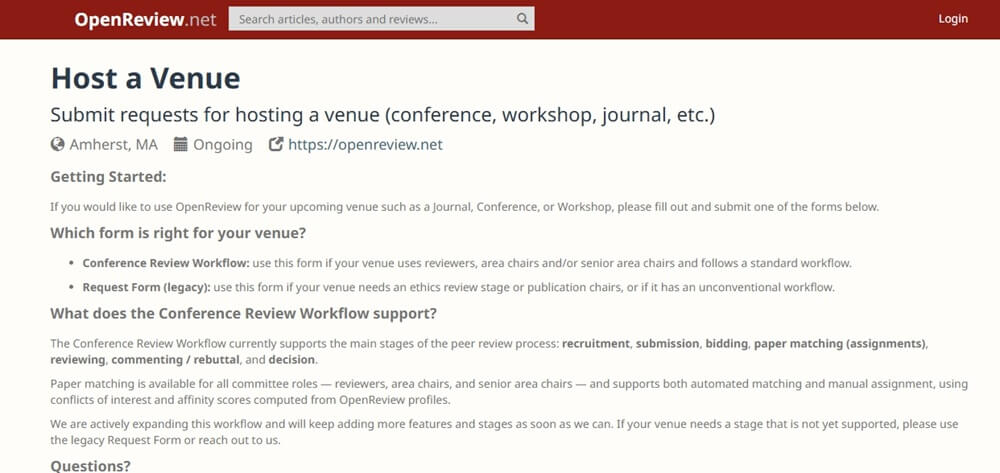
The core idea behind OpenReview is transparency. Instead of review processes happening entirely behind closed doors, many venues on the platform make submitted papers, reviews, and author responses visible to anyone. That said, not every conference on OpenReview works this way — you’ll find quite a bit of variation depending on the venue’s preferences.
The platform has become the default submission system for several of the most competitive venues in machine learning and AI. ICLR was an early adopter and still uses it today. NeurIPS moved to OpenReview more recently and now runs its full submission and review cycle through it. Dozens of workshops affiliated with these conferences also route submissions through openreview.net.
Outside of machine learning, you’ll find OpenReview hosting venues across computational linguistics, computer vision, data science, and other technical fields. The number of venues keeps growing.
One thing worth understanding before you submit: OpenReview itself doesn’t run these conferences. It provides the infrastructure. Each venue controls its own rules — deadlines, formatting requirements, double-blind review policies, conflict of interest handling. So while the platform interface is the same, the submission rules are set by the program chairs of each individual conference or workshop.
This matters practically. The venue submission page is where you’ll find the specific instructions that govern your paper. Don’t assume what worked for one conference will transfer directly to another, even if both run on OpenReview.
What to Prepare Before You Submit
Getting your submission right starts well before you hit the Submit button. A surprising number of papers get caught at the first hurdle — not because of the research, but because of profile mismatches, PDF formatting errors, or missing conflict-of-interest declarations. Sort these things out in advance and the actual submission takes maybe fifteen minutes.
Creating an OpenReview Account and Completing Your Profile
Go to openreview.net and register with your institutional email address. This matters. Venues like ICLR and NeurIPS use your registered email domain to verify affiliations and flag conflicts of interest. If you sign up with a Gmail account, you’ll create problems for yourself later.
Once your account is active, fill in your author profile completely. That means your full name exactly as it appears on your papers, your current institution, your homepage if you have one, and your DBLP or Semantic Scholar profile links. OpenReview uses this information to run automatic conflict detection — so if your profile is half-empty, the system may miss genuine conflicts or flag false ones. Neither outcome is good.
Do this before the venue opens, not the night of the deadline.
Keeping Institution, Email, and Publication Details Up to Date on Your Author Profile
Your author profile isn’t a one-time setup. If you’ve moved institutions, changed your primary email, or published new papers since you last logged in, update everything before you submit.
The conflict-of-interest check pulls from your profile. Specifically, it looks at your listed co-authors, your institution’s email domain, and sometimes your publication history to identify reviewers you’ve worked with. An outdated profile means that check runs on stale data — which can lead to a desk rejection if the program chairs notice the mismatch after submission.
Add all email addresses you’ve used professionally, not just your current one. OpenReview lets you link multiple addresses to a single account, and that history helps with co-author conflict detection going back several years. Under double-blind review rules used by most major venues, you won’t be visible to reviewers — but the system still needs accurate data on the backend to assign reviews properly.
Preparing Your PDF and Supplementary Material
Read the venue submission page carefully. Not the general OpenReview documentation — the specific call for papers for the conference you’re submitting to. Page limits, font sizes, margin requirements, and anonymization rules vary. ICLR and NeurIPS both require anonymous submission, which means no author names, no acknowledgments, and no links to non-anonymous repositories in the main PDF.
Strip identifying information from your PDF metadata too. Author fields in document properties are easy to overlook. Tools like pdfinfo on Linux or Adobe’s Document Properties dialog will show you what’s embedded.
For supplementary material, check whether the venue accepts it at all, and if so, what format. Some venues take a single ZIP archive; others want a separate PDF upload. There’s usually a file size cap — 100MB is common for supplementary material, but verify this on the venue submission page. Don’t include anything in supplementary material that you’d be unhappy with reviewers ignoring; most reviewers treat it as optional reading.
Have both files ready before the deadline. PDF upload failures under deadline pressure are common and stressful. Upload at least a draft version the day before so you know the system accepts your file format and size.
Step-by-Step: How to Submit a Paper on OpenReview
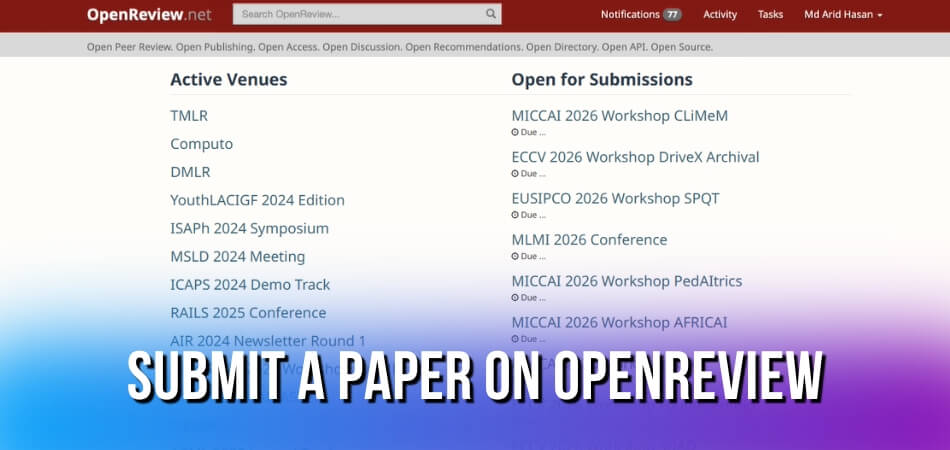
Step 1 — Finding Your Venue and Navigating to the Submission Page
Go to openreview.net and use the search bar at the top to find your target venue. Type the conference name — say, NeurIPS or ICLR — and you’ll see the relevant venue listed in the results. Click on it.
Once you’re on the venue page, look for a “Submit” link or a direct call to action pointing you to the submission portal. Some conferences post a direct URL in their call for papers, and using that link is often faster than searching. Either way, you’ll land on the venue submission page, which is where everything starts.
Don’t confuse the venue’s main information page with the actual submission form. They’re different pages. The submission form is usually only active during the official submission window — if you’re outside that window, you’ll see a message saying submissions are closed rather than a form.
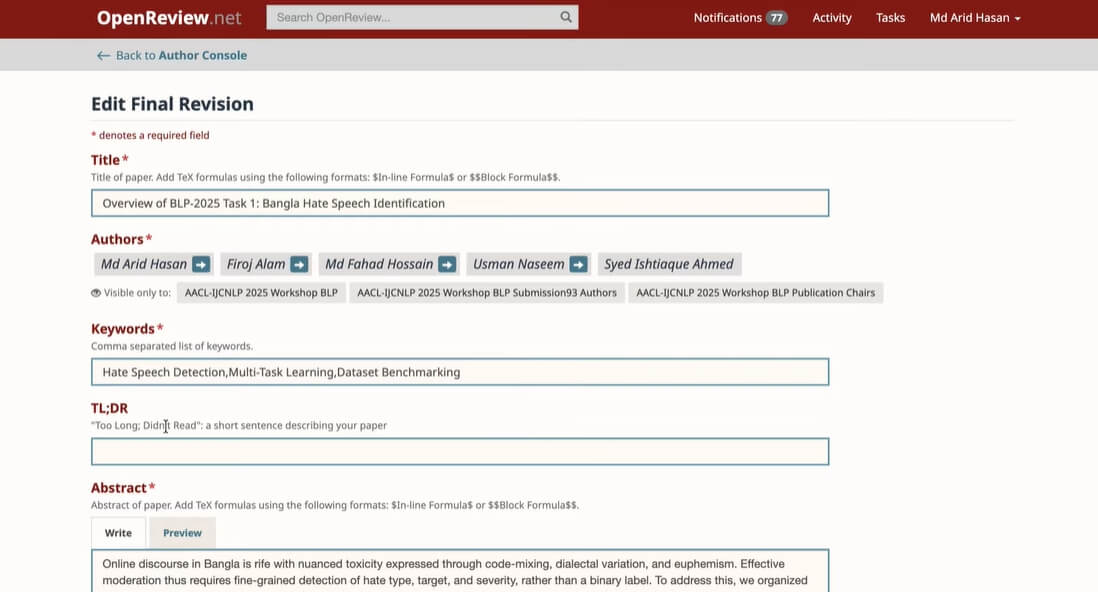
Step 2 — Filling Out the Submission Form (Title, Abstract, Keywords)
Once you hit the Submit button and the form loads, you’ll see fields for your paper’s title, abstract, and keywords. Fill these in carefully — they’re not throwaway fields.
The title should match your PDF exactly. Even minor mismatches can cause confusion during review. Paste your abstract directly from your paper, but double-check the formatting — special characters and LaTeX sometimes don’t carry over cleanly. If your abstract uses math notation, verify it renders correctly in the preview before submitting.
For keywords, most venues give you a dropdown or a tag-based system. Pick terms that accurately reflect your work. Reviewers are often matched to papers partly based on keywords, so being vague here can mean you get reviewers with no background in your area.
Some venues also include additional required fields — things like subject areas, ethical considerations checkboxes, or a “limitations” section. Read every field before skipping it. Missing a required field will block submission entirely.
Step 3 — Adding Co-Authors and Setting the Correct Author Order
There’s a dedicated author section in the submission form. You’ll need to add each co-author by searching their name or email address. They need an active OpenReview account for this to work — if a co-author hasn’t registered yet, they should do that before you submit.
Author order matters. OpenReview lists authors in the order you add them, and you can drag to reorder. Get this right before submitting. Changing author order after submission isn’t always straightforward, and at some venues it requires contacting the program chairs.
Each co-author should have a complete author profile on OpenReview — institution, email, homepage. An incomplete profile can sometimes trigger a desk rejection at stricter venues. It’s worth asking your co-authors to check their profiles before you hit submit.
Step 4 — Uploading the PDF and Supplementary Material
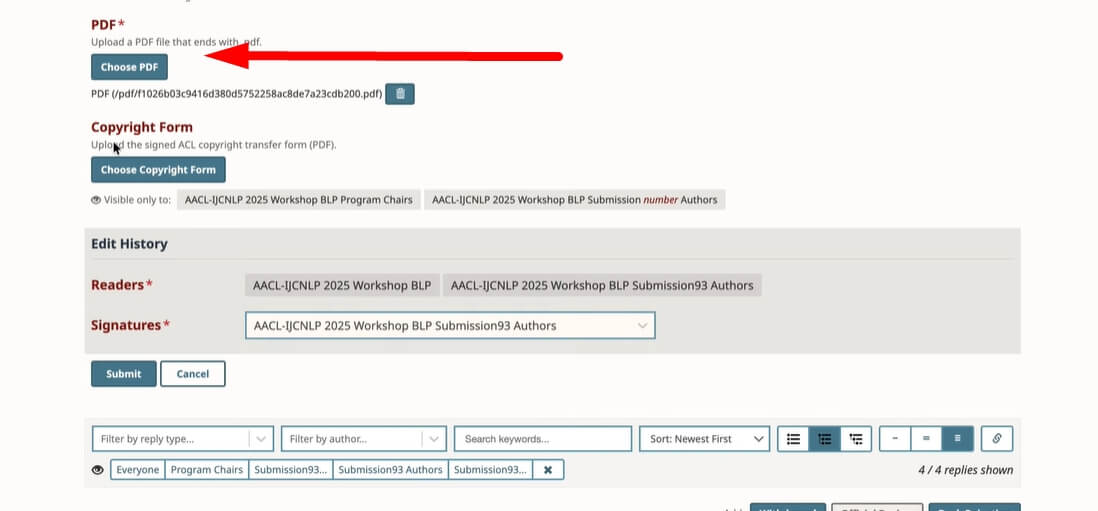
The PDF upload field is the most critical part of the form. Click the upload area and select your paper PDF. Watch the file size limit — most venues cap it at 50MB, though the exact limit is specified on the submission page.
Your PDF should already be anonymized at this point (more on that in the next step), properly formatted to the venue’s style, and free of any identifying information in the document properties. Some authors forget that PDF metadata can contain author names — use a tool to strip that before uploading.
Supplementary material is usually optional. This can include appendices, code, datasets, or videos. If your venue supports it, you’ll see a separate upload field for supplementary files. Upload a single ZIP file if you have multiple items. Not all venues allow supplementary material, and some only allow it in specific formats, so check the venue’s submission guidelines before preparing anything.
Step 5 — Anonymous Submission and Complying with Double-Blind Policy
Most major venues on OpenReview use double-blind review, meaning reviewers don’t know who wrote the paper, and authors don’t know who’s reviewing it. Your responsibility is the author side: submit an anonymized version of your paper.
That means removing your names, affiliations, and acknowledgments from the PDF. Don’t link to a GitHub repo that has your name in the URL. Don’t cite your own prior work in a way that makes attribution obvious — “In our previous work [Smith et al., 2023]” is a flag. Rephrase it to third person.
OpenReview handles the anonymous submission side automatically. When you submit under a double-blind venue, your author identities are hidden from reviewers by default — your paper appears under an anonymized author list on the platform. You don’t need to configure this manually; it’s baked into the venue settings. But anonymizing the actual PDF content is entirely on you.
Step 6 — Declaring Conflicts of Interest
Every submission form includes a conflict of interest section. This is where you declare which area chairs or reviewers shouldn’t be assigned to your paper due to a personal or professional relationship.
OpenReview auto-generates some conflicts based on shared institutional history pulled from author profiles. But you can — and should — add manual conflicts too. If you’ve collaborated closely with someone in the past two years, add them. If you were their advisor or student, add them.
Be honest here. Failing to declare a real conflict, or trying to game the system by declaring fake conflicts to block certain reviewers, can get your paper desk rejected or disqualified entirely.
Step 7 — Final Submission and Understanding the Confirmation Email
Before you click the final Submit button, most venues give you a review page showing everything you’ve entered. Go through it. Check the title, author list, abstract, and uploaded files one more time. This takes two minutes and saves a lot of headaches.
Once you submit, you’ll receive a confirmation email from OpenReview. It confirms your paper ID and usually includes a link to your submission. Save this email. Your paper ID is how you’ll track everything going forward.
After submission, go to the Author Console on openreview.net. Under Active Submissions, you’ll see your paper listed with its current submission status. This is where you’ll monitor reviews as they come in, respond to reviewers if the venue allows it, and eventually upload your camera-ready version if the paper is accepted.
If you need to revise your submission before the deadline — say, to fix a formatting issue or update the PDF — you can do that from the Author Console as long as the revision deadline hasn’t passed. After that window closes, the version on record is final.
After Submission: Tracking Status, Revising, and Withdrawing
Tracking Your Submission Status from the Author Console
Once your paper is in, the Author Console becomes your main dashboard. Log into openreview.net, go to your profile, and click Author Console. You’ll see your submission listed under Active Submissions along with its current status.
Status labels vary slightly by venue, but you’ll typically see things like “Under Review,” “Withdrawn,” or “Decision Posted.” For conferences like NeurIPS or ICLR, there’s usually a period of silence after submission — reviewers are assigned behind the scenes and you won’t see their names because of double-blind review. That’s normal. Don’t read anything into it.
Check the console every few days rather than obsessively. The page updates automatically when something changes — a review appears, a decision is posted, or a program chair leaves a comment. You’ll also get a confirmation email when major status changes happen, but the console is always more current than your inbox.
If your paper shows “Desk Rejected” early on, it means the venue chairs flagged it before it even reached reviewers — usually for formatting issues, length violations, or a conflict of interest problem. Read the desk rejection note carefully. Some venues allow resubmission after fixes; most don’t within the same cycle.
Uploading a Revision or Update Before the Deadline
Most venues allow at least one revision window between submission and the review period closing. You’ll see an Edit button on your submission in the Author Console when this window is open. Click it to update your PDF, abstract, author list, or supplementary material.
A few practical points:
- PDF upload: Upload the revised file the same way you did originally. OpenReview keeps a version history, so previous versions aren’t lost.
- Supplementary material: This is uploaded as a separate file — ZIP or PDF depending on the venue. Don’t embed it in your main PDF unless the venue explicitly says to.
- Co-author changes: Adding or removing a co-author mid-process is sensitive. Some venues lock the author list after the deadline. If you need a change, contact the program chairs directly — don’t just edit it and hope nobody notices.
- Anonymous submission: If the venue uses double-blind review, make sure your revised PDF is still properly anonymized. It’s easy to accidentally reintroduce author names in a metadata field or acknowledgments section after a quick revision.
The revision deadline is hard. OpenReview doesn’t send reminder emails for it. Put it in your calendar the moment you see it on the venue submission page.
After saving changes, reload the submission page and confirm the new file appears correctly. Download your own PDF from the system and check it. Corrupted uploads do happen.
How to Withdraw a Submission
You can withdraw a paper directly from the Author Console. Open the submission, scroll down, and look for the Withdraw button — it’s usually at the bottom of the submission form, not in a prominent place.
OpenReview will ask you to confirm. Once withdrawn, the submission status changes immediately. Whether the paper becomes publicly visible depends on the venue’s policy — some venues make withdrawn submissions public anyway, especially after a certain date. Check the venue’s submission guidelines before you withdraw if visibility is a concern.
Timing matters here. If you withdraw before the review period starts, reviewers are typically unassigned and the paper disappears from their queue without issue. If you withdraw mid-review, the reviews already written may still be visible to you, and in some cases to the public. Again, venue-specific.
You can’t un-withdraw on most venues. Once it’s done, it’s done. If you withdrew by accident or changed your mind within minutes, email the program chairs immediately — they sometimes have the ability to reverse it manually, but there’s no guarantee.
If you’re withdrawing because you’re submitting elsewhere, just make sure the new venue doesn’t overlap with this one in ways that would violate dual-submission policies. That’s your responsibility to check, not OpenReview’s.
Decisions, Notifications, and Camera-Ready Revision
Understanding Review Scores and Decision Notifications
Once the review period closes, things move fast — or feel like they do. Reviewers post their scores directly on OpenReview, and depending on the venue, you may be able to see those scores as soon as they appear. For conferences like ICLR, reviewer scores are public, which means you (and everyone else) can read them in real time. NeurIPS has historically used a more restricted setup during the review cycle. Check your venue’s specific policy — it varies more than people expect.
You’ll get a notification email when a decision is posted. That confirmation email goes to the address tied to your author profile, so make sure it’s one you actually check. The decision will also appear in your Author Console under Active Submissions. Don’t just rely on the email — check the portal directly around the decision announcement date, since email delivery sometimes lags.
Decisions typically fall into a few buckets: accept, reject, conditional accept, or desk rejection if something went wrong earlier in the process. A desk rejection usually means the submission violated formatting rules or was submitted to the wrong track — it doesn’t involve substantive review. If that happened to you, you should have seen it much earlier in the timeline.
If your paper is accepted, read the decision comments carefully. Conditional accepts often come with mandatory changes. These aren’t suggestions — they’re requirements that affect whether the camera-ready version clears final checks.
For rejected papers, OpenReview makes the reviewer comments available to you regardless of outcome. That’s genuinely useful. Read them. Even if the decision stings, the feedback tends to be more detailed than what you’d get through a traditional conference process.
Rules for Submitting the Camera-Ready Version
A camera-ready submission isn’t just re-uploading your original PDF with a few typos fixed. There are specific rules, and missing them can cause real problems.
First, the timeline. Venues post a revision deadline — miss it and your paper may not appear in the proceedings. That deadline is listed on the venue submission page, and it’s usually tight. Two to four weeks after decisions is common. Set a calendar reminder the day decisions go out.
Go back to the venue submission page and look for the camera-ready submission form. It’s usually a separate form from your original submission, not a simple edit. Some venues open a new submission type in OpenReview specifically for camera-ready versions. You’ll upload a new PDF, and in some cases you can also update supplementary material. Check whether the venue allows supplementary updates — not all of them do.
The PDF itself needs to meet the venue’s formatting requirements exactly. This usually means including author names and affiliations (since the double-blind review period is over), using the official LaTeX or Word template, and fitting within a strict page limit. Some venues allow one extra page for references in the final version. Check. Don’t assume.
Author list changes at this stage are a real headache. If you need to add or remove a co-author for the camera-ready version, you typically have to contact the program chairs directly — OpenReview’s submission form won’t just let you swap names on a final accepted paper. Do this early.
Conflict of interest declarations don’t usually need updating at the camera-ready stage, but your author profile information does need to be accurate. OpenReview links author profiles to the final record, so if your institutional affiliation changed between submission and acceptance, update your profile before finalizing.
Once you submit, you’ll get another confirmation email. Save it. After that, the paper is out of your hands and moves into the venue’s publication pipeline.
Fixing Common Technical Errors and Submission Problems
OpenReview is generally reliable, but submission day has a way of surfacing problems. Here’s what actually goes wrong and how to fix it fast.
The PDF Upload Fails or Gets Rejected
This is the most common issue. OpenReview has strict PDF requirements — the file must be under 50MB, and it cannot be password-protected or contain any embedded forms or scripts.
If your upload stalls or throws an error, check three things first: file size, whether you exported from LaTeX using pdflatex or xelatex (avoid exporting directly from Overleaf’s “Download as zip” and recompiling locally), and whether your PDF has any security settings. Open the file in Adobe Reader and go to File → Properties → Security to confirm it’s set to “No Security.”
Fonts also cause silent failures. If OpenReview can’t parse the PDF, it sometimes just returns a generic server error. Make sure all fonts are embedded — in Overleaf, this happens automatically, but if you’re compiling locally, run pdffonts yourpaper.pdf in the terminal and look for any entries in the “emb” column marked “no.”
Your Submission Form Won’t Save or Keeps Timing Out
This usually happens when you’re filling out a long form and the browser session expires. OpenReview does not auto-save draft fields.
Write your abstract in a text editor first. Paste it in just before you click Submit. Don’t leave the form sitting open for 30+ minutes. If the page does time out, you’ll need to log back in — your entered text will be gone, but your account and author profile will be intact.
Co-Author Emails Not Resolving
When you add a co-author, OpenReview looks up their account by email. If the email doesn’t match an existing openreview.net profile, the field either shows an error or silently fails to link the author.
Ask your co-authors to create their accounts and confirm their email addresses before submission day — not during. For venues with double-blind review and anonymous submission requirements, all co-authors still need to be listed on the submission form even though the PDF itself should be anonymized. Missing a co-author at submission stage can create conflict of interest problems later that are genuinely painful to fix.
The Submit Button Is Grayed Out
Four common causes:
- A required field is empty (check for asterisks — keywords and subject areas are often mandatory and easy to miss)
- Your PDF upload is still processing — wait 30 seconds and try again
- The venue submission page has a hard open/close window and you’re outside it
- You’re in the wrong console — make sure you’re in the Author Console, not a reviewer or area chair view
If you’re inside the submission window and the button is still inactive after completing every field, try a different browser. Chrome and Firefox both work well; Safari occasionally has rendering issues with OpenReview’s forms.
Submission Confirmation Email Never Arrived
Check spam first. If it’s not there after 10 minutes, go to the Author Console and look under Active Submissions. If your paper appears there with a submission ID, the submission went through — the confirmation email is just delayed or filtered. Screenshot the submission status page as your proof.
If the paper doesn’t appear in Active Submissions, the submission did not complete. Go back to the venue submission page and try again.
You Uploaded the Wrong File
If the venue is still open for submissions, just go back to your submission in the Author Console and replace the PDF. There’s no penalty for updating a file before the deadline.
If the deadline has passed and you caught a wrong-file upload within the desk rejection window, email the program chairs directly — don’t assume silence means acceptance. Explain the issue clearly and briefly. Most venues will allow a corrected upload before desk rejection decisions are made, but there’s no guarantee, and the quicker you contact them the better.
Supplementary Material Issues
Supplementary material is usually uploaded as a separate field — not embedded in the main PDF. Check the venue’s specific instructions on the venue submission page because size limits vary widely (ICLR and NeurIPS both cap supplementary at 100MB, but other venues set lower limits).
If your supplementary ZIP is over the limit, remove large datasets and link to an anonymized external repository instead. For anonymous submission requirements, make sure any URLs in the supplement don’t point to non-anonymized repositories with your name or institution in the URL.
Can’t Edit After Submission
Once a paper is submitted, the form is locked — but not permanently. Most venues have a revision window before the final deadline. To make changes, find the paper in your Author Console, click into it, and look for an Edit or Revise button. If you don’t see one, the venue may have closed editing. At that point, your only option is to contact the program chairs or, if the issue is severe enough, consider withdrawing and resubmitting if the deadline allows it.
During the camera-ready version stage, a separate revision deadline is issued and the Author Console unlocks the submission specifically for camera-ready edits. That’s different from the initial revision window, so don’t confuse the two.
Frequently Asked Questions (FAQ)
Do I need an OpenReview account to submit a paper?
Yes. You can’t submit without one. Go to openreview.net, create an account, and make sure your author profile is complete — that means adding your institution, your name as it appears on your work, and any email addresses tied to your academic career. Incomplete profiles sometimes trigger desk rejection at certain venues.
Can I submit to ICLR or NeurIPS directly through OpenReview?
Both ICLR and NeurIPS run their submission processes through OpenReview, so yes — you submit via the venue submission page on openreview.net, not through a separate portal. Just make sure you’re on the right venue and the right year’s page before you hit the Submit button.
What happens if I forget to add a co-author before submitting?
You can usually add co-authors after submission by going into your Author Console, finding the paper under Active Submissions, and editing the author list — but check the venue’s rules first. Some venues lock the author list after a certain date, particularly for double-blind review to preserve anonymous submission integrity.
My PDF upload keeps failing. What should I do?
A few things to check: file size (most venues cap at 50MB), whether your PDF is corrupted, and whether it was exported correctly from LaTeX or Word. Try opening the PDF in a different reader to confirm it renders properly. If the file looks fine but still won’t upload, try a different browser. Chrome tends to be the most reliable for openreview.net uploads.
How do I know my submission went through?
You’ll get a confirmation email to the address on your OpenReview account. You can also verify by checking your Author Console — the paper should appear under Active Submissions with a visible submission status. If neither shows up within 30 minutes, something went wrong.
Does OpenReview notify me if there’s a desk rejection?
Yes, but not always immediately. Desk rejections are issued by venue organizers and you’ll typically receive a notification through OpenReview. The most common reasons are formatting violations, the paper being out of scope, or a missing conflict of interest declaration. Always read the venue’s submission guidelines carefully before you submit.
Can I update my paper after submission?
Most venues allow revisions up to the submission deadline — you just go back into your Author Console and edit the submission. After the deadline, you may still be allowed to upload a revised PDF during the review period depending on venue policy, but author responses and revisions are usually handled through structured rebuttal periods, not freeform edits.
What counts as supplementary material?
Supplementary material typically includes appendices, code, datasets, or additional experiments that don’t fit in the main paper. It’s uploaded separately from your main PDF during the submission process. Not all venues allow it, and those that do usually have their own file size and format rules — check the venue submission page before assuming anything is allowed.
When do I submit the camera-ready version?
After acceptance, you’ll receive instructions with a revision deadline for the camera-ready version. This is where you incorporate reviewer feedback, fix typos, and make any formatting adjustments required by the venue. The camera-ready upload happens through the same Author Console interface you used for the original submission.
Can I withdraw a submission after it’s been reviewed?
Yes. OpenReview allows withdrawal at any stage, though doing it after reviews are posted is generally discouraged unless there’s a genuine reason — a significant error, a parallel submission conflict, or similar. The withdrawal option is available through your Active Submissions panel. Once withdrawn, the paper and its reviews may remain visible depending on the venue’s transparency policy.
Conclusion: From Your First Submission to Acceptance
Your first time submitting to OpenReview is always the slowest. You’re figuring out where everything lives, second-guessing your author profile details, wondering if the PDF upload actually went through. That’s normal. By your second or third submission — whether that’s to ICLR, NeurIPS, or another venue on openreview.net — the whole process takes maybe thirty minutes.
The things that trip people up most aren’t technical. They’re procedural. Forgetting to add a co-author before the deadline. Missing a conflict of interest declaration. Uploading a PDF that exceeds the page limit and waiting for a desk rejection to find out. These are avoidable if you read the venue submission page carefully before you start filling anything in.
A few things worth keeping close:
- Check your Author Console the day after submitting. Confirm the submission status shows as active, not pending or incomplete.
- Save your paper number. You’ll need it to find your submission quickly inside Active Submissions.
- Watch for the confirmation email. If it doesn’t arrive within an hour, something probably didn’t save correctly.
The anonymous submission requirements for double-blind review catch a lot of people off guard too. Scrubbing author names from the PDF itself isn’t enough — metadata, acknowledgments, and links to personal GitHub repos can all break anonymity. Read the venue’s specific guidelines on this. ICLR and NeurIPS both publish clear rules.
Camera-ready revision is a different pressure entirely. You’ve got a tight revision deadline, reviewer feedback to address, and sometimes supplementary material to finalize. Don’t leave the camera-ready version until the last day. OpenReview’s interface can be slow during peak submission windows, and a file upload error at 11:50 PM is not a situation you want.
The bigger picture: OpenReview is genuinely good infrastructure for academic peer review. Once you’re comfortable with it, it gets out of the way and lets you focus on the actual work — the research. That’s the point.
Good luck with the submission. Go check your author profile one more time before you hit Submit.
