You just presented a paper at an academic conference. Maybe it was peer-reviewed, maybe it got cited, maybe it was the result of two years of grinding research — and your LinkedIn profile shows absolutely nothing about it. A recruiter scrolling through your profile has no idea. A hiring manager comparing you to another candidate never finds out. That gap between what you’ve actually accomplished and what your profile communicates can quietly cost you opportunities you deserved to win.
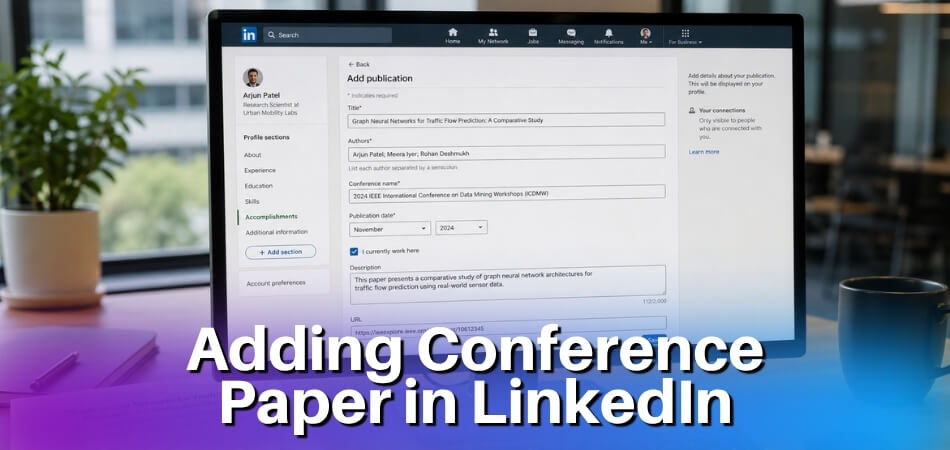
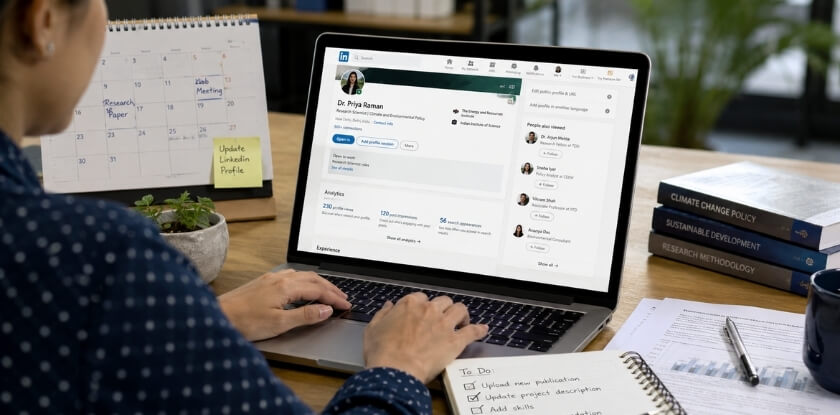
Here’s the short answer: You can add a conference paper to your LinkedIn profile using the LinkedIn Publications section, found inside the LinkedIn Accomplishments section on your profile page. Click “Add profile section,” select “Accomplishments,” then choose “Publication.” Fill in the paper title, publication name (the conference proceedings, journal, or publisher like IEEE or ACM Digital Library), the publication date, any co-author names, a URL pointing to the paper on ResearchGate, Google Scholar, or SSRN, and a brief description. Hit save, and the paper appears publicly on your profile.
But if you want to do this right — not just add an entry but actually make it work for your visibility — there’s more to cover. This guide walks through the full process on both desktop and the LinkedIn mobile app for Android and iOS, explains how to handle co-authored papers without stepping on anyone’s credit, clarifies the difference between adding an academic conference paper versus a professional conference presentation, shows you how to pull in links from Google Scholar and ResearchGate, tells you what to do if your Publications section is simply missing, and shares practical tips to boost your LinkedIn profile visibility and get found by the right people after your paper goes live.
How to Add a Conference Paper to LinkedIn — Quick Answer
Go to your LinkedIn profile, scroll to the Add profile section button, open Accomplishments, and select Publication. Fill in the paper title, publication name (the conference or proceedings), publication date, co-authors, a URL (DOI link, IEEE page, ACM Digital Library, or Google Scholar), and a short description. Hit save.

That’s the core of it.
The field is called “Publication” — LinkedIn doesn’t have a separate category for conference papers specifically. It lives under the LinkedIn Accomplishments section, which also houses patents, certifications, and awards. So if you’ve been hunting for a dedicated “conference paper” tab, you won’t find one. Publications is where it goes.
A few things worth getting right before you hit save:
- Title — Use the exact title from the conference proceedings. Don’t shorten it.
- Publication/Publisher — Put the conference name here, like “IEEE International Conference on Computer Vision” or “ACM SIGCHI Conference on Human Factors.”
- Date — Use the date the paper was presented or officially published, not when you wrote it.
- URL — Link to the DOI if you have one. If not, a ResearchGate page, SSRN link, or Google Scholar entry works fine.
- Co-authors — You can tag co-authors directly if they’re LinkedIn connections. Do this. It increases visibility for everyone listed.
The whole process takes under five minutes on desktop. On the LinkedIn mobile app (Android or iOS), the path is slightly different — tap your profile photo, scroll to Add section, then Accomplishments, then Publication. Same fields, same logic.
One thing people miss: the description box. Don’t leave it blank. Write 2–3 sentences explaining what the paper is about and why it matters. A recruiter or hiring manager skimming your profile won’t know what “Adaptive Graph Convolutional Networks for Temporal Anomaly Detection” means without context. Give them one line that translates the research into plain language.
What Is the LinkedIn Publications Section and Why Should You Add Your Conference Paper There
LinkedIn has a dedicated space called the Publications section, and most people completely ignore it. That’s a mistake — especially if you’ve had a paper accepted at an academic or professional conference.
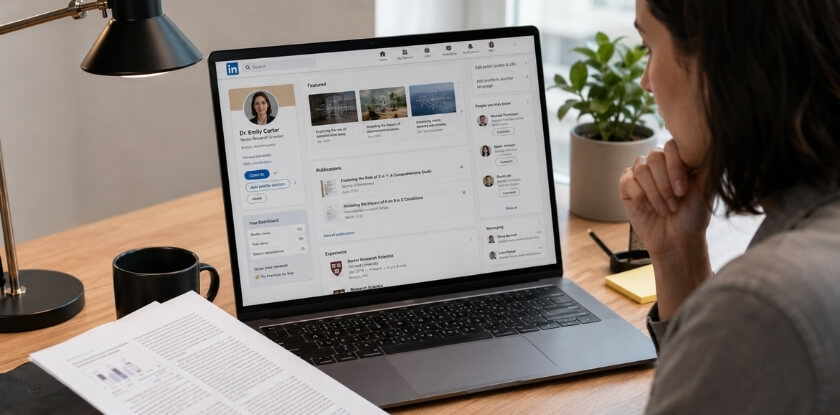
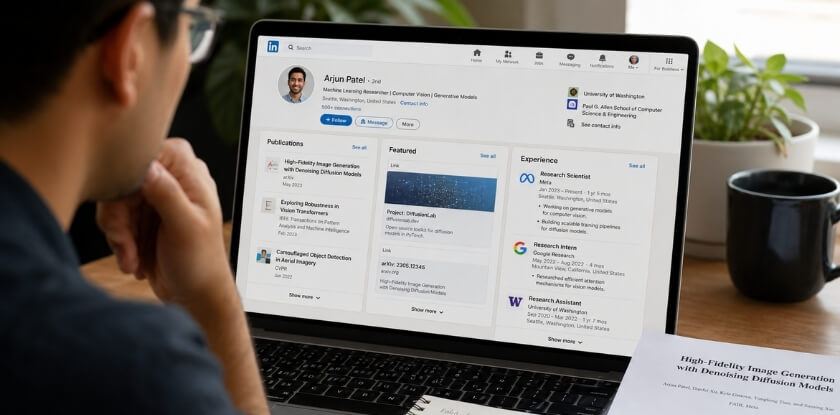
The Publications section lives under your profile’s Accomplishments area. It’s designed specifically to showcase written work: journal articles, book chapters, reports, and yes, conference papers. You can add a title, publication date, the name of the conference or proceedings, co-authors, a short description, and a direct URL — which could be a DOI, a link to the ACM Digital Library, IEEE Xplore, SSRN, ResearchGate, or Google Scholar.
Here’s why this matters more than you might think.
It Signals Credibility to the Right People
Recruiters and hiring managers don’t always dig through your job history to assess expertise. A lot of them scan for proof. A peer-reviewed paper listed under Publications — with a real DOI and a link to the conference proceedings — is a concrete signal. It tells them you’ve done work serious enough for an external committee to vet and publish.
That’s different from a bullet point on your experience section saying “conducted research.”
It’s Indexed by LinkedIn Search
LinkedIn’s search algorithm picks up content from across your profile, including Publications. So if your paper is about, say, federated learning in healthcare, someone searching for that topic has a better chance of finding you. This is especially relevant if you’ve turned on LinkedIn Creator Mode, which already boosts your discoverability.
The Publications section also adds weight to your LinkedIn headline and About section by giving them context. Your headline might say “ML Researcher | NeurIPS & ICML Publications” — and now there’s actual evidence behind it.
It Helps Co-Authors Too
When you add a conference paper, you can tag co-authors who are also on LinkedIn. They get notified, and the publication can appear in their profiles as well. That’s a small but useful way to strengthen your professional network while accurately representing collaborative work.
It’s Separate from Posting Content
Some people drop a link to their paper as a regular post. That’s fine for visibility, but posts disappear from your feed within days. The Publications section is permanent. Anyone visiting your profile six months later can still find the paper right there, without hunting through your activity feed.
If you’ve published at a conference — IEEE, ACM, or even a smaller domain-specific event — it belongs here. It takes about three minutes to add, and it works for you long after you’ve forgotten you set it up.
Step-by-Step Guide to Adding a Conference Paper via the Publications Section on Desktop

How to Find the Publications Section on Your LinkedIn Profile
Log into LinkedIn and go to your profile page. Scroll down past your About section, your Experience, and your Education entries. You’re looking for the Add profile section button — it’s near the top of your profile, just below your headline and connection count.
Click it. A dropdown menu opens showing several categories. Select Accomplishments, and within that list you’ll see Publications. Click it.
That’s your entry point into the LinkedIn Publications section.
One thing to know: if you’ve already added at least one publication before, you won’t need to go through Accomplishments again. The Publications section will already appear on your profile, and you can just hit the + icon directly next to the section heading.
If you don’t see Accomplishments in the dropdown at all, LinkedIn may have already surfaced it elsewhere on your profile depending on your account layout. In that case, scroll through your full profile — Publications sometimes shows up between Courses and Patents.
How to Correctly Fill In the Title, Publication Name, Date, URL, and Description Fields
Once the Publications dialog box opens, you’ll see five main fields. Here’s exactly what to put in each one.
Title This is the full title of your conference paper. Don’t abbreviate it. Copy it exactly from the proceedings — including any subtitle after a colon. Recruiters and hiring managers sometimes search for specific terms, and your exact title text gets indexed by the LinkedIn Search algorithm.
Publication/Publisher This is where you name the conference or the proceedings volume. For example: Proceedings of the 2023 IEEE International Conference on Computer Vision or ACM Digital Library — CHI Conference 2022. Don’t just write “IEEE” alone. Be specific. If your paper was published through SSRN ahead of a conference, you can note that too, but lead with the conference name.
Publication Date Set this to the month and year your paper was presented or officially published in the proceedings. If you only know the year, just enter the year — LinkedIn lets you leave the month blank.
Publication URL This matters more than most people realize. Link directly to your paper. The best options, in order of preference:
- The DOI (Digital Object Identifier) link — something like
https://doi.org/10.1109/CVPR52688.2023.01234- Your paper’s page on the ACM Digital Library or IEEE Xplore
- Your ResearchGate or Google Scholar profile entry for that specific paper
- Your institution’s repository or personal academic website
Avoid linking to a generic conference homepage. Give people somewhere they can actually read or access the paper.
Description Keep this under 200 words. State what the paper is about in plain language — one or two sentences on the problem you addressed, one on your method or approach, and one on the key finding or outcome. Don’t paste your abstract verbatim unless it’s already written clearly. Abstracts are written for peer-reviewed paper submissions, not for a recruiter scrolling a profile at 9pm.
If there’s a co-author, this description is a good place to acknowledge collaborative work, though LinkedIn has a dedicated co-author field too — more on that below.
How to Save and Preview Your Conference Paper Entry
Once you’ve filled in all the fields, scroll to the bottom of the dialog and hit Save.
LinkedIn will immediately display the publication entry on your profile. Give it a look. Check that the title rendered correctly, the URL is clickable, and the date shows up as expected. Sometimes the DOI link needs to start with https:// rather than just doi.org/ — if the link shows up as plain text instead of a hyperlink, go back and edit the URL field with the full https://doi.org/ prefix.
After saving, switch to a private or incognito browser window and pull up your public LinkedIn profile. This shows you what a recruiter or academic peer actually sees before they’re logged in. Confirm the Publications section is visible — if it’s not showing, check your LinkedIn profile visibility settings to make sure your profile is set to public and that your publications are included in what’s viewable.
That’s it. The whole process takes about five minutes per paper once you have your DOI and conference details in front of you.
How to Correctly Format Your Conference Paper Title, Authors, and URL on LinkedIn
Getting the formatting right matters more than most people realize. A badly formatted publication entry looks sloppy to a recruiter or hiring manager who’s skimming your profile, and it can also make your paper harder to find through the LinkedIn Search algorithm.

Here’s how to handle each field properly.
Publication Title
Use the exact title from the conference proceedings. Don’t shorten it, paraphrase it, or capitalize every word unless the original does. If the paper appeared in IEEE or ACM Digital Library, copy the title character-for-character from the official listing.
For example: Federated Learning for Edge Devices: A Latency-Aware Approach — not Federated Learning Paper or ML Research.
If your title includes a colon and subtitle, include the full thing. Truncating it makes it unsearchable.
Authors Field
List authors in the same order they appear on the paper. This is standard academic practice, and co-authors will notice if you rearrange the order to put yourself first.
Separate names with commas. A simple format works fine:
John Smith, Maria Gonzalez, Priya Nair
If there are six or more authors, LinkedIn’s field can handle all of them — just keep going. Don’t write “et al.” That’s for citations, not your own profile entry.
You can tag co-authors who are on LinkedIn by typing their name and selecting them from the dropdown. Do it. It adds credibility and gives them a notification, which they usually appreciate.
Publication Date
Use the date the paper was actually presented or published in the conference proceedings — not when you submitted it, not when you started writing it. If it was a multi-day conference, the first day of the conference works fine.
LinkedIn uses month and year fields. If you only know the year, leave the month blank rather than guessing.
Publisher Field
This is where a lot of people get vague. Don’t just write “Conference Paper” or “Academic Research.” Be specific.
- For an IEEE conference: write IEEE or the full society name like IEEE Communications Society
- For an ACM event: write ACM or the specific conference name like ACM CHI 2023
- For a working paper on SSRN: write SSRN
- For proceedings listed on Google Scholar or ResearchGate: you can still cite the original publisher, not the indexing platform
The publisher field shows up under your entry. Hiring managers in technical fields recognize IEEE and ACM immediately. Use that.
URL — What to Link and What to Avoid
This field is optional, but you should fill it in. A linked paper is dramatically more credible than one without a link.
Best options, in order of preference:
- DOI link — If your paper has a DOI (Digital Object Identifier), use it. Format:
https://doi.org/10.XXXX/XXXXXX. These are permanent and won’t break. - IEEE or ACM Digital Library page — Direct link to the abstract or full-text page on the publisher’s site.
- ResearchGate or Google Scholar — Fine as a fallback if the paper is behind a paywall and you have a preprint publicly posted.
- Your personal site or university repository — Works if the above aren’t available.
Don’t link to a Google Drive PDF you uploaded yourself unless it’s genuinely the only option. It looks unprofessional and the link will probably break in six months.
If the paper is open access, link directly to the PDF. If it’s paywalled, link to the abstract page — that’s still useful.
A Note on the Description Field
LinkedIn gives you a free-text description box. Keep it to two or three sentences maximum. Write what the paper actually does, not what you hope it sounds like.
Bad: This groundbreaking research explores innovative approaches to machine learning.
Good: Presents a latency-aware federated learning model tested across 12 edge devices. Achieved 23% reduction in communication overhead compared to standard FedAvg. Published in IEEE ICC 2023 proceedings.
Numbers, outcomes, conference name. That’s what sticks.
Academic vs Professional Conference Papers — How to Add Each One the Right Way
Not all conference papers are the same, and how you present them on LinkedIn should reflect that difference. An academic paper published in IEEE conference proceedings is a different beast from a talk you gave at a professional industry summit. Both belong on your profile — just framed differently.
Academic Conference Papers (Peer-Reviewed)
If your paper went through a formal review process and appears in published conference proceedings — IEEE, ACM Digital Library, SSRN, or a similar indexed archive — treat it like a publication. Full stop.
Use the LinkedIn Publications section (found under Accomplishments) for these. Here’s what to fill in:
- Title: Exact title from the proceedings. Don’t shorten it.
- Publication/Publisher: Name of the conference and proceedings, e.g., Proceedings of the 2023 IEEE International Conference on Machine Learning
- Date: Use the conference date, not when you uploaded it
- URL: Link directly to the paper on IEEE, ACM, ResearchGate, or Google Scholar — whichever is publicly accessible
- DOI: If there’s a DOI (Digital Object Identifier), paste the full URL format:
https://doi.org/10.xxxx/xxxxx. This is the most stable link you can use.
Co-authors matter here. LinkedIn lets you tag them if they’re in your network. Do it. It creates a mutual connection to the paper and helps both profiles.
For a peer-reviewed paper, also add a one-line description. Something like: “Presented at [Conference Name], [Year]. Accepted after double-blind peer review. Published in [Proceedings name].” This tells a recruiter or hiring manager instantly that this wasn’t a casual submission.
Professional Conference Papers and Presentations
These don’t always fit neatly into the Publications section — and that’s fine. A presentation at an industry conference with no formal proceedings isn’t a publication. Forcing it into that section with fake or missing fields looks worse than not listing it there at all.
You’ve got two better options:
Option 1 — Add it to the Experience section. If the conference was tied to your role or your employer sent you there, add a bullet under that job. Something like: “Selected to present research on [topic] at [Conference Name], [Year], audience of 400+ attendees.”
Option 2 — Mention it in the LinkedIn About section. If presenting at professional conferences is a recurring part of your work, a single line in your summary does the job: “Regular speaker at [industry] conferences including [Name] and [Name].”
If there IS a published abstract, white paper, or slide deck with a URL, you can still use the Publications section — just be accurate about what it is. Label it as a “conference presentation” or “industry white paper” rather than implying it’s a peer-reviewed paper.
When a Paper Spans Both Worlds
Some papers get presented at an academic conference but also reach a professional audience — think applied research in fields like data science, cybersecurity, or public health policy. In that case, add it properly in the Publications section with the full academic citation, and mention it briefly in your Experience entry or LinkedIn headline if it’s relevant to the work you want to attract.
LinkedIn Search algorithm picks up keywords from multiple sections. A paper on adversarial machine learning listed in Publications and referenced in your About section will surface in more searches than one buried in a single field.
One last thing: check your LinkedIn profile visibility settings after adding anything. If your profile is set to private or limited, none of this reaches the recruiters and collaborators you’re trying to reach.
How to Display a Co-Authored Conference Paper on LinkedIn
Co-authored papers are common in academic and research circles, and LinkedIn handles them a bit differently than a CV or ResearchGate profile would. There’s no automatic co-author tagging system built into the Publications section. You have to do it manually — but there’s a right way to do it.

List All Authors the Same Way the Paper Does
When you fill in the Authors field in the LinkedIn Publications section, replicate the author order exactly as it appears in the conference proceedings. If the paper was published through IEEE or the ACM Digital Library, check the official listing to confirm the order. Don’t rearrange names to put yourself first. Reviewers, hiring managers, and other researchers will spot that immediately if they look up the paper.
Format it simply: Last name, First initial for each author, separated by commas. For example:
Rahman, A., Chen, L., Patel, S.
If there are six or more authors, it’s acceptable to list the first three followed by “et al.” — but only if that’s genuinely how the paper is cited in its published form.
Tag Co-Authors in Your Post, Not in the Publication Entry
The Publications section itself doesn’t support tagging LinkedIn profiles. But when you share the publication as a post — which you should do — you can tag co-authors directly in the post text using the @ symbol, as long as they’re your connections.
This does two things. It notifies them so they can reshare it. It also expands the post’s reach to their networks, which is useful if your co-author works in a different industry or institution. More eyes on the paper means more profile visits for everyone.
Coordinate With Your Co-Authors
If the paper is significant — say, it was presented at a major professional conference or published in a peer-reviewed conference proceedings — it’s worth a quick message to your co-authors asking if they’re adding it too. Consistency matters. If a recruiter sees the paper on your profile listed one way, then finds it on a co-author’s profile listed differently, that looks sloppy.
You don’t need to write identical descriptions. But the title, author list, and publication year should match across all profiles.
What to Do if Your Co-Author Isn’t on LinkedIn
This happens often in academic contexts. Simply leave the author field accurate and complete regardless. Don’t skip listing someone just because they don’t have a LinkedIn account. The Publications section is a record of the work, not a social tag system.
If you want to give a non-LinkedIn co-author proper credit in a post, just mention them by name in the text. “Co-authored with Dr. Keiko Tanaka at Osaka University” works fine.
First Author vs. Contributing Author — Does It Matter?
Yes, and you should signal it. If you were the first author or corresponding author, say so in the publication description field. Something like: “First author. Presented at [Conference Name], [Year].” Brief. Clear.
If you were a contributing author rather than the lead, you still add the paper — just don’t misrepresent your role. Honesty here matters more than it might seem. Hiring managers in research-heavy roles often verify papers on Google Scholar or SSRN, and if your description implies more involvement than the paper shows, that’s a problem.
Adding a Co-Authored Paper on Mobile
The process on the LinkedIn mobile app — whether Android or iOS — is the same as the desktop version. Go to your profile, scroll to the Accomplishments section, tap the + icon, and select Publication. The fields are identical. Just make sure you’re not abbreviating the author list on mobile just because the keyboard is annoying. Take the time to get it right.
Conference Attended vs Conference Presented — Key Differences and How to Show Both Separately
There’s a real difference between attending a conference and presenting at one. Recruiters and hiring managers know this. So does anyone reading your profile carefully. Lumping both into the same section without context can actually undersell your work — or, worse, overstate it.
Here’s how to handle each one cleanly.
Presenting at a Conference
If you authored or co-authored a paper and it was accepted into conference proceedings — IEEE, ACM Digital Library, SSRN, wherever — that belongs in the LinkedIn Publications section. Full stop. This is peer-reviewed work (or at minimum, formally reviewed work). Treat it like a publication, because it is one.
Fill in:
- Title — exact title from the proceedings
- Publisher — the conference name (e.g., “Proceedings of the 2023 ACM Conference on Human Factors in Computing Systems”)
- Publication date
- URL or DOI — link to the paper on Google Scholar, ResearchGate, or the publisher’s site
If you presented but didn’t publish a written paper, you can still add it. Use the Publications section, note “Conference Presentation” in the description, and explain briefly what the talk covered. No DOI needed. Just be transparent about what it was.
Attending a Conference (Without Presenting)
This one trips people up. You can’t add a conference you attended to the Publications section — that would be misleading. But you’re not out of options.
The LinkedIn Accomplishments section isn’t the right fit either, since it doesn’t have a dedicated “conferences attended” field.
What actually works:
Option 1 — Mention it in your LinkedIn About section. A line like “Regular attendee at NeurIPS and CVPR” signals that you’re plugged into your field. Short, factual, no embellishment needed.
Option 2 — Write a LinkedIn post about it. If you attended a significant academic or professional conference, a short post summarizing key takeaways does two things: it adds the conference name to your profile activity, and it gets picked up by the LinkedIn Search algorithm if someone searches that conference name. If you have LinkedIn Creator Mode on, these posts sit more prominently on your profile.
Option 3 — Add it under the relevant job or education entry. In the description of your current role or degree, you can list conferences you regularly attend as part of your professional development. Not ideal for every conference, but useful for major annual ones tied to your field.
A Practical Setup That Works
Say you presented a paper on federated learning at a 2023 IEEE conference. Here’s how your profile might handle it:
- Publications section → your IEEE paper with the DOI and full proceedings citation
- LinkedIn About section → one sentence mentioning you present regularly at IEEE and ACM events
- A post → a 150-word summary of what you discussed, written after the conference
Three touches. None of them redundant. A recruiter or researcher landing on your profile gets the full picture without you having to explain it in person.
The mistake most people make is treating “I was there” and “I presented there” as equivalent. They’re not — but both can be shown honestly if you use the right parts of your profile for each.
Can You Add a Conference Paper on the LinkedIn Mobile App
Yes, you can. The LinkedIn mobile app lets you add publications directly from your phone, though the interface is a bit more cramped than desktop. The steps differ slightly between Android and iOS, mostly in menu placement.
How to Add a Conference Paper on Android
Open the LinkedIn app and tap your profile photo in the top-left corner to go to your profile. Scroll down past your experience and education sections until you hit Add profile section. Tap it.
A bottom sheet menu will slide up. Tap Accomplishments, then scroll down and select Publications. That’s where conference papers live on LinkedIn — under the LinkedIn Accomplishments section, same as on desktop.
From there, fill in:
- Title — Use the full paper title, exactly as it appears in the conference proceedings
- Publication/Publisher — Put the conference name here (e.g., Proceedings of the 2023 IEEE International Conference on…)
- Publication date — Month and year is fine
- Publication URL — Paste your DOI link, ACM Digital Library URL, IEEE Xplore link, or your ResearchGate/Google Scholar page
- Description — Optional, but worth using for a one or two sentence abstract
Hit Save in the top-right corner. Done.
One thing to watch on Android: the URL field sometimes doesn’t validate DOI links that start with https://doi.org/ if you paste them with extra whitespace. Type it clean or copy it directly from your browser address bar.
How to Add a Conference Paper on iOS
The flow is almost identical on iPhone, but the menu labels sit in slightly different spots.
Tap your profile picture from the home feed or go directly to your profile via the Me tab at the bottom of the screen. Scroll down and tap Add profile section. Choose Recommended, then tap Add publications — or go through Accomplishments if you don’t see it as a recommended option. LinkedIn shuffles these around depending on your profile completeness, so don’t be surprised if the path varies slightly.
Once you’re inside the publication form, fill in the same fields: title, publisher (conference name), date, URL, and description. Same rules apply — put the conference proceedings name in the publisher field, not just “IEEE” or “ACM.”
Tap Save when you’re done.
On iOS, the LinkedIn mobile app occasionally buries the Publications option if you’ve never added one before. If you can’t find it under Accomplishments, tap Show all at the bottom of the Add profile section menu. It’ll be there.
A quick note on both platforms: adding your conference paper through the app gets the job done, but if you’re adding multiple papers or need to double-check formatting — especially for co-author names — desktop is easier. The mobile form is fine for one-off additions or quick edits on the go.
How to Link Your Conference Paper from ResearchGate or Google Scholar to LinkedIn
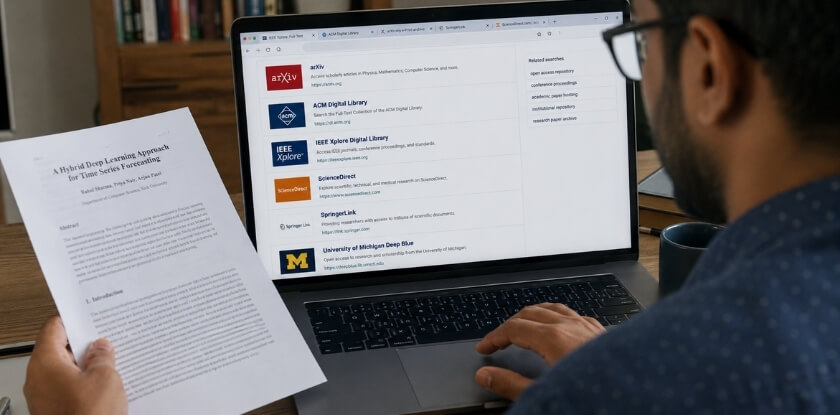
If your paper is already indexed on ResearchGate, Google Scholar, IEEE Xplore, ACM Digital Library, or SSRN, you have a ready-made URL to drop into your LinkedIn Publications section. That link does real work — it lets recruiters, hiring managers, and other researchers actually read your paper, not just see a title.

Here’s how to do it cleanly.
Getting the Right URL from ResearchGate
Go to your paper’s page on ResearchGate. Copy the URL directly from the browser address bar. It’ll look something like:
https://www.researchgate.net/publication/123456789_Your_Paper_Title
That’s the link you want. Don’t use a “share” button link or a shortened redirect — those sometimes break or require login to view. The direct publication URL is stable and publicly accessible even to people without a ResearchGate account.
Paste that URL into the Publication URL field inside the LinkedIn Publications section when adding your conference paper.
Getting the Right URL from Google Scholar
Google Scholar is trickier. The links it generates are often internal search result pages, not stable paper pages. If you click on a paper title in Scholar and it takes you to an external publisher page — say, an IEEE or ACM page — copy that URL instead. That’s the canonical source.
If your paper only shows a Scholar listing with no external link, look for the [PDF] tag on the right side. That PDF URL can work, but it’s better to track down the official conference proceedings page if one exists.
A DOI (Digital Object Identifier) is the most reliable option when it’s available. A DOI link looks like:
https://doi.org/10.1109/EXAMPLE.2023.123456
Use that as your Publication URL on LinkedIn. DOI links don’t break. They redirect to wherever the publisher hosts the paper, even if the publisher changes their site structure.
When There’s No Public URL
Some papers in conference proceedings aren’t freely accessible online — they’re behind a paywall. That’s fine. You have two options:
- Link to the abstract page rather than the full paper. IEEE and ACM both have abstract pages that are publicly viewable even without a subscription.
- Leave the URL field blank and include the full citation details in the description field instead — conference name, year, volume, page numbers, DOI if available.
Leaving the URL field empty won’t disqualify your entry. LinkedIn doesn’t require it. A well-formatted citation without a link is still better than no entry at all.
Cross-Posting the Link on LinkedIn
Once you’ve added the paper to your Publications section, consider posting about it separately in your LinkedIn feed with the ResearchGate or DOI link included in the post itself. Publications entries don’t always get seen — they’re buried in the profile scroll. A direct feed post gets indexed by the LinkedIn Search algorithm and surfaces to your connections organically.
Keep the post short. Something like: “Just added my paper from [Conference Name] — covers [one-line summary]. Full text linked below.” That’s enough. No need to write an essay in the caption.
Syncing ResearchGate and LinkedIn Profiles
ResearchGate has a built-in LinkedIn sharing option on paper pages — a small “Share” dropdown. It generates a pre-filled post with your paper title and link. It’s convenient, but the auto-generated text is generic. Edit it before posting. Make it sound like you, not a bot.
There’s no direct API sync between ResearchGate or Google Scholar and LinkedIn. You’re doing this manually. That’s actually fine — it keeps you in control of how each paper is described and framed for a professional audience versus an academic one.
What to Do If You Do Not Have a Publications Section — Using Accomplishments or the Summary Section Instead
Not everyone sees the Publications section as an available option on their profile. This is more common than you’d think. LinkedIn doesn’t display every section by default — you have to add it manually, and sometimes the option doesn’t show up cleanly depending on your account type, region, or how your profile was originally set up.
Here’s how to work around it.
First, Check If Publications Is Hidden
Before assuming it’s gone, go to your profile and click “Add profile section.” Look under the Accomplishments dropdown inside that menu. Publications is technically grouped within the LinkedIn Accomplishments section. It won’t always appear as a standalone option until you look there specifically.
If you see it — add it. Done.
If you genuinely can’t find it after checking twice, then you have two practical alternatives.
Option 1: Use the Accomplishments Section (Honors or Projects as a Workaround)
Inside LinkedIn Accomplishments, you’ll find sub-sections like Projects, Honors & Awards, and Courses. None of these are a perfect substitute, but Projects comes closest.
Add a new project and treat it like a publication entry:
- Project Name: Your paper title, exactly as it appears in the conference proceedings
- Description: Write 2–3 sentences covering what the paper is about, the conference it was presented at (name, year, location), and whether it was peer-reviewed. Drop the DOI or a direct link to Google Scholar, IEEE, ACM Digital Library, or SSRN in the description text.
- Associated with: Link it to your current role or institution
- Date: Use the conference date, not the submission date
It’s not ideal. But a recruiter or hiring manager scanning your profile will still see it, understand what it is, and can click through to verify it.
Option 2: Add It to Your LinkedIn About Section
The LinkedIn About section — also called the summary — is underused for this. Most people fill it with vague career goals. You can make it do actual work.
At the bottom of your About section, add a short block like this:
Selected Publications “Your Conference Paper Title” — Conference Name, Year. [DOI or URL]
Keep it brief. One to three papers maximum. If you have more, list the strongest ones and point readers toward your ResearchGate or Google Scholar profile for the full list.
This approach works especially well if you’re actively posting content or have LinkedIn Creator Mode turned on, because your About section sits near the top of your profile and gets seen before anything else.
Which Option Is Better?
Use Projects if you want the paper to appear in a structured, scannable section. Use About if you want it visible immediately without anyone having to scroll deep into your profile.
Honestly, if you’re serious about showcasing research, do both — and then keep checking your profile settings every few weeks. LinkedIn rolls out section availability gradually, and the Publications section may appear for your account later even if it’s not there now.
One more thing: whatever workaround you use, make sure your LinkedIn profile visibility is set to public. A private profile means the paper isn’t discoverable through the LinkedIn Search algorithm, and no one outside your connections will find it.
Tips to Boost Your Profile Visibility After Adding a Conference Paper
Adding the paper is step one. Getting people to actually see it is a different game entirely.
LinkedIn’s search algorithm doesn’t just index your job titles — it crawls your entire profile, including the Publications section. That means the words you use in your paper title, the conference name, and even the publisher field all become searchable. So be precise. If your paper was published in IEEE Access or ACM Digital Library proceedings, write that out fully. Don’t abbreviate when the full name is what people search for.

Update Your LinkedIn Headline
Your headline is prime real estate. If you’ve published at a notable conference — say, an IEEE or ACM event — you can add a short note directly in your headline. Something like “Researcher | Published at IEEE ICCV 2023” takes 30 characters and immediately signals credibility to any recruiter or hiring manager scanning results. You don’t need to overhaul your headline. Just add it at the end.
Mention It in Your About Section
The LinkedIn About section is indexed heavily by LinkedIn Search. Write one or two sentences referencing the paper topic, the conference, and what problem it addressed. Don’t copy-paste the abstract. Write it the way you’d explain it to someone at a networking event. This gives you a second place on your profile where relevant keywords appear naturally.
Post About the Paper as a LinkedIn Update
This is the one step most people skip entirely. Once you’ve added the paper to your Publications section, write a short post — not an essay, just 150 to 250 words — explaining what the paper covers and why it matters to your field. Tag any co-authors who are on LinkedIn. Use 3 to 5 relevant hashtags, like #MachineLearning or #ComputerVision or whatever fits your domain.
Engagement on that post directly affects how often your profile surfaces in search results. It’s that simple.
Turn On Creator Mode
If you publish research regularly, LinkedIn Creator Mode is worth switching on. It moves your Featured and Activity sections higher up your profile, which means visitors see your published work and posts before they see your job history. Go to your profile dashboard and toggle it on under “Creator mode.” It takes about 10 seconds.
Check Your Profile Visibility Settings
This sounds obvious, but it catches people out. Go to Settings → Visibility → Profile visibility and make sure your profile is set to “Public.” Also check that the Publications section specifically is visible to everyone, not just your connections. If a recruiter or conference organizer searches for your paper topic and finds your name, they need to be able to see the full profile — not a locked-down version with half the sections hidden.
Link Back to LinkedIn from Google Scholar or ResearchGate
If your paper already has a Google Scholar or ResearchGate profile page, add your LinkedIn URL to your author bio on those platforms. People who discover your paper through an academic search sometimes want to know what you’re doing professionally. This creates a direct path from the paper back to your LinkedIn profile — no friction, no guessing.
Use the DOI in the Publication URL Field
If your paper has a DOI (Digital Object Identifier), use that as the URL in your LinkedIn Publications entry rather than a generic conference page link. DOI links are permanent, they resolve cleanly, and they give the entry a more authoritative look. Something like https://doi.org/10.1109/XXXX will hold up long after conference websites get reorganized or taken down.
One last thing: consistency matters. Make sure the author name you used on the paper matches your LinkedIn name exactly. If there’s a mismatch — say, you published under a middle initial but your LinkedIn profile doesn’t include it — it creates confusion for anyone trying to verify your work, whether that’s a hiring manager, a peer-reviewer, or a conference chair looking up your credentials.
Why Conference Papers Matter to Recruiters and Employers
Most people assume recruiters only care about job titles and years of experience. That’s not entirely wrong, but it’s incomplete — especially if you’re in a technical, scientific, or research-heavy field.
A conference paper on your LinkedIn profile tells a hiring manager something a job title can’t: you’ve done original work, had it reviewed by peers, and stood behind it in front of an audience. That’s a different signal than listing “conducted research” under a job description.
What a Recruiter Actually Sees
When a recruiter lands on your profile, they’re scanning fast. If they’re hiring for a role that involves R&D, data science, engineering, policy analysis, or academia, the Publications section stops them. It adds credibility instantly.
A paper published through IEEE or ACM Digital Library carries institutional weight. Even a paper in a smaller conference proceedings, if it’s relevant to the role, shows that you can take a problem from idea to finished, reviewed output. That matters.
It also helps with the LinkedIn Search algorithm. Adding a conference paper with keywords in the title — machine learning, supply chain optimization, cybersecurity — makes your profile more likely to surface when recruiters search those terms.
Technical Roles vs Academic Roles
For technical roles in industry, a peer-reviewed paper signals depth. A software engineer who has published through ACM or presented at an academic conference isn’t just coding day-to-day — they’re thinking at a level that goes beyond tickets and sprints.
For academic or research roles, it’s almost non-negotiable. A hiring committee will look at your conference paper record before they look at almost anything else. Having those papers on LinkedIn, linked back to Google Scholar or SSRN, gives them a direct path to verify your work without emailing you separately.
The Co-Author Angle
If you co-authored the paper, that’s not a weakness. It shows you can collaborate on serious intellectual work. Recruiters in larger organizations — especially those running research teams — see co-authorship as a positive. List all authors correctly. Don’t bury the fact that it was collaborative.
One Practical Reality
Not every recruiter will click your paper link. Many won’t. But the presence of a conference paper still shifts perception. It adds weight to your LinkedIn headline and summary. It makes your profile look like it belongs to someone who contributes to a field, not just someone who works in one.
That distinction is small on the surface. In a competitive shortlist, it isn’t.
How to Write a LinkedIn Post About Your Conference Paper the Right Way
Adding your paper to the LinkedIn Publications section is step one. But a static profile entry only gets seen when someone actively visits your page. A post pushes your work directly into people’s feeds — and that’s where real visibility happens.

Here’s how to do it without sounding like a press release.
Keep the Opening Line Human
Nobody stops scrolling for “I am pleased to announce the publication of my paper…”
Lead with something real. What problem did your research actually solve? What surprised you during the work? What did you find that contradicted what you expected?
Example: “We tested three noise-cancellation models on low-resource hardware. One failed completely. Here’s what we learned.”
That gets clicks. A formal announcement does not.
What to Include in the Post Body
You don’t need to paste the abstract. Most abstracts are written for peer reviewers, not LinkedIn connections. Translate the key finding into plain language instead.
A solid structure:
- One sentence on the problem — what gap or question you were addressing
- One or two sentences on what you found — the actual result, not vague mentions of “significant findings”
- One line on where it was published — the conference name, whether that’s IEEE, ACM Digital Library, or a domain-specific academic conference
- A direct link — DOI, ResearchGate page, Google Scholar entry, or wherever someone can actually read it
Keep the whole post under 1,300 characters if you want it to display without a “see more” cutoff. That’s roughly 200–220 words.
Tagging Co-Authors
If it’s a co-authored paper, tag your co-authors. Do it in the post body, not just in a comment. LinkedIn’s algorithm treats tagged users as engagement signals — their networks may see the post too.
Just don’t over-tag. Tag the people who were genuinely central to the work. Tagging eight people because they’re loosely connected to the topic looks spammy and they may not appreciate it.
Hashtags — Yes, but Be Specific
Three to five hashtags is enough. Generic ones like #research or #science are nearly useless because the volume is too high. More specific tags tied to your field, like #NLProc, #machinelearning, #publichealth, or #behavioraleconomics, reach the actual audience that would care about your paper.
Check which hashtags your target audience already follows. The LinkedIn Search algorithm surfaces content partly based on hashtag relevance, so choosing them deliberately matters.
Timing Your Post
Post Tuesday through Thursday, between 8 AM and 10 AM in your target audience’s timezone. These aren’t magic numbers — they’re just when professional feeds get the most active views. Posting Friday afternoon is usually wasted effort.
If You’re in LinkedIn Creator Mode
Creator Mode gives your posts wider organic reach to non-connections. If you publish research regularly, it’s worth turning on. You’ll see a Topics section appear under your headline — add relevant research areas there. It signals to the LinkedIn Search algorithm what your content is actually about, which helps the right people find your posts.
One Post Isn’t Enough
Post when the paper goes live. Post again if you present it at the conference — that’s a different moment with a different angle (process, audience questions, what the room discussion surfaced). Post a third time if the paper gets cited or picked up somewhere.
Same paper. Different stories. That’s not repetition — that’s how professional visibility actually builds.
Frequently Asked Questions (FAQ)
Does LinkedIn have a dedicated section for conference papers?
Yes. It’s called the LinkedIn Publications section, and it sits under the Accomplishments section on your profile. It was built exactly for this — journal articles, book chapters, and conference papers all belong there. If you don’t see it on your profile, you need to add it manually through the “Add profile section” option.
Is a conference paper considered a publication on LinkedIn?
Absolutely. Conference proceedings, peer-reviewed papers presented at academic conferences, and professional conference papers all count as publications. LinkedIn doesn’t enforce strict academic definitions here. If it was formally presented and documented — even with just a DOI or a link to the ACM Digital Library, IEEE, or SSRN — add it as a publication.
What URL should I use if my paper doesn’t have its own webpage?
Use the DOI link if one exists — format it as https://doi.org/[your-DOI]. No DOI? Use your ResearchGate or Google Scholar profile page for that paper. A direct link to the conference proceedings on IEEE or ACM works too. The point is to give people something they can actually click and verify.
Can I add a conference paper without a URL?
Yes. The URL field is optional. You can still fill in the title, publisher (the conference name), publication date, and a short description. A missing link isn’t ideal, but it’s far better than leaving the paper off your profile entirely.
Should I list myself as an author in the authors field?
Always include your own name, even though it feels obvious. LinkedIn doesn’t auto-populate it. List all authors in the same order they appear in the original paper — don’t rearrange to put yourself first unless you actually were first author.
What if my co-author is also on LinkedIn?
You can tag them directly in the authors field by typing their name and selecting their LinkedIn profile if it appears. Not all names will match, so if the tagging doesn’t work, just type the name as plain text. Either way is fine.
How do I add a conference paper on the LinkedIn mobile app?
Open the LinkedIn mobile app on Android or iOS, go to your profile, tap “Add section,” scroll to Accomplishments, and select Publications. The form is identical to desktop — title, authors, publisher, date, URL, and description. The mobile version occasionally lags a bit on saving, so give it a moment before assuming something went wrong.
Will adding a conference paper actually help my profile in search?
It can. The LinkedIn Search algorithm indexes content from your profile sections, including Publications. Keywords in your paper title and description — methodologies, topics, technical terms — can help your profile surface for relevant searches. Recruiters and hiring managers in research-heavy fields do filter by expertise, and a conference paper adds credibility that your headline and LinkedIn summary alone can’t provide.
Can I add a conference I attended but didn’t present at?
Yes, but not in the Publications section. That section is for papers only. For conferences you attended without presenting, you can mention them briefly in the LinkedIn About section or reference them in experience bullet points under the relevant job. Some people also use the Honors & Awards or Courses sections creatively, but honestly a quick mention in the summary or experience is cleaner.
My Publications section disappeared after a LinkedIn update. What do I do?
This happens occasionally after profile layout updates. Go to “Add profile section” → “Accomplishments” → “Publications.” If your previously added papers are gone, you’ll need to re-enter them manually. It’s annoying, but that’s the fix. Screenshot your publications details before any major LinkedIn profile overhaul — takes 30 seconds and saves a lot of grief.
Should I write the conference name in full or use abbreviations like IEEE or ACM?
Use both. Write the full conference name in the Publisher field, and you can include the abbreviation in parentheses. For example: International Conference on Machine Learning (ICML). This helps both human readers and anyone searching for your paper who might only know the abbreviation.
Does LinkedIn Creator Mode affect how my publications appear?
LinkedIn Creator Mode changes how your profile is laid out — it pushes your Featured section and activity higher up. It doesn’t remove or hide your Publications section, but that section may sit further down the page. If you’re in Creator Mode and want your conference papers more visible, consider also featuring a LinkedIn post about the paper in your Featured section so it shows up near the top.
Conclusion — Take Your LinkedIn Profile to the Next Level with Your Conference Papers
Your conference paper is real work. It deserves to show up on your profile the right way.
Whether you published through IEEE, ACM Digital Library, or SSRN, whether it was a peer-reviewed paper at a major academic conference or a presentation at a smaller professional conference — it counts. Recruiters and hiring managers do look at this stuff. A well-placed entry in your LinkedIn Publications section tells a story that your job title alone never could.
The steps aren’t complicated once you’ve done them once. Add the paper properly, format the title and co-author names consistently, drop in the DOI or a working URL from ResearchGate or Google Scholar, and write a one-line description that a non-academic can actually understand. That last part matters more than most people think.
If you’re still missing the Publications section, use the LinkedIn Accomplishments section as a workaround or add a clean, brief mention in your LinkedIn About section. Not perfect, but far better than leaving it out entirely.
A few things worth doing after you’ve added the paper:
- Turn on LinkedIn Creator Mode if you plan to post about your research regularly — it shifts your profile focus toward content and can improve your reach in the LinkedIn Search algorithm
- Update your LinkedIn headline to reflect the research area if it’s central to your career direction
- Share a short LinkedIn post when you add the paper — not a formal announcement, just a line or two about what the research actually found
Don’t overthink the post. One concrete takeaway from your findings, written plainly. That’s enough.
You’ve already done the hard part. The research is done. Getting it onto your profile correctly takes maybe fifteen minutes. Do it now, while the details are still fresh.