
A TV that looks right in a showroom can feel wrong once it is on the wall of a conference room. Some teams buy a 55-inch screen and find the back row squinting, while others mount a huge panel in a small room and make the front seats look from side to side. Both mistakes come from picking the size by budget or gut feeling instead of by the room.
Quick answer: Choose a screen whose diagonal is between one-third and one-half of the distance from the screen to your farthest seat. In practice, a 55-inch TV serves a farthest seat up to about 9 to 14 feet away, and a 75-inch TV up to about 12 to 19 feet. Use the larger end for spreadsheets and small text, and add a second screen once the room runs past about 20 feet.
Last verified against official sources: October 2026.
What Size TV Do You Need for a Conference Room?
The right size depends on three things: how far the back row sits from the screen, how many people are seated, and what appears on the screen. Measure the distance to the farthest seat first, and the screen size follows from it.
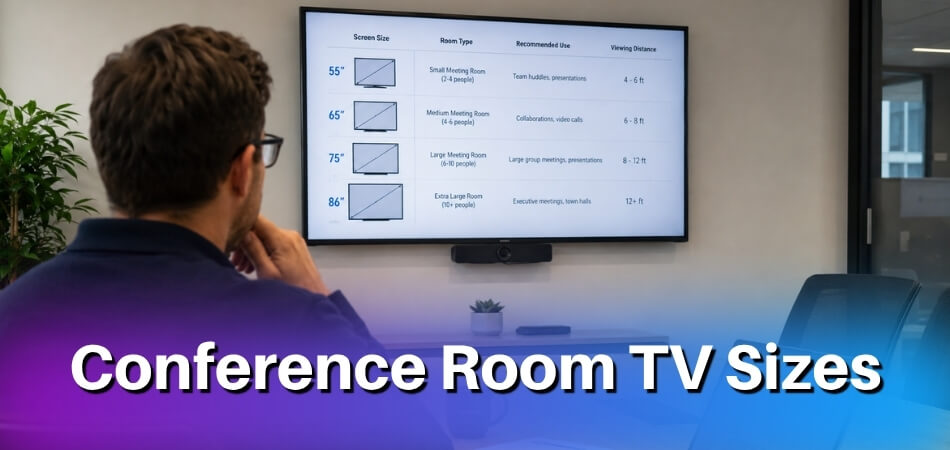
As a starting point by headcount, small rooms seating 4 to 6 people usually do well with a 55-inch TV. Medium rooms with 8 to 12 seats typically need a 75-inch TV. Large boardrooms or training spaces with 15 or more people often need a 90-inch-plus display or a dual display setup with two screens placed along the room. Headcount is only a shortcut, though. A 10-seat room that is short and wide may need less than a 6-seat room with a very long table.
The Viewing Distance Formula
AV planners work from the distance to the farthest viewer. Two simple versions are common, and both are rough simplifications of the AVIXA standard for display image size (ANSI/INFOCOMM V202.01:2016, known as DISCAS). AVIXA’s DISCAS calculator offers two methods, basic decision making and analytical decision making, and the second is meant for content where viewers must examine fine detail. If a room does both kinds of work, plan for the detailed case.
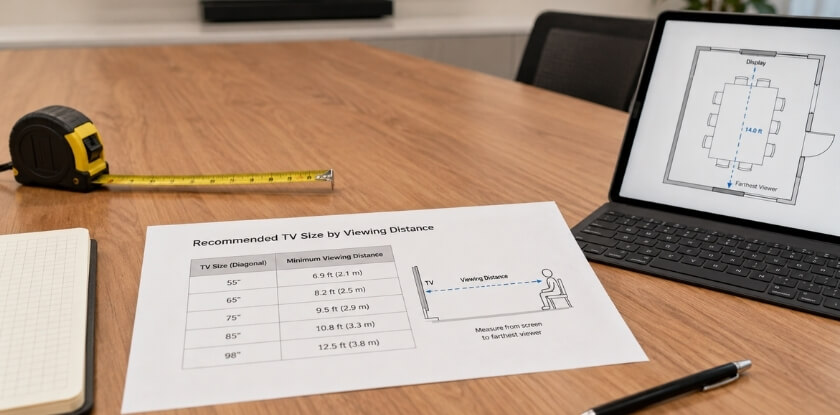
For a 16:9 screen, these become easy numbers. Divide the farthest viewing distance by 3 for general presentations and video calls. Divide it by 2 for detailed content. A farthest seat 15 feet (180 inches) away gives about 60 inches for general use and 90 inches for detailed work. Given how much content gets shared in meetings, going one size up is rarely a mistake.
Turned around, the same rule tells you how far a screen reaches. A 55-inch TV covers a farthest seat of about 9 feet for detailed content and about 14 feet for general slides. A 75-inch TV covers about 12 feet and 19 feet. An 85-inch TV covers about 14 and 21 feet.
By Room Size
These are practical starting points, not hard rules. Room shape, seating arrangement, and ceiling height can all shift your final choice.
- Small rooms (under 15 feet long, up to 6 seats). A 55-inch TV at the end of the table works here. Seats within 8 to 12 feet of the screen sit inside the comfortable range for a 55-inch display. A 65-inch is fine too if the budget allows.
- Medium rooms (about 15 to 25 feet, 8 to 12 seats). A 75-inch TV is the usual recommendation. It keeps the screen readable at the back without overwhelming people up front. At this size, 4K starts to matter if presenters share spreadsheets or detailed slides.
- Large rooms (25 feet and up, a dozen or more seats). One display often cannot cover the room once you pass 25 feet. A multiple screen setup, or at minimum a single 86 to 98 inch display, is worth considering.
TV Size Chart by Room Size
This chart anchors the screen size to the distance of the farthest seat. The second column applies the two rules above to a 16:9 screen. The third turns that into sizes you can actually buy. Treat the numbers as planning estimates, and check them against your own seating plan.
| Farthest Seat | Diagonal by the Rule (general to detailed) | Typical Choice | Notes |
| 8 ft | 32 to 48 inches | 43 to 55 inches | Huddle table for 4 to 6 people |
| 10 ft | 40 to 60 inches | 55 to 65 inches | Small meeting room |
| 12 ft | 48 to 72 inches | 65 to 75 inches | Standard small conference room |
| 15 ft | 60 to 90 inches | 75 to 85 inches | Single screen, center mount |
| 20 ft | 80 to 120 inches | 85 to 98 inches, or two screens | Farthest seats need the larger end |
| 25 ft | 100 to 150 inches | Two screens or a commercial display | Consider dual display, especially if the table is wide |
| 30 ft | 120 to 180 inches | Multiple screen setup, or 85 inches with a second screen | Multiple screens preferred |
| 35 ft+ | Beyond one panel | Dual 75 to 86 inch, or a commercial display | A single screen will not cover the room |
How Vendor Sizing Charts Compare
Vendor guides publish their own charts, and they differ a little, so treat every chart as a planning aid. A chart attributed to Clear Touch in a Smartway2 guide (updated March 2023) lists 55 inches for a farthest viewer up to 14 feet, 65 inches at 15 to 16 feet, 75 inches at 17 to 19 feet, and 86 inches at 20 to 22 feet, with a video wall beyond 22 feet. NearHub’s buying guide (updated August 2026) pairs a farthest seat of 12 to 16 feet with 65 to 75 inches, and 16 to 22 feet with 75 to 86 inches. Both sit near the lower half of the ranges in the chart above, which is why the chart gives a range instead of one size: the larger end is for rooms where people read dense tables.
Small Rooms (Up to 10 ft)
A 55-inch TV covers a huddle room or a small meeting space. At a viewing distance of 6 to 8 feet it gives a good balance between readability and room scale. You do not need 4K to get a sharp image at this distance, though it does not hurt if the budget allows. 1080p is adequate in a room this size, and the built-in speakers on a 55-inch display can be enough because the space is small.
Mid-Size Rooms (12 to 20 ft)
Many conference rooms fall in this range, and sizing decisions matter most here. A 75-inch TV handles the 12 to 15 foot range well for most seating arrangements. Push past 16 feet and plan on 85 inches to keep content legible at the far end of the table.
In hybrid rooms and rooms that share detailed documents, 4K starts to pay off in this range. Mounting matters here too, and it has its own section further down.
Large Rooms (20 ft and Beyond)
A single display stops being practical past roughly 20 feet. The farthest seats cannot read it clearly, or the screen would have to be so big it overpowers the room. A dual display setup, with two screens mounted at intervals along the room, spreads the viewing area more evenly and keeps every seat within a reasonable distance.
Very large boardrooms or training spaces may need three or more displays, or a dedicated conference room AV setup with a video matrix switcher. At that scale you are also deciding whether a smart display or interactive display adds value, since smart whiteboard features pay off in rooms where collaborative work happens often.
Budget Considerations by Room Size
The size the room needs and the budget do not always line up. A 75-inch budget conference room TV from a second-tier brand will often serve a large room better than a premium 55-inch, so prioritize size for the room over brand, especially when the screen is mainly for video calls and slides.
Two Simple Rules for Calculating Conference Room TV Size
Guessing by eye is the usual shortcut: walk in, look at the room, and order whatever feels right. These two rules give you a repeatable method that holds up from a four-person huddle space to a large boardroom.
Rule 1: Diagonal From Viewing Distance
Measure the distance from the screen to the farthest seat, in inches, and divide it by 3 for general use or by 2 for detailed content. That gives the recommended diagonal.
A room with a farthest seat at 12 feet (144 inches) points to 48 to 72 inches, so a 65 or 75-inch TV is the nearest standard size. At 10 feet (120 inches) the range is 40 to 60 inches, and a 55-inch TV covers it for most uses. At 15 feet (180 inches) it is 60 to 90 inches.
The idea is that everyone, including the person in the last chair, should read text and see slide content without leaning forward or squinting. It assumes one screen with viewers seated roughly along the length of the room. If you plan a dual display setup, apply the rule to each screen separately, using the longest sightline to that screen’s coverage zone instead of the whole room.
Rule 2: Screen Height From the Farthest Viewer
This works from the opposite direction. Measure the distance to the farthest seat and divide it by 6 for general content, or by 4 for detailed content. The result is the minimum screen height. Many AV guides give these 6 and 4 ratios as a quick summary of the standard, and the exact calculation also depends on resolution, aspect ratio, and the type of content. A rAVe Publications article (2013) describes a related 4/6/8 rule: 4 for engineering drawings and very fine detail, 6 for web pages, spreadsheets, and simple presentations, and 8 for motion video. Guides differ on where spreadsheets belong, so if people read dense tables from the far end of the room, use the larger end.
Say the farthest viewer is 12 feet (144 inches) away. Divide by 6 and you need 24 inches of screen height. A 55-inch TV is about 27 inches tall, so it clears the line. A 65-inch TV is about 32 inches tall, a more comfortable margin. For detailed content at the same distance, divide by 4 and you need 36 inches, which points to a 75-inch TV.
For a farthest seat 18 feet (216 inches) away, general content needs at least 36 inches of height, which again means a 75-inch TV. Detailed content needs 54 inches, which is beyond a single consumer panel and a good reason to think about two screens.
Height is worth checking separately because aspect ratio changes how much vertical space you get from the same diagonal. For standard 16:9 conference displays this is rarely a practical issue. Where it helps is in rooms with a non-standard layout, such as a horseshoe, or a table that runs parallel to the screen wall. In those rooms the room length tells you little, and the distance measured from each seat gives a more honest baseline.
Resolution comes into it as well. At longer distances, or when fine detail matters, 4K extends the range where the image stays sharp, so it is worth factoring in beside the size calculation.
Is a 55-Inch TV Enough for a Small Conference Room?
Yes, for many small rooms, but “small” needs a definition first. A 55-inch TV works when the room seats about four to six people and the farthest seat is no more than about 9 to 10 feet away for detailed content, or up to about 14 feet for plain slides and video calls. If the farthest seat is 12 feet or more and people read dense slides, text will feel small and the back row will lean forward.
What “Small” Actually Means in Practice
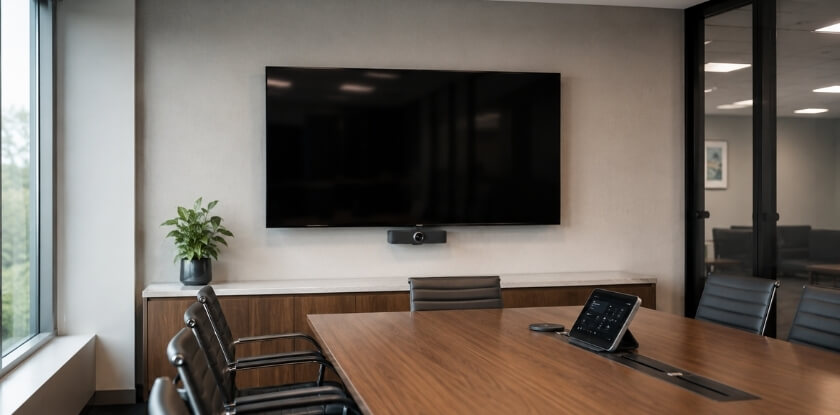
A small room often measures somewhere around 10 by 12 to 12 by 15 feet. A 55-inch TV mounted at eye level covers video calls, slide decks, and simple data sharing there. 1080p holds up at close viewing distances, so a 4K panel is not required in a tight space.
A 55-inch screen starts to feel inadequate when the room doubles as a training space or when more than six people crowd in. Seating matters a lot. A narrow room with chairs in one row along a long table gives most people a decent sightline. A square room where people sit on three sides is harder to serve with a screen that size.
When to Step Up to 75 Inches
If the room seats eight or the table runs longer than twelve feet, skip the 55-inch and look at a 75-inch TV. The jump in diagonal gives a noticeably taller image, and the height is what helps readability, not the width.
You can check this with the rule from earlier. Take the distance to the farthest seat and divide it by 2 for detailed content. A ten-foot distance points to a 60-inch screen, so a 55-inch is already on the small side if people read spreadsheets. At a tight eight feet, a 55-inch clears the line comfortably.
Audio in Small Rooms
Many 55-inch TVs have built-in speakers that are fine for four people in a room with decent acoustics. Hard walls, glass, or an open ceiling make them sound thin and echoey. For hybrid meetings where remote participants must hear clearly, a dedicated speakerphone or a ceiling mic and speaker combination is a better investment than a bigger display. The audio section below covers this in more detail.
Interactive and Smart Display Options
If the room is used for collaborative work, such as brainstorming, annotating diagrams, or working through documents together, a smart whiteboard or interactive display makes more sense than a standard TV. These panels typically start at 55 inches and combine touch input with smart display features that a standard TV lacks.
For a room used only for video calls and one-way presentations, a standard 55-inch TV with a connected conferencing camera does the job. The interactive route adds cost and complexity that a basic meeting room does not need.
When Do You Need a 75-Inch or Larger TV for a Large Conference Room?
When the farthest seat is more than about 12 feet away for detailed content, or the room runs beyond roughly 20 feet. Past that point a 55-inch display is too small for the far end to read slides comfortably. A 75-inch TV is the practical starting point for mid-to-large rooms, and for anything bigger you are often looking at 85 inches or a dual display setup.
Rooms Between 20 and 30 Feet Long
A 75-inch TV covers a farthest seat of about 12 feet for detailed content and 19 feet for general slides, so it suits the shorter end of this range. Toward 25 or 30 feet, the rule asks for 85 inches and up, which is where a second screen becomes the better answer.
- Seating arrangement matters here. If chairs line both sides of a long table, people at the edges sit at angles where one screen is hard to see. A dual display setup, with two 65-inch screens placed toward each end of the room, can serve that layout better than one large central screen. A Smartway2 guide (2023) suggests keeping participants within about 45 degrees of the centre of the screen.
- Resolution becomes more noticeable at this size. A 4K panel at 75 inches keeps text and detailed charts sharp. A 1080p screen at this size is still usable, but you will notice the difference if the room regularly shows dense spreadsheets or technical diagrams.
Rooms Over 30 Feet Long
Rooms this large need at least an 85-inch display, and many AV consultants suggest a multiple screen setup instead of one massive panel. A single screen at one end of a 35-foot room leaves the people at the opposite end too far away, and even a large screen cannot make up for that.
- Consider a multiple screen setup. Two 75-inch screens, one at each end, solve the distance problem. This is a common configuration in boardrooms and training rooms built for hybrid workplace use.
- Mounting height changes at this size. In a longer room with several rows, the screen often has to sit higher so the back rows see over the heads in front. In a flat-layout room, aim the center of the screen near seated eye level, as described in the mounting section below.
Audio and Interactive Displays for Large Rooms
A TV’s built-in speakers are rarely adequate in a room longer than about 15 feet, and background noise from HVAC makes it worse. Budget for a dedicated speaker system as part of the conference room AV setup.
If the room is used for training, workshops, or hybrid presentations, an interactive display or smart whiteboard can replace a standard TV. These panels show the content and add annotation and touch input that a passive screen cannot offer. They cost more than a budget conference room TV, but for rooms used daily for collaborative work the extra functionality can justify the price.
When to Use a Dual Display or Multiple Screen Setup
Use two screens when the room is long, hybrid meetings are frequent, or the room has separate content and collaboration needs. A single screen works for most small and mid-size rooms, but the layout, the way people use the space, and the type of meeting decide whether you need a second one.
You Have a Long, Narrow Room
Some rooms seat 10 to 12 people but stretch so far that a single screen at one end leaves the far seats with a poor view. When the last row is much beyond 20 feet from the screen, even a 75-inch display feels small for reading text or spreadsheet data.
Mounting a second screen at the midpoint of the table gives everyone a usable view without pushing to a 100-inch commercial display. Two 65-inch screens in tandem can cost less than one massive screen, depending on current prices, and they can work better in that shape of room.
You Run Hybrid Meetings Regularly
Hybrid meetings create a need for two screens that a single display cannot solve cleanly. One screen shows the video call participants, and the other shows the shared content, such as a presentation, a document, or a whiteboard. When both sit on one screen, someone always gets squeezed.
The split also helps in-room participants keep eye contact with remote colleagues while still reading the material. It makes hybrid sessions feel more natural and less cramped.
You Need Separate Content and Collaboration Zones
Some rooms serve two purposes: part of the session is a presentation, and part is working through data or sketching ideas. A dual display setup lets you keep a slide deck on one screen and use the second as an interactive display or smart whiteboard for live annotations.
Pairing a smart whiteboard with a standard conference room TV for video calls creates a clean workflow without constantly switching inputs or splitting one screen into two awkward halves.
When Multiple Screens Make Sense vs. When They Don’t
Not every room benefits from a second display. More screens raise the cost of the conference room AV setup, add cable management work, and can make a small room feel cluttered. If your room seats fewer than eight people and has a normal rectangular layout, a properly sized single screen usually handles it.
Multiple screen setups make the most sense when:
- The room is long and narrow with poor sightlines from a single fixed screen
- Hybrid meetings are frequent and content sharing happens alongside video calls
- The room doubles as a training or workshop space with both presentation and collaboration needs
- Budget allows a 4K dual display setup without cutting corners on audio or mounting hardware
Two displays do not automatically mean better sound, so check whether your audio still covers the space once the second screen goes in.
Resolution, Audio, and Smart Features: What Should You Look For?
Once the size is settled, choose 4K for most rooms, add dedicated audio for anything beyond a small room, and pay for smart or interactive features only if the team will use them. These details decide whether the TV does its job day to day or becomes a source of complaints.
Resolution: 1080p vs 4K
The short version: 4K is the safer choice for screens of 65 inches and larger or for detailed content, and 1080p can be adequate on a 55-inch screen or smaller in a small room. AVer’s resolution guide (updated April 2026) makes the same split, with 1080p for small huddle rooms and displays of 55 inches or smaller, and 4K for large rooms with displays of 80 inches or more.
A 4K display renders text, spreadsheets, and slides more crisply, which matters when people sit 8 to 15 feet away reading bullet points or data tables. A 55-inch TV running 1080p looks acceptable in a small room, but on a 75-inch display in a medium or large room, 1080p can look softer. Higher resolution also lets viewers sit closer without seeing individual pixels. NearHub’s guide (August 2026) adds that for slides and video calls, viewers 8 feet or more away often cannot tell 4K from 1080p, so font size matters as much as resolution.
If remote participants join the room’s calls, 4K also gives you headroom. The call itself may stream at 1080p or lower, but the interface around it, such as participant names, chat panels, and shared screens, stays sharper on a 4K panel.
Budget 1080p options exist and are fine for a small breakout room where the screen is close and the main use is a single video call. For anything larger, 4K is the safer long-term choice. In rooms under about 15 feet at normal viewing distances, 1080p is adequate, and a 4K upgrade shows most when the screen is large and viewers sit close.
Built-in Speakers and Audio Quality
Built-in speakers are a weak point on many conference room TVs, and even mid-range displays rarely have speakers good enough for six or more people.
Room acoustics make it worse. A bare room with a glass table and hard walls amplifies echo, and thin TV speakers add to it. Remote participants often notice first, because they hear reverb and dropouts before anyone in the room does.
If the budget has any flexibility, pair the display with a dedicated speakerphone or a ceiling microphone and speaker system. Devices built for conference audio handle echo cancellation and voice pickup far better than any TV speaker array. As a rough guide, a room longer than about 15 feet usually benefits from a soundbar or ceiling speakers.
That said, if the room is small, say four people around a table, and calls are infrequent, the built-in audio on a quality display may be enough. Test it in the actual room before assuming you need more.
Smart and Interactive Display Features
A standard conference room TV handles video playback and HDMI input. A smart display or interactive display goes further, and whether you need that depends on how your team works.
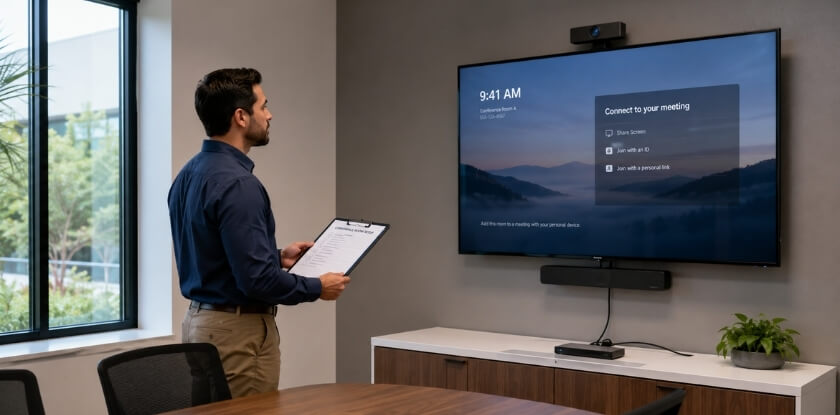
Smart display features such as built-in apps (Zoom, Teams, Google Meet), screen mirroring, and wireless casting help when people connect without cables. In a hybrid workplace, a display that lets someone walk in and start a call quickly beats one that needs a laptop, an HDMI cable, and a source switch every time.
Interactive displays and smart whiteboards add touch, digital annotation, and often built-in whiteboard apps. They are worth the premium if your team brainstorms visually, runs workshops, or works on diagrams. In a room used almost only for presentations and video calls, the interactivity goes unused.
For hybrid use, a display with native conferencing software, a camera mount, and auto-framing support removes much of the manual coordination that makes hybrid meetings awkward.
Before buying, check whether some smart features need a subscription or a separate compute device. Confirm that what is in the box covers your workflow, and count any ongoing software costs when comparing models.
The Role of Conference Room TVs in a Hybrid Workplace Setup
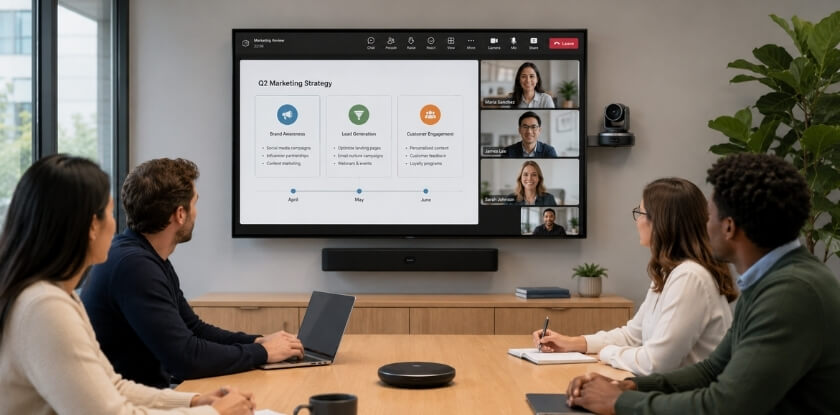
In a hybrid room the TV has to serve two audiences at once: the people in the room and the people dialing in. A screen that was fine for internal presentations a few years ago may now have to handle video calls, shared remote desktops, and whiteboard sessions in the same meeting.
What a Hybrid Setup Demands From Your Display
The display must be large enough for in-room participants to see remote faces and shared content clearly, and it must sit where the camera captures the room accurately. A few factors matter more here than in a traditional setup.
- Screen size helps in-room viewers see remote faces. A 55-inch TV in a medium-sized room can leave remote colleagues looking small and hard to read from the far end of the table. Sizing up to a 75-inch TV gives them more presence for everyone in the room.
- Treat the display and camera as a pair. If the TV is mounted too high, the camera angle gets awkward and eye contact between remote and in-room participants feels off. Place the camera directly above or below the screen, centered, so people looking at the screen are also looking close to the lens. Good placement pays off again when you record a video conference, because the recording is only as good as the live picture.
- Audio matters as much as picture size. If remote participants hear the room only through the TV’s built-in speakers, voice clarity suffers. A dedicated speakerphone or ceiling mic array solves it, and it should have its own line in the budget.
- Two screens are often the cleanest layout. Dedicate one screen to the video feed and one to shared content, so the presenter does not keep switching inputs or squeezing both into split windows.
Smart Display Features and Interactive Options
A standard TV can handle video calls when paired with the right conferencing hardware, but rooms used heavily for hybrid collaboration often benefit from smarter options.
A smart display with built-in conferencing software (some run Google Meet or Microsoft Teams natively) cuts the number of devices to manage. An interactive display or smart whiteboard goes further and lets in-room and remote participants annotate together in real time. They are not needed in every room, but for teams that hold working sessions instead of only presentations, interactivity changes how useful the room is.
Dense spreadsheets, detailed diagrams, and small text from a shared remote desktop are common in hybrid sessions. A 4K display at the right size keeps that content readable. At 55 inches the difference between 1080p and 4K is subtle, and at 75 inches or above it is easier to see, especially from closer seats.
Budget Considerations for Hybrid Rooms
A budget conference room TV can handle basic video calls, but it usually needs more support gear to fill the gaps. A separate conferencing camera, dedicated microphones, and an external audio system add to the total spend, and a better-specified display might include some of it.
A mid-range or commercial-grade display with smart features often costs more up front but simplifies the whole conference room AV setup. For rooms running several hybrid meetings a day, that simplicity has real operational value. For a room used once or twice a week for lighter calls, a budget panel with a good external camera and speakerphone does the job without overspending.
Choosing the Best Conference Room TV for Your Budget
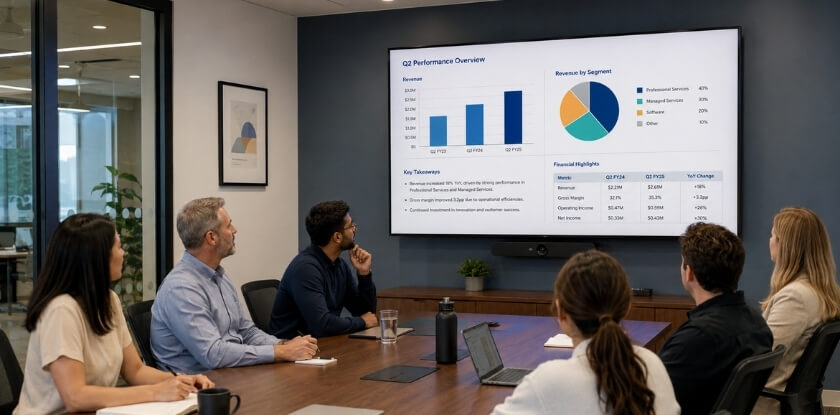
Spend first on the right size, then on resolution and connectivity, and only then on extras. Budget shapes every decision in a conference room AV setup, so it helps to know what each price tier usually buys. Prices change often and differ by region, so the table shows only how the tiers compare. Check current listings before you decide.
| Tier | Price Position | What You Usually Get |
| Budget consumer TV | Lowest of the three tiers | Often a 55-inch, 1080p, basic speakers, limited smart features |
| Mid-range display | Between consumer and commercial | 65 or 75 inches, often 4K, better speakers, some smart features |
| Commercial or interactive display | Highest of the three tiers | Higher brightness, longer rated hours, touch on interactive models |
Budget Conference Room TVs
These are typically 55-inch TVs from consumer brands, the kind you find at a big-box retailer. For a small room with four to six seats, a budget screen can work fine. You will usually get 1080p, basic built-in speakers with mediocre audio, and limited smart features.
The tradeoff is longevity. Consumer TVs may not be rated for the same daily hours as commercial displays. NearHub’s guide (August 2026) says consumer TVs are rated for roughly 6 to 8 hours of daily use, while conference room screens often run 8 to 10 hours or more. If the screen runs that long, check the manufacturer’s rated hours, because a consumer set may need replacing sooner than a commercial panel built for continuous use.
Mid-Range Displays
Many conference rooms land here. A 65 or 75-inch TV in this tier typically offers 4K, better built-in speakers, and some smart features, such as a casting platform or a USB input for a media player.
- Build quality improves. Panels are thinner, stands are sturdier, and some displays here carry commercial-grade warranties that cover heavier daily use.
- Audio is still a limit. Speakers on a flat-panel TV rarely fill a medium-to-large room well, so budget a little extra for a soundbar or room speaker if clear audio matters.
Commercial Displays and Interactive Displays
At this level you move from consumer TVs to dedicated commercial panels, interactive displays, and smart whiteboards. They are built for conference rooms, with higher brightness for rooms with lots of ambient light, longer rated operating hours, and touchscreen functionality if you need it.
An interactive display or smart whiteboard in this tier costs noticeably more than a consumer TV of the same size, and prices vary by brand and features. They are worth considering if your team does a lot of in-room collaboration, annotation, or hybrid meetings where remote participants need to see whiteboard content clearly.
A dual display setup is also feasible at this level. Two 55-inch commercial panels can cost less than one large interactive display, depending on the models, and they give flexible screen space for video conferencing and content sharing at the same time.
What to Prioritize Regardless of Budget
A few factors apply at every price point.
- Diagonal size relative to seating distance. A properly sized 55-inch TV will serve a small room better than a premium 75-inch crammed into a space where nobody sits far enough back to watch it comfortably.
- Resolution against room size. In rooms under about 15 feet, 1080p at normal viewing distances is adequate. Do not pay a premium for 4K if your seating does not benefit from it.
- Connectivity. HDMI 2.0 or 2.1 ports, USB-C, and wireless casting matter more in practice than most spec-sheet features. Check that the display works with the video conferencing hardware or laptops your team already uses.
- Mounting. A proper wall mount at the right height adds to the cost, and the price depends on the bracket and the wall.
A conference room AV setup does not have to be expensive to be effective. A sound size calculation, the right resolution for the room, and reliable connectivity will beat a big-budget install with the wrong screen size.
TV Mounting Height: How High Above the Floor Should It Be?
Put the center of the screen near seated eye level, which is about 42 to 48 inches from the floor for an adult in a standard chair. AVIXA’s DISCAS calculator suggests 1,200 mm (48 inches) for seated viewers when a project has no defined eye level, and Avocor’s conference room TV guide places the center at roughly 40 to 50 inches. Getting the size right is only half the job, since a wrong mounting height makes people strain their necks or lose sight lines behind seated colleagues.
The Standard Starting Point
A 55-inch TV is about 27 inches tall. Centered at 44 to 46 inches, it puts the middle of the screen right at seated eye height, with the top edge near 58 to 60 inches and the bottom edge near 31 to 32 inches from the floor.
This is lower than most people instinctively mount a TV. The “home theater on a high wall” look does not work in a meeting room, because participants sit upright at a table instead of reclining on a sofa, and the screen needs to meet their eyes.
Adjust for Room Type and Seating Arrangement
The seated eye-level rule works best for small rooms with one or two rows close to the screen. Larger rooms or tiered seating may call for a somewhat higher mount so rear-seated participants can see over those in front.
- Small rooms (up to 10 feet deep). Keep the center near seated eye level. Everyone is close, so a low, direct position reduces neck tilt.
- Medium rooms (10 to 20 feet deep). Raising the center a few inches is reasonable, since people at the back need a slightly higher view over the table and seated colleagues.
- Large rooms and boardrooms (20+ feet deep). With rows of seating, installers often mount the center higher. At this scale, a dual display or multiple screen setup placed at different points along the room often works better than one very high screen.
Do Not Ignore the Top Edge
After you choose a height, note where the top edge lands. As a rough rule of thumb, if the top of the display sits more than about 15 degrees above the eye line of someone in the front row, it is too high. Looking up for a long meeting tires the neck.
A 75-inch TV is about 37 inches tall. Centered at 50 inches from the floor, the top sits at roughly 68 inches, which is manageable in most rooms. Push the center to 60 inches and the top reaches about 78 inches, which forces a noticeable upward tilt for anyone near the front.
Tilt Mounts and Their Role
A tilting wall mount angles the screen slightly downward, which helps when the room forces the TV higher than ideal. This is common in rooms with low ceilings, or where the TV shares wall space with a whiteboard or smart whiteboard below it.
A small downward tilt, in the range of 5 to 10 degrees, is usually enough to make up for a mount a few inches too high. Image quality on some panels drops when viewed from a steep angle, depending on the panel’s viewing angle rating, so check the specs before relying on a big tilt as a fix.
Glare and Wall Strength
Check where windows and bright lights fall before fixing the height, because glare on the panel hurts readability more than a few inches of height does. Avocor’s guide also advises avoiding glare from windows and bright lights. Before hanging a large panel, confirm that the wall can carry it and that the mount is rated for the display’s weight, since some walls need reinforcing.
A Note on Dual Displays and Side-by-Side Setups
If you run a dual display setup with two screens side by side on one wall, both should share the same center height. Mismatched heights look unprofessional and make people shift their gaze up and down between screens instead of across. Align the horizontal center of both screens, not the top or bottom edges.
With displays on more than one wall, assess each screen by where participants sit relative to it. A side-wall screen for overflow viewing may sit at a slightly different height than the main display at the head of the room, and that is fine as long as it is comfortable for its own audience.
From our experience at MS International: Our events are held in person in the Greater Toronto Area, and our pages do not state the screen size or setup of any venue room, so we cannot promise what a given room has. What our speaker guidance does say is to bring your slides in the requested format, keep a backup on a USB drive, and test your slides, fonts, and videos before your session whenever technical support is available.
FAQ: Conference Room TV Size
Sizing a conference room screen comes down to room size and seating, 1080p versus 4K, whether extra speakers are needed and when two screens beat one.
Which screen size suits most meeting rooms?
It depends on the farthest seat. A small huddle room seating 4 to 6 people works well with a 55-inch TV. Rooms that seat 10 to 16 people generally need a 75-inch screen or larger.
How do I calculate the right screen size for my room?
Divide the distance to the farthest seat by 3 for general slides and video calls, or by 2 for detailed content such as spreadsheets. A farthest seat 120 inches (10 feet) away points to roughly 40 to 60 inches.
Can one 55-inch screen cover a small meeting room?
Yes, for rooms with a farthest seat up to about 9 to 10 feet away and no more than 6 seats. Beyond that, text on shared presentations gets hard to read from the back row.
What size TV do I need for a 12-person conference room?
A 75-inch TV suits a 12-person room when the farthest seat is up to about 19 feet away for general slides, or about 12 feet for detailed content. For a longer table, step up to 85 inches or add a second screen.
Should I choose 1080p or 4K for a conference room?
Choose 4K for screens of 65 inches and larger or for detailed content such as spreadsheets. On a 55-inch screen or smaller in a short room, 1080p is adequate.
How high should a conference room TV be mounted?
Aim the screen center at about 42 to 48 inches off the floor, near seated eye level. AVIXA’s calculator suggests 48 inches for seated viewers when no eye level is defined. In deeper rooms, raise it a few inches so the back rows see over the heads in front.
Do conference room TVs need extra speakers?
Not in small rooms, where built-in speakers are usually fine. A room longer than about 15 feet, or one used for hybrid calls, usually gets noticeably clearer sound from a dedicated speakerphone, soundbar, or ceiling speakers.
When should I use a dual display setup?
Use two screens when one should show a video call and the other a presentation or whiteboard at the same time. It also helps in long rooms where one screen cannot serve the far seats.
What is the difference between a smart display and an interactive display?
A smart display handles apps, screen mirroring, and video conferencing software. An interactive display adds touch input, which turns it into a smart whiteboard for brainstorming sessions.
Can I use a regular consumer TV in a conference room?
Yes, many rooms use one as a budget choice. Check the inputs (HDMI, USB-C), support for your call platform, and the daily hours the maker rates it for, since consumer sets are rated for roughly 6 to 8 hours.
How many screens do I need for a large conference room?
One large display (85 to 98 inches) or two 75-inch screens can cover a large room. Setups with three or more panels tend to be reserved for broadcast studios, trading floors, or custom AV installations.
Final Thoughts
Match the screen to the distance of the farthest seat, divide that distance by 3 or by 2 depending on how much detail people read, and round to the nearest size you can buy. A 55-inch TV suits compact rooms, a 75-inch or larger screen suits deeper seating, and a dual display setup makes sense when no single screen can serve the whole group. Resolution, mounting height, audio, and smart features then fall into place around that choice.